Finding your way around
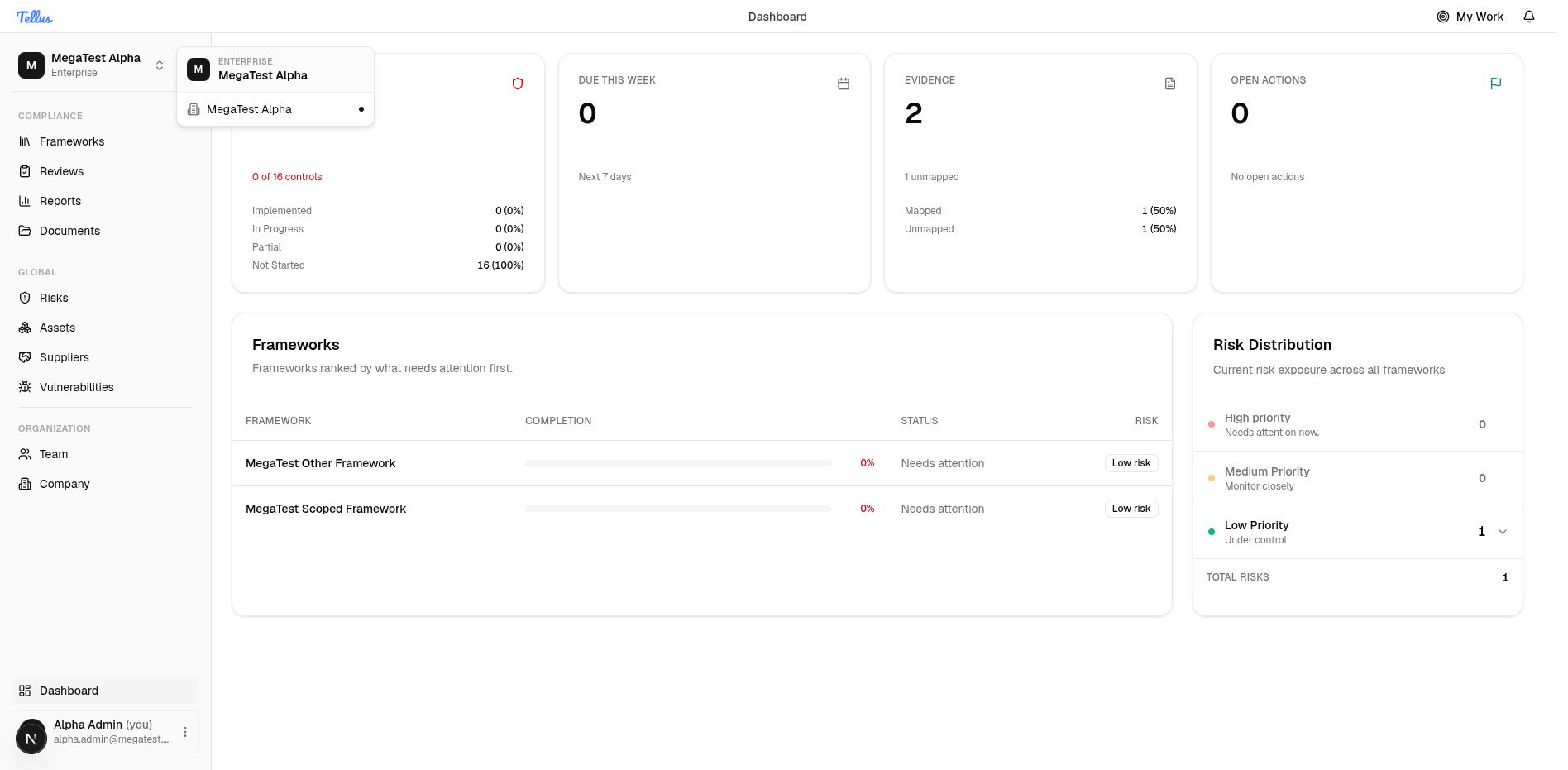
The Tellus sidebar groups, the account menu, the notifications bell, collapsing the sidebar, and switching between companies.
Everything in Tellus hangs off the left sidebar, with the notifications bell and account tools around the edges. This page explains what each part does and, importantly, why some entries appear for you but not for a colleague.
The sidebar groups
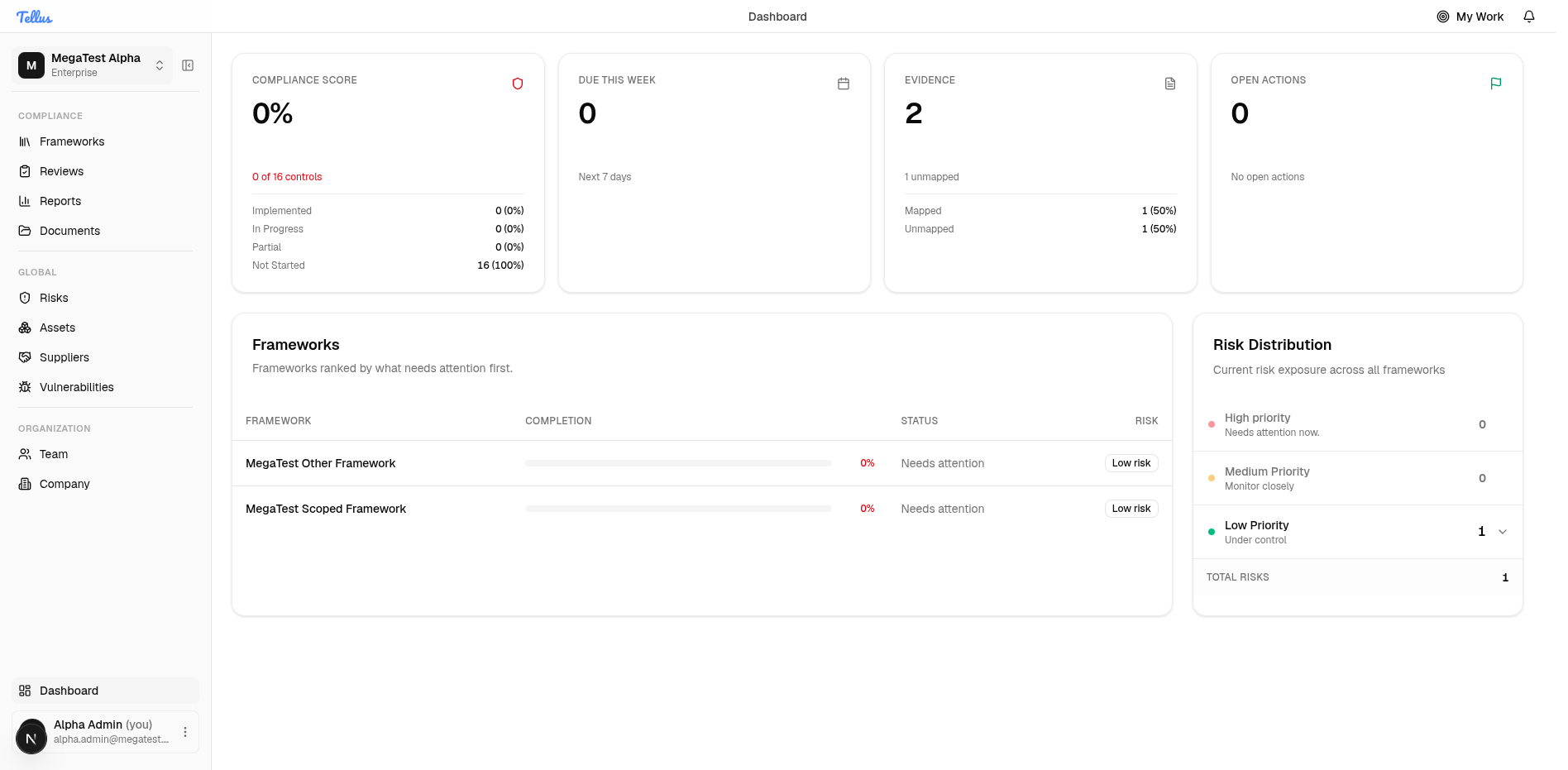
The sidebar organises navigation into three labelled groups, with Dashboard pinned at the bottom:
| Group | Items |
|---|---|
| Compliance | Frameworks, Reviews, Reports, Documents |
| Global | Risks, Assets, Suppliers, Vulnerabilities |
| Organization | Team and Company |
Click any item to open that area. Frameworks, Reviews, and Documents are always shown — Documents in particular are readable by any company member, so it needs no special access check.
Why you may not see every entry
Sidebar entries are hidden for two unrelated reasons, and it helps to know which is which when something is missing:
- Permission-gated entries — Assets, Suppliers, Vulnerabilities, Team, and Company appear only if your company-level permissions include the relevant grant (for example, Assets needs asset read access, Team needs user read access). If one of these is missing, it is a permissions matter — ask an administrator.
- Access-gated entries — Risks, Incidents, and Reports are not decided by your company-level permissions, because access to them can be held at a finer scope: a framework-scoped grant, being a risk's owner, or being an incident's reporter or assignee. Instead, Tellus checks whether you can actually see at least one such item and shows the entry only then.
Because of rule 2, a company administrator or owner sees Risks and Incidents even with zero data, while someone with only a framework-scoped or owner-level grant sees them only once they actually have a visible item. Think of these three entries as appearing "when you have access to at least one", not "when one exists". If a Risks or Incidents entry is missing, it is about what you can see — not a permission you can simply be granted at the company level.
If the visibility check ever fails to load, Tellus errs toward showing all three entries rather than hiding them; the pages themselves still enforce access on every action, so you cannot reach data you should not see.
Collapse the sidebar to focus
To free up screen space, you can shrink the sidebar to an icon-only rail.
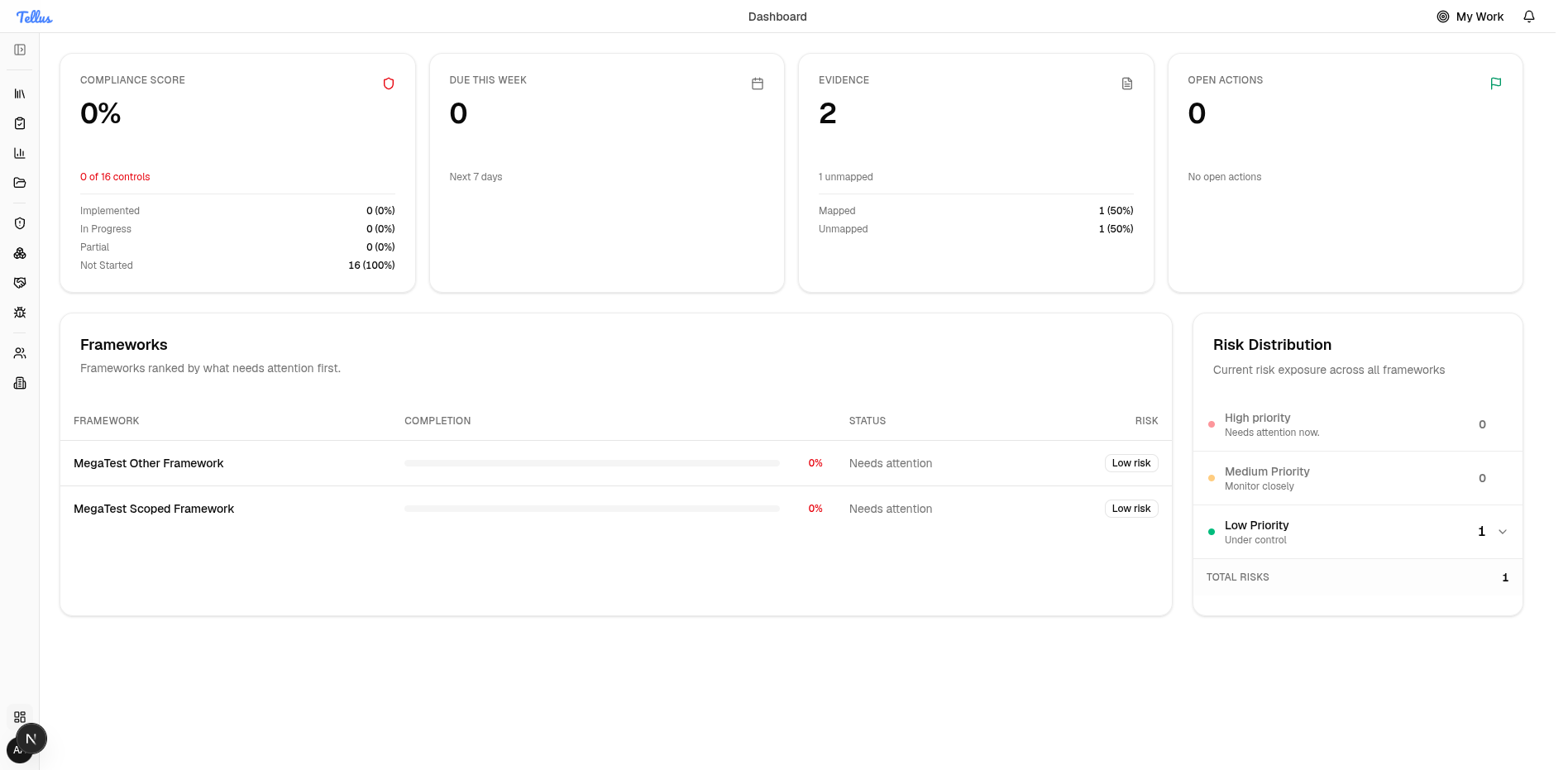
- Find the collapse toggle at the top of the sidebar, next to the company name.
- Click it. The menu shrinks to a narrow strip of icons.
- Hover any icon to confirm where it leads. Click the same toggle again to bring back the full labelled sidebar.
This is purely a personal view preference and does not change your access to anything.
The account menu
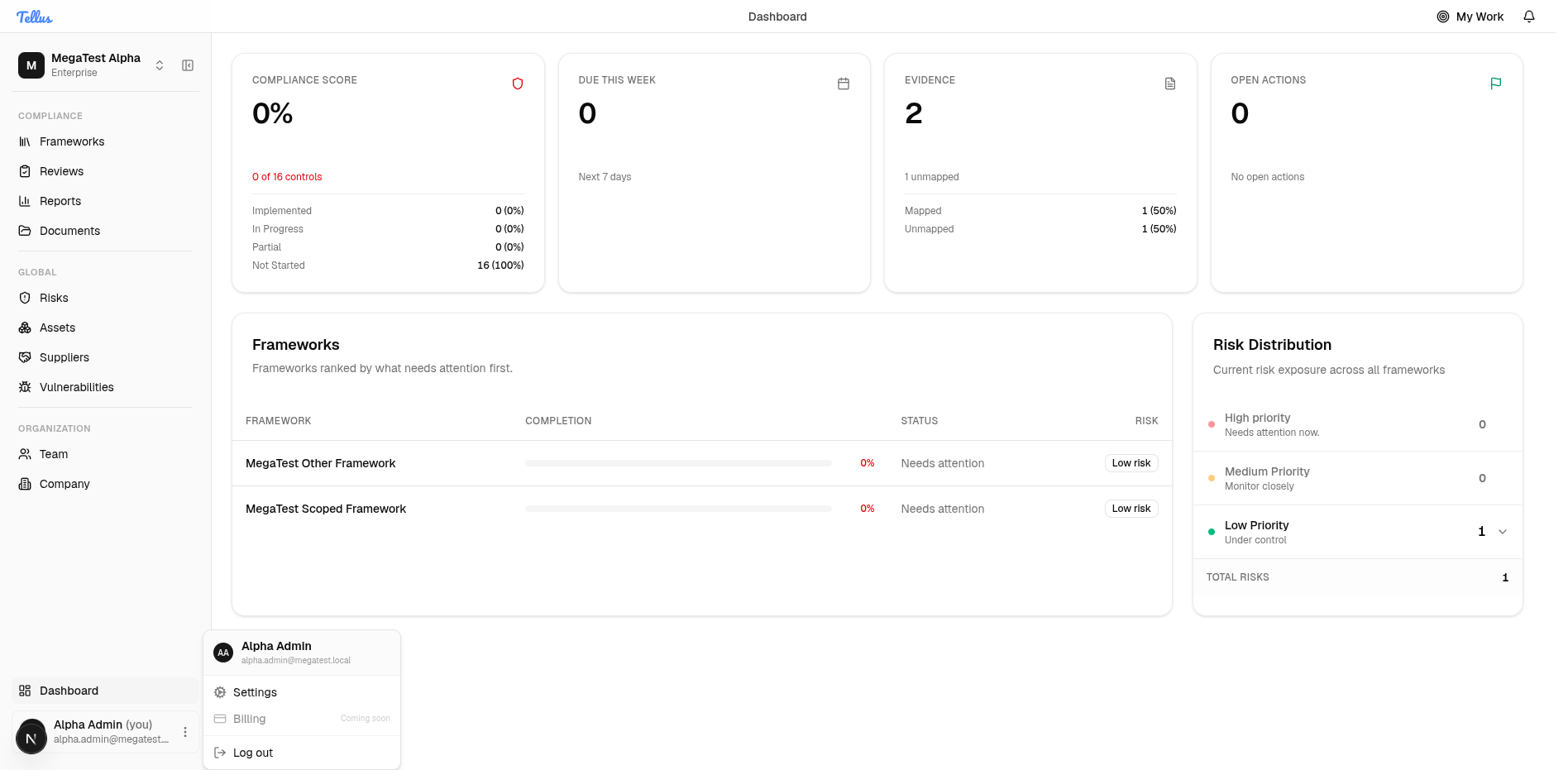
Your account menu lives at the bottom-left of the sidebar.
- Click your name and avatar in the bottom-left corner. The menu opens with your name and email at the top.
- Choose Settings to manage your personal preferences.
- When you are finished, choose Log out to end your session.
Billing is shown as a disabled Coming soon item and is not yet available.
Notifications
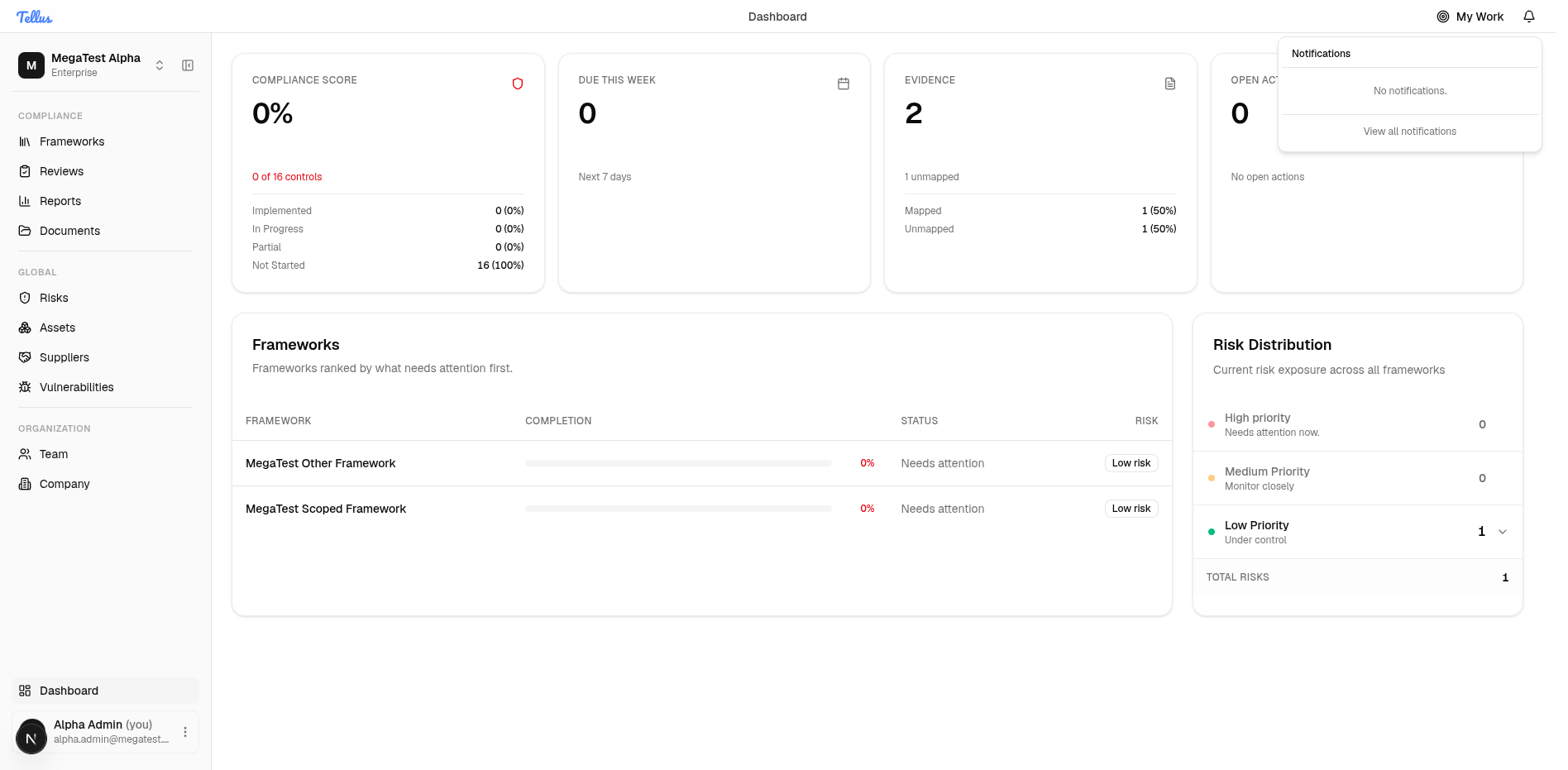
The notifications bell sits in the top-right of the header.
- Click the bell to open the notifications popover.
- Recent activity and alerts that need your attention appear here. With nothing pending, the popover reads No notifications.
- Click View all notifications to open the full history.
Switching company
Every session operates within one active company at a time, and all your data is scoped to it. The company you are in is shown at the top of the sidebar.
- Click the company name and its plan badge at the very top of the sidebar.
- The switcher opens, listing the companies your account can access. Your current company is marked.
- If you belong to more than one company, click another to switch to it. Tellus reloads into that company's workspace, and everything you then view and edit applies only to the selected company.
If you belong to a single company, it is the only entry shown. To be added to an additional company, an administrator there invites your email address — see Signing in for how joining works.
Your dashboard
Reading the Tellus dashboard: the four summary cards, the framework progress list, and the risk distribution panel — with the exact formulas behind each figure.
Overview
Frameworks group requirements into sections, and sections hold the controls you implement and prove. This is your home base for compliance work in Tellus.