Overview
Frameworks group requirements into sections, and sections hold the controls you implement and prove. This is your home base for compliance work in Tellus.
Frameworks & Controls is where you track your compliance work. A framework (for example ISO 27001) groups requirements into sections, and each section holds the individual controls you implement, assess, and evidence. The day-to-day loop lives here: open a framework, drill into a control, assign an owner, run an assessment to set its status, and attach the evidence that proves it.
The frameworks list
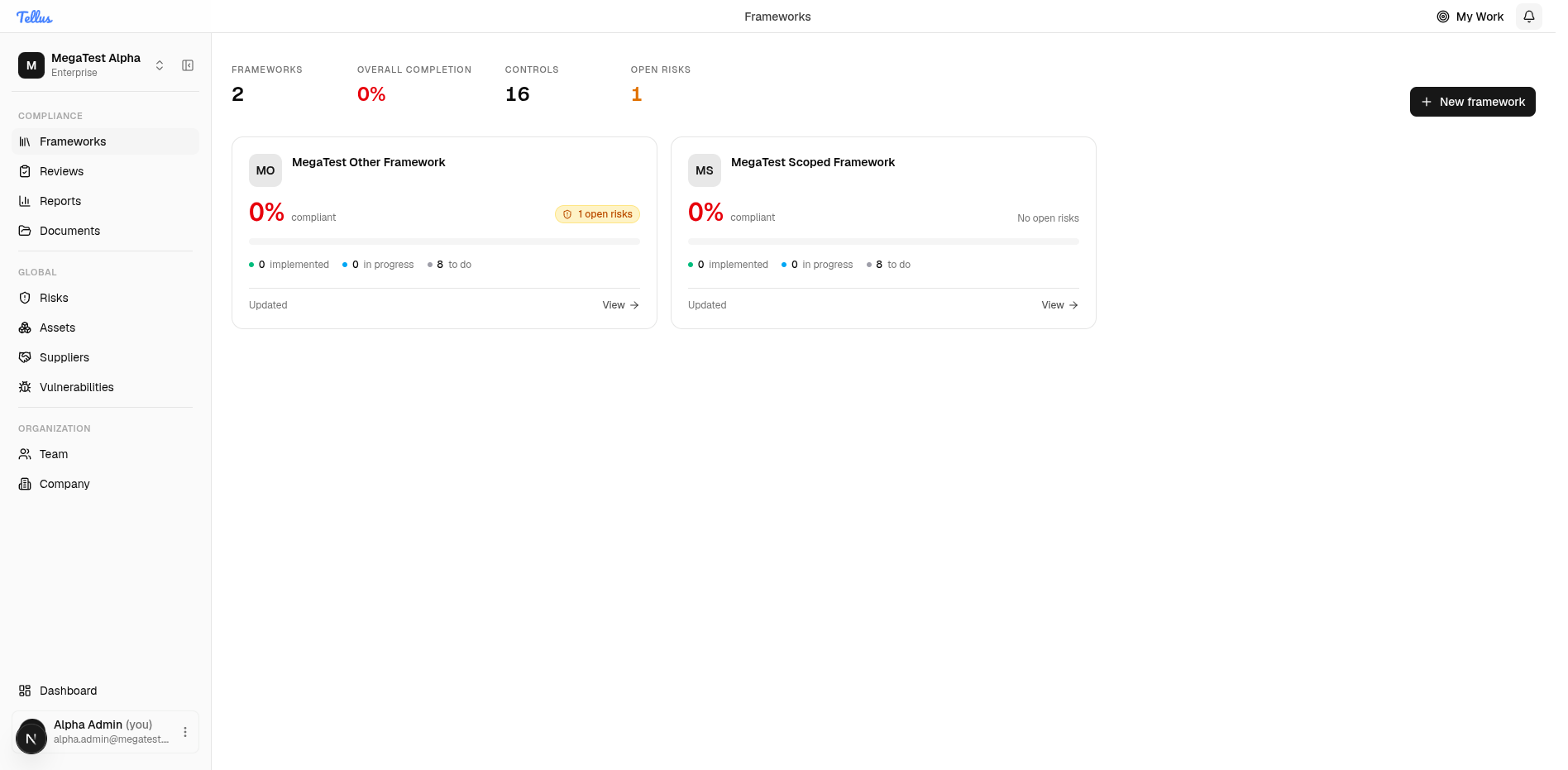
In the left sidebar, under Compliance, click Frameworks. You land on a portfolio of every framework your company tracks.
- A summary strip across the top totals your frameworks, overall completion, total controls, and open risks.
- Each framework is a card showing its completion percentage, open-risk count, and a bar of implemented / in-progress / to-do controls.
- New framework (top right) adds another framework.
What you'll see as a member
The screenshots show a company admin, who sees every framework. You only see the frameworks you've been given access to — if your access is scoped to specific frameworks, the list shows just those and the count will be smaller. The New framework button and each card's Actions menu only appear if you can manage frameworks (an admin, or a framework editor/admin role); otherwise the list is browsable but read-only.
Inside a framework
Click a framework card to open its detail page. The left section navigator lists the sections (for example A.5 Organizational Controls through A.8). The main area shows the framework header (with Edit and Actions), a Progress panel (completion, implemented, in progress, open risks), and a sortable Sections table where each row reports how many controls it holds and how far along they are.
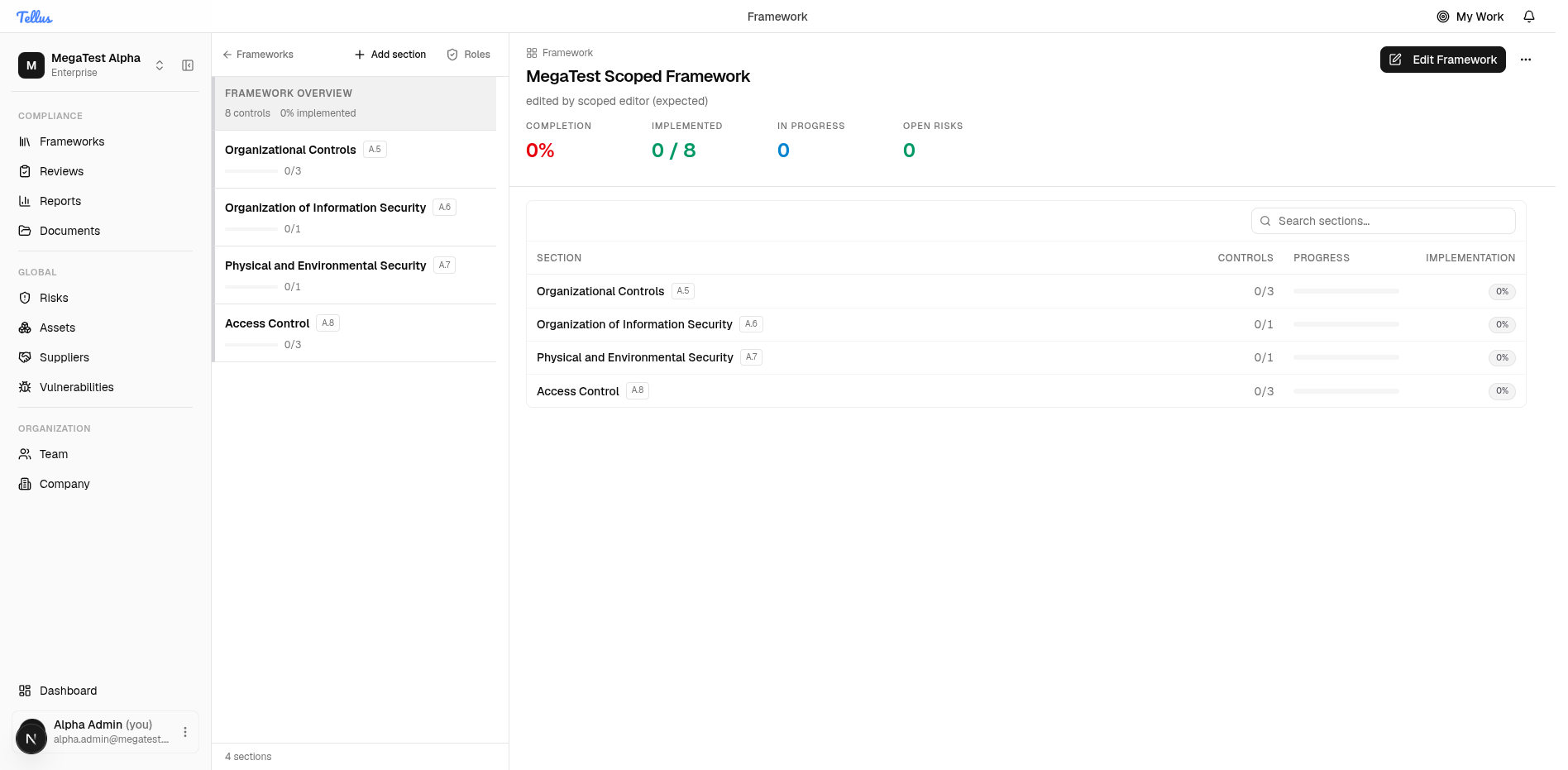
Member view: the sections, controls, and evidence are fully browsable, but the management controls in this screenshot — Add section, the Roles link, Edit Framework, and the Actions menu — only appear if you can manage this framework (an admin, or a framework editor/admin role on it). For most users the page is read-only.
Open a section to reveal its control list. Each control row shows its status (such as Not Started) and priority (such as Critical). Filter the list with the Search controls… box or the Status filter. Until you pick a control, the right pane shows a Select a control prompt.
Controls
A control is a company-specific row carrying its own status, implementation score, maturity, priority, owner, review schedule, and evidence requirements. It is either copied from a framework template or created by your company (a custom control).
A freshly created control starts at status Not Started, score 0/100, no maturity, and priority Medium. None of those move on their own — see Assessments & control status for how status, score, and maturity actually change.
Control codes
A control's displayed code is its section prefix plus an optional per-control suffix — section A.5 with suffix 12a renders as A.5.12a. When no suffix is set, the control falls back to its 1-based position within the section (so the fourth control in A.5 shows as A.5.4).
Add a control
- Open the section you want, then click Add on the section.
- In the Add control dialog give it a title, an optional description, and any implementation requirements (what the control must do).
- Click Create control. The new control opens automatically at score 0/100, status Not Started, with the Details / Assessment / Evidence / Risks / Roles tabs and the Start assessment / Upload evidence / Create risk actions.
Where to go next
The control workspace
A control's header facts, the tab row, and editing the owner and details inline.
Assessments & control status
Run an assessment and accept it to set a control's status, score, and maturity.
Evidence & requirements
Define evidence requirements, upload files, map them, and read the completion bar.
Control roles
Assign per-control roles and understand exactly what each one grants.