Team & members
The Team workspace: who belongs to the company, what each person's roles and security status are, and how to manage them.
The Team workspace is the company member directory. It lists everyone who belongs to the organization, shows each person's roles and security status, and is the place you send and track invitations from. It lives under the Organization group in the left sidebar at the route /team.
The Team entry is hidden for members who lack users:read, and the Company entry is hidden without company:read. A plain Company Member holds neither, so both org-administration entries are hidden from them and they are redirected off the dashboard to Frameworks. See Roles & permissions for why.
What you'll see as a member
The screenshots in this section are the admin view. This workspace is largely admin-only. A regular member who reaches /team directly sees a "You don't have permission to view team members or invites" message instead of the list below — so most users never see the full member directory, the Invite User button, or the Invites tab. Sending invites and changing roles also require admin: members cannot invite anyone or alter roles.
The Members list
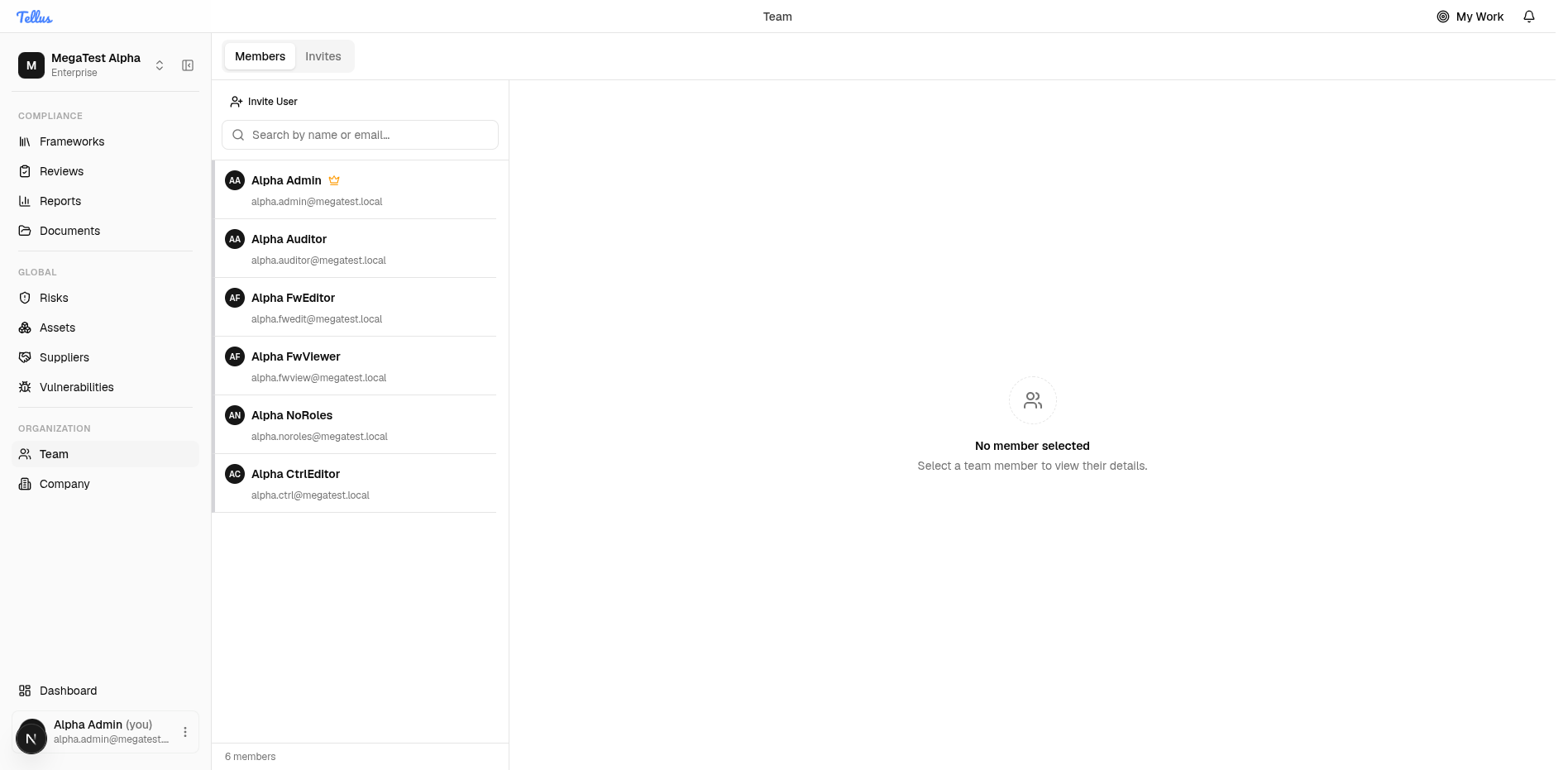
The Team page opens on the Members tab in a master–detail layout:
- The left column has an Invite User button, a Search by name or email… box, the member list, and a running member count at the bottom (for example, "6 members").
- Each member row shows avatar initials, name, and email. The company owner/admin carries a crown icon.
- The right pane shows a No member selected placeholder until you pick someone.
Type into the search box to filter the list by name or email. The count at the bottom reflects every member in the company, not the filtered subset.
A member's detail pane
Click a member to load their detail pane on the right. The URL updates with ?userId=<guid>, so a selected member is shareable and bookmarkable. The pane shows:
- A header with the member's initials, name, email, and Joined date.
- A Security section: whether MFA is enabled and whether their email is verified.
- A Role & Access section listing the member's roles as badges, such as Company Member and Framework Editor.
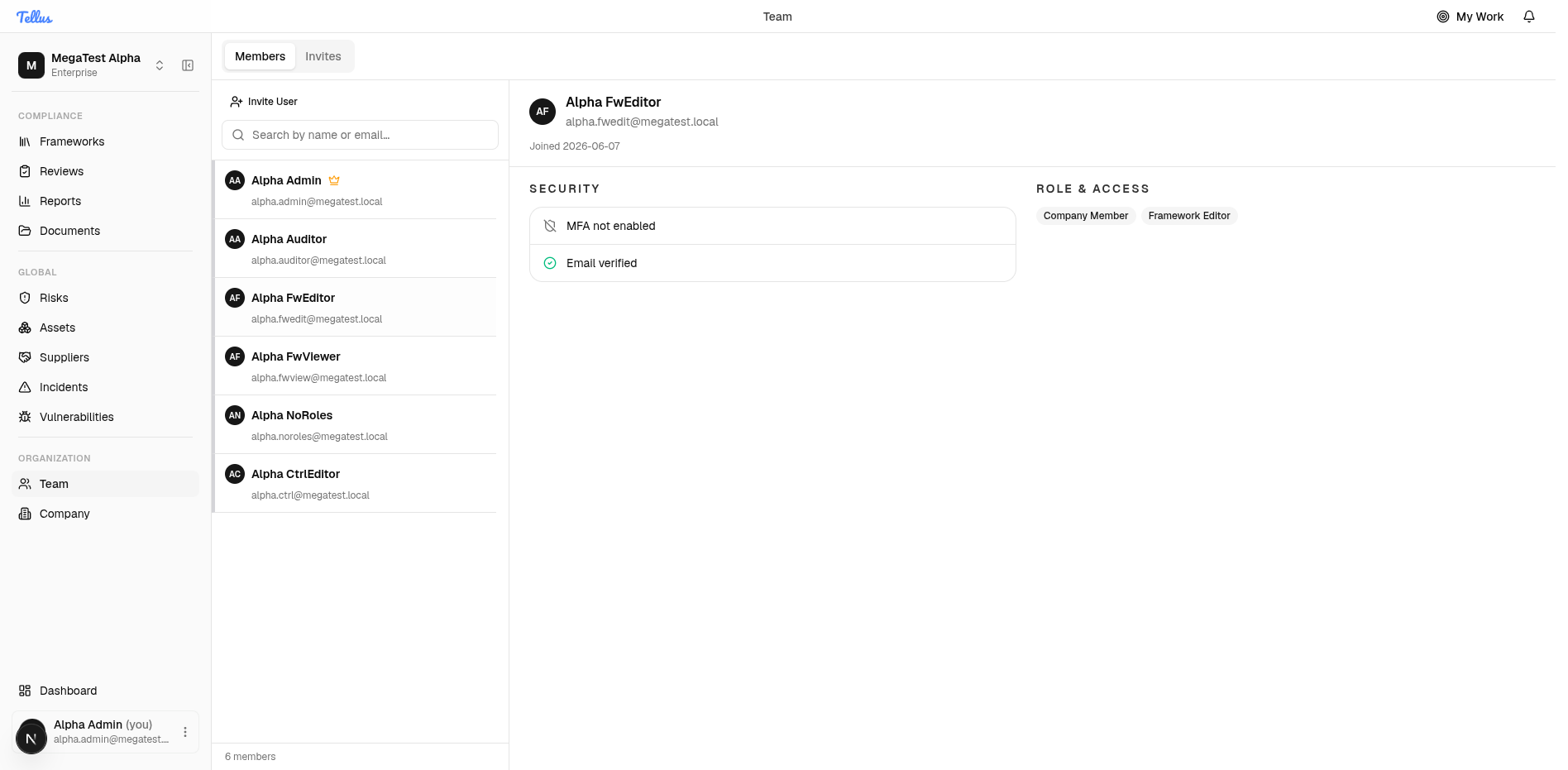
The member detail pane is read-only. It displays roles as badges but offers no control to edit them here. Company-wide roles are managed on the Company → Access tab; framework-scoped roles are managed on each framework's own Roles page. See Roles & permissions.
What you can do from Team
| Action | Where | Notes |
|---|---|---|
| Find a member | Members tab, search box | Filters by name or email. |
| Review a member's roles and security | Members tab, detail pane | Read-only; shows MFA + email-verified status and role badges. |
| Invite someone | Invite User button / Invites tab | See Inviting members. |
| Track or revoke invitations | Invites tab | Lists pending invites with status, role, frameworks, sent and expiry dates. |
| Assign a framework-scoped role | Each framework's Roles page | Not on this page — see Roles & permissions. |
In this section
Roles & permissions
The three-level role model — company, framework, control, and risk scopes — and exactly what each role grants.
Inviting members
Send, track, resend, and revoke invitations, optionally attaching framework-scoped roles at invite time.
Company settings & security
The company profile and the Security tab: MFA policy, assessment overrides, incident reporting, reporter domains, and the CVD program.
The peek popover
The At risk now quick-view that drops from the top-bar My Work button — triage your most pressing obligations without leaving the page you're on.
Roles & permissions
How Tellus access works: scoped role bindings, ownership relations, the seeded role catalog, derived grants, and who may assign what.