Signing in
How access to Tellus works: invitation-only sign-up, the login flow, and the four Tellus sites.
Tellus is your governance, risk, and compliance (GRC) workspace. This section covers your first steps: getting an account, signing in, reading the Dashboard, and finding your way around. If you already have credentials, go straight to your dashboard.
Sign in to Tellus
- Open your browser and go to https://tellus.application.alxias.se.
- If you are not already signed in, you land on the login page, showing the Tellus logo above a Welcome back panel.
- Type your work email into the Email field.
- Type your password into the Password field.
- Click Login.
If your account belongs to a single company, you go straight to your home screen after login — there is no company-selection step. If you forget your password, use the Forgot your password? link on this screen.
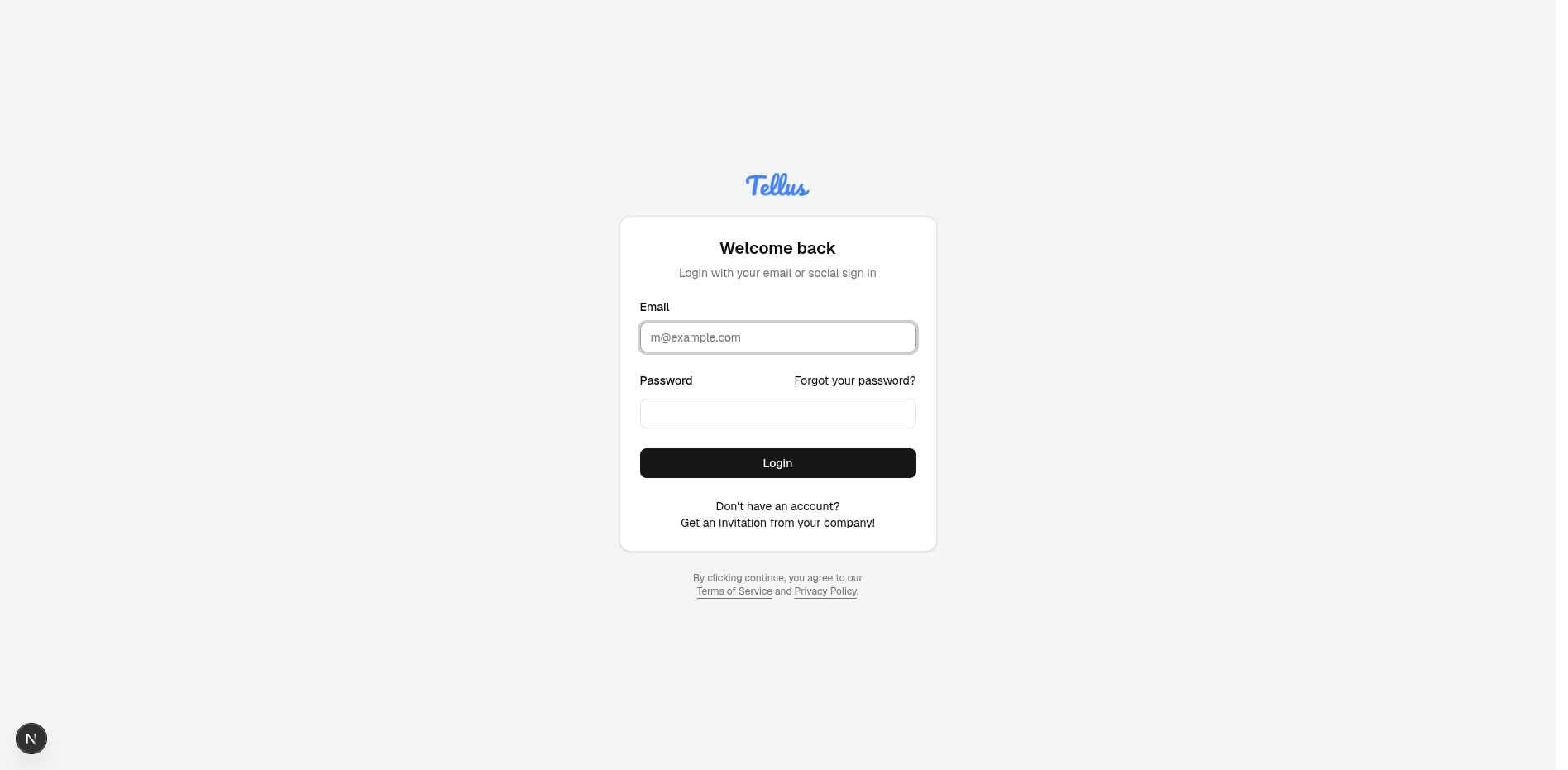
Where you land depends on your permissions. Users with company-level read access land on the Dashboard at /. Everyone else is sent to the Frameworks index, which is their effective home screen.
What you'll see as a member
The screenshots in this section are taken as a company administrator, so they show the full picture. As a regular member, scoped viewer, or read-only auditor, you will not see a Dashboard at all — without the company admin role you are redirected straight to Frameworks on login, and there is no Dashboard entry in your sidebar. Your sidebar is also shorter: typically just Frameworks, Reviews, Reports, and Documents, with the Risks, Assets, Suppliers, Incidents, Vulnerabilities, Team, and Company entries hidden until you are granted the relevant access. Lists you can open may also be scoped to just your items (or empty), and you may see them read-only with no create, edit, or delete buttons.
There is no self-registration
Tellus has no public sign-up. The login page only offers Forgot your password? and a note to get an invitation from your company — there is no "create account" link. You become a user in one of two ways:
- You accept a company invitation. An administrator invites your email address; you follow the link in the email and set a password. This is how individual colleagues join.
- A new company is provisioned. A separate onboarding wizard, driven by a registration token, stands up a brand-new company and its first owner. This is distinct from the per-person invite and is not something you trigger yourself.
Accepting an invitation
When an administrator with the right permission invites you, Tellus creates a pending invitation tied to your exact email address and sends you a link to /public/invite. What happens when you open that link depends on whether you are already signed in:
| Your state when you open the link | What you see | Result |
|---|---|---|
| Not signed in (new person) | A short registration form: first name, last name, optional nickname, and a password | An account and your company membership are created. You are sent to the login page to sign in for the first time. |
| Already signed in (existing Tellus user) | A one-click Join company prompt | Your existing account is added to the inviting company. You are returned to the home screen. The invitation email must match the email on your signed-in account. |
Invitations expire. An invite can be accepted only if it has not already been used, has not been revoked by an administrator, and has not passed its expiry — by default 7 days from when it was sent. If your link no longer works, ask the administrator to resend it; resending refreshes the 7-day window and emails you a fresh link.
The four Tellus sites
The main app is one of four Tellus sites. You use the main app for day-to-day work; the other three are external-facing portals you can point partners and researchers to.
| Site | Who it's for | Address |
|---|---|---|
| Main app | You and your colleagues | tellus.application.alxias.se |
| Supplier portal | Vendors answering your questionnaires | supplier.application.alxias.se |
| Vulnerability reporting (CVD) | Security researchers reporting issues | cvd.application.alxias.se |
| Trust portal | Anyone reviewing your security posture | trust.application.alxias.se |