Control roles
Assigning per-control roles, what Control Editor and Control Viewer each grant, the control_owner relation, and how framework access is derived.
The Roles tab on a control (People and ownership) controls who can do what on that single control. It lists every company member with their current control assignment and an Assign button per row, plus a top-level Assign role button and a people search box.
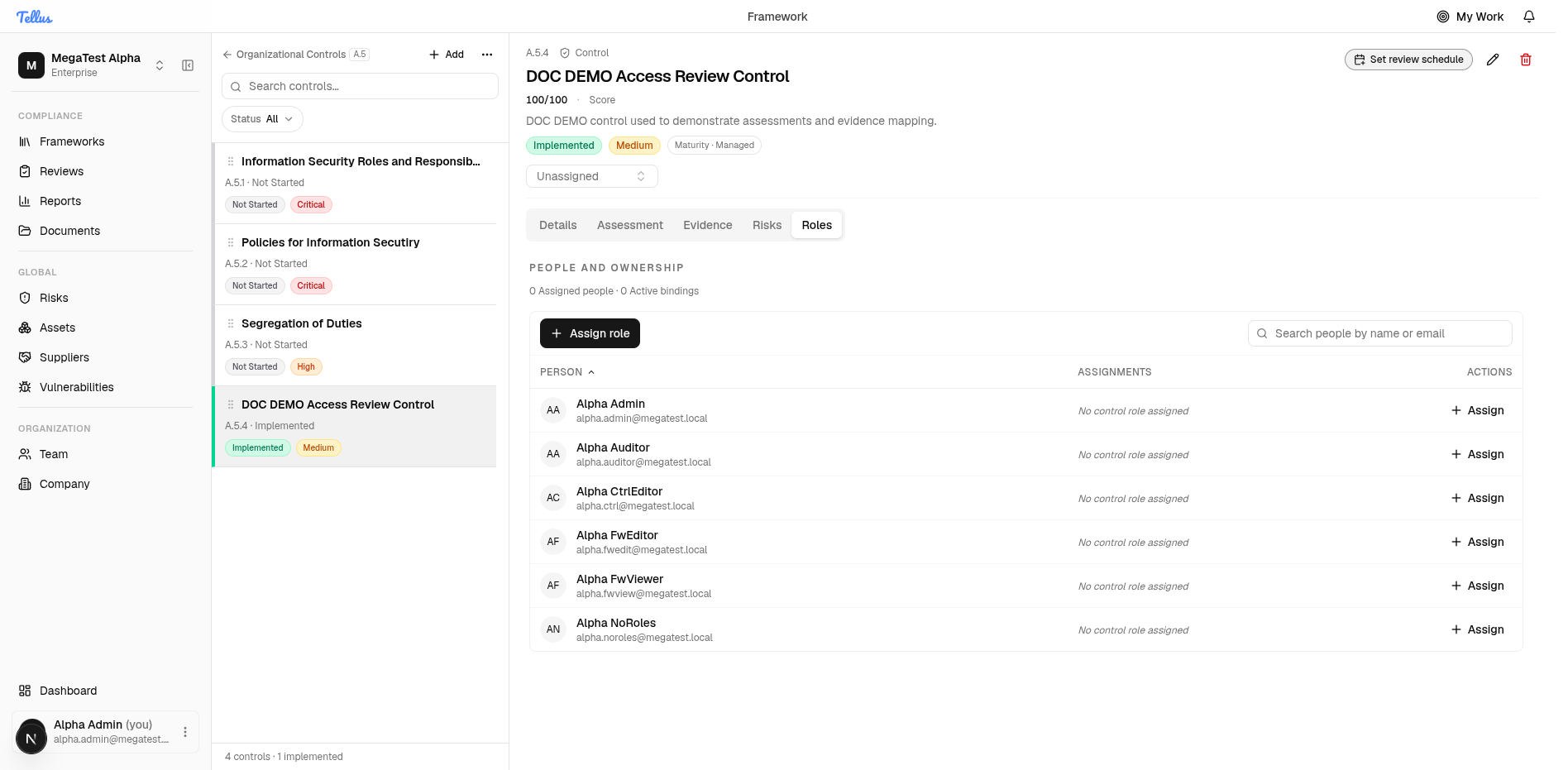
Assign a role on a control
- Open the Roles tab on the control.
- Click Assign on a person's row (or Assign role at the top). The Assign role dialog opens scoped to this control, with a Person picker, a Role picker (with an inline description of what the role allows), and an optional Expires on date — leave it empty to keep the assignment active until removed.
- Click Save assignment. The header counters update to, e.g., 1 Assigned people · 1 Active bindings and the person's row shows the role badge with a remove (×) control.
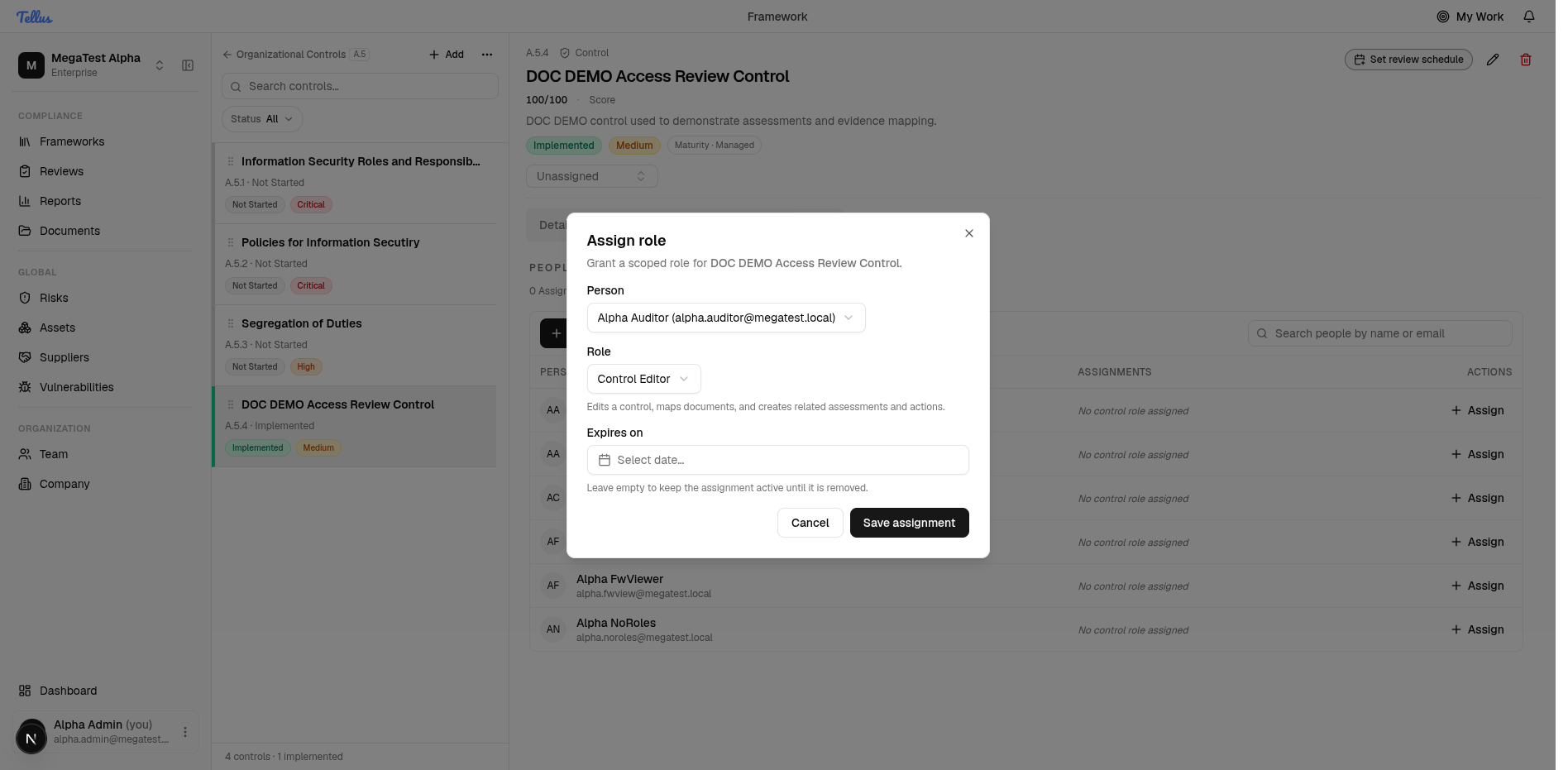
These assignments are scoped to this control only. To govern a whole framework, use framework-scoped roles instead (see below).
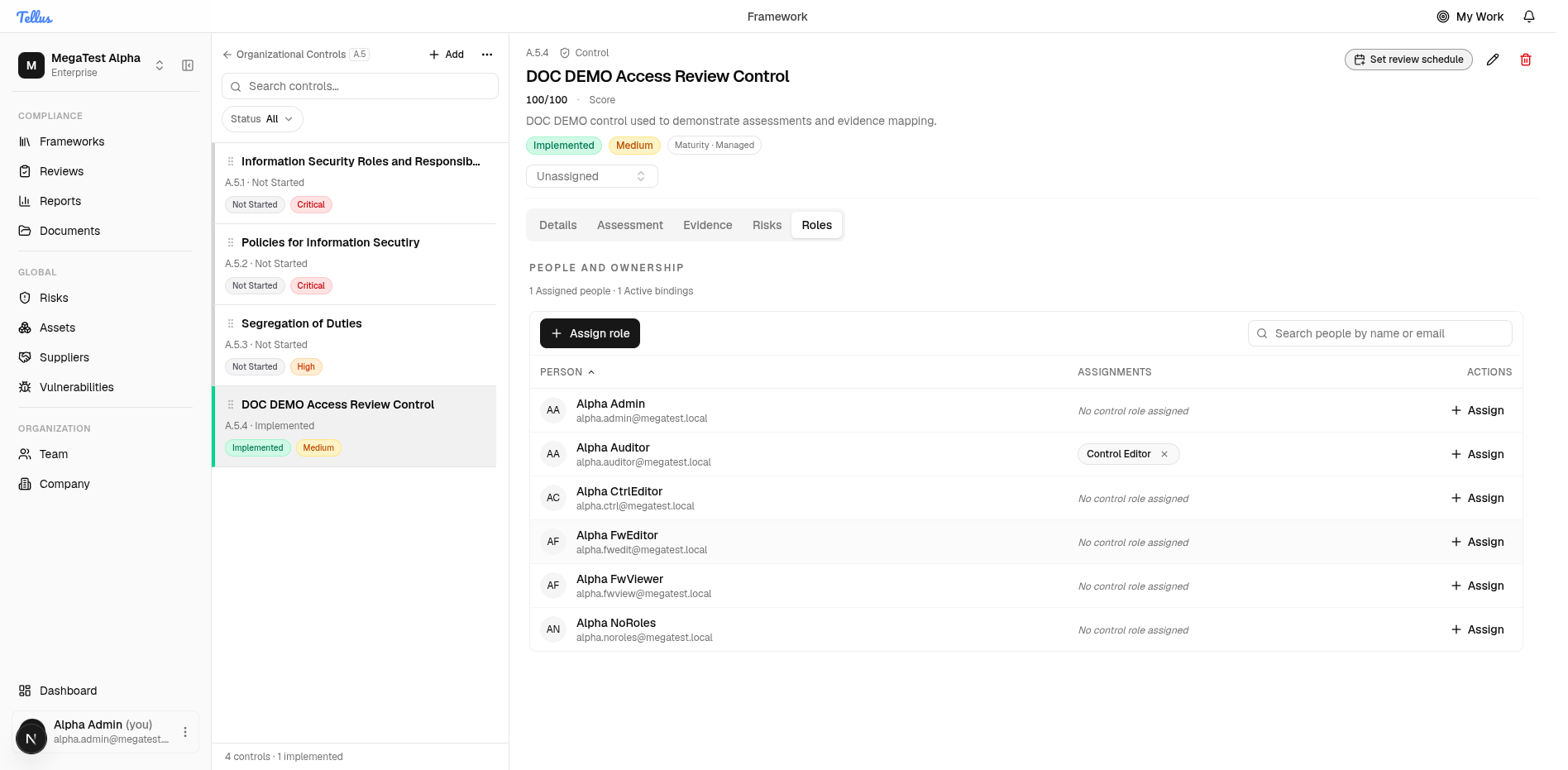
What each control role grants
There are two control-scoped roles:
| Role | Grants |
|---|---|
| Control Editor | Read and update the control; create and update evidence and evidence requirements; create and read assessments; read, create, and update risks; create and update actions. |
| Control Viewer | Read-only: read the control, evidence, assessments, and risks. |
Note that Control Editor can create an assessment but not accept it — accepting is a separate permission. The accept gate that actually moves a control's status is described in Assessments & control status.
Owner vs. Editor
Being assigned the Control Editor role is not the same as being the control's owner. The owner relation expands to a broader, wildcard bundle of permissions over the control and everything attached to it (the control itself, its risks, actions, assessments, and evidence), which includes delete — something the Control Editor role does not grant. Set the owner from the inline owner selector in the header.
Framework-scoped roles
To govern an entire framework rather than one control, use the framework-scoped roles, assigned from the framework or team/company screens (see Team & company):
- Framework Editor
- Framework Contributor
- Framework Viewer
Framework Viewer can appear automatically
Anyone who owns a control or holds any control role in a framework is automatically granted a read-only Framework Viewer binding for that framework, so they can see the surrounding framework, sibling controls, and reports. It is tagged as a derived grant (distinct from a manual one) and is reclaimed only once the person holds no control ownership and no control role anywhere in that framework. Manually granted viewer access is never touched by this. Controls that aren't placed in any section or framework derive nothing.
Evidence & requirements
Defining evidence requirements, uploading files, mapping them to requirements, and exactly how the Requirements Completion bar is calculated.
The risk register
The company-wide risk register: the table, its filters, the exposure matrix, and how impact x likelihood scoring works.