Evidence & requirements
Defining evidence requirements, uploading files, mapping them to requirements, and exactly how the Requirements Completion bar is calculated.
The Evidence tab is where you prove a control is in place. It has two sections: Evidence Requirements (the pieces of proof the control needs) and All Documents (the files uploaded to the control), plus a Requirements Completion meter at the top.
Evidence requirements are not the same as the implementation requirements you edit in the control details dialog. Implementation requirements describe what the control must do; evidence requirements describe the proof it produces.
Define an evidence requirement
- On the Evidence tab, click Add Requirement.
- Fill the dialog: a Description, an Evidence Type (for example Report), and the Required toggle.
- Click Save.
The requirement appears as, e.g., Pending · Report · Required · 0 file(s) mapped, with a Map file button, and the Requirements Completion meter shows 0 / 1 (0%).
Upload files
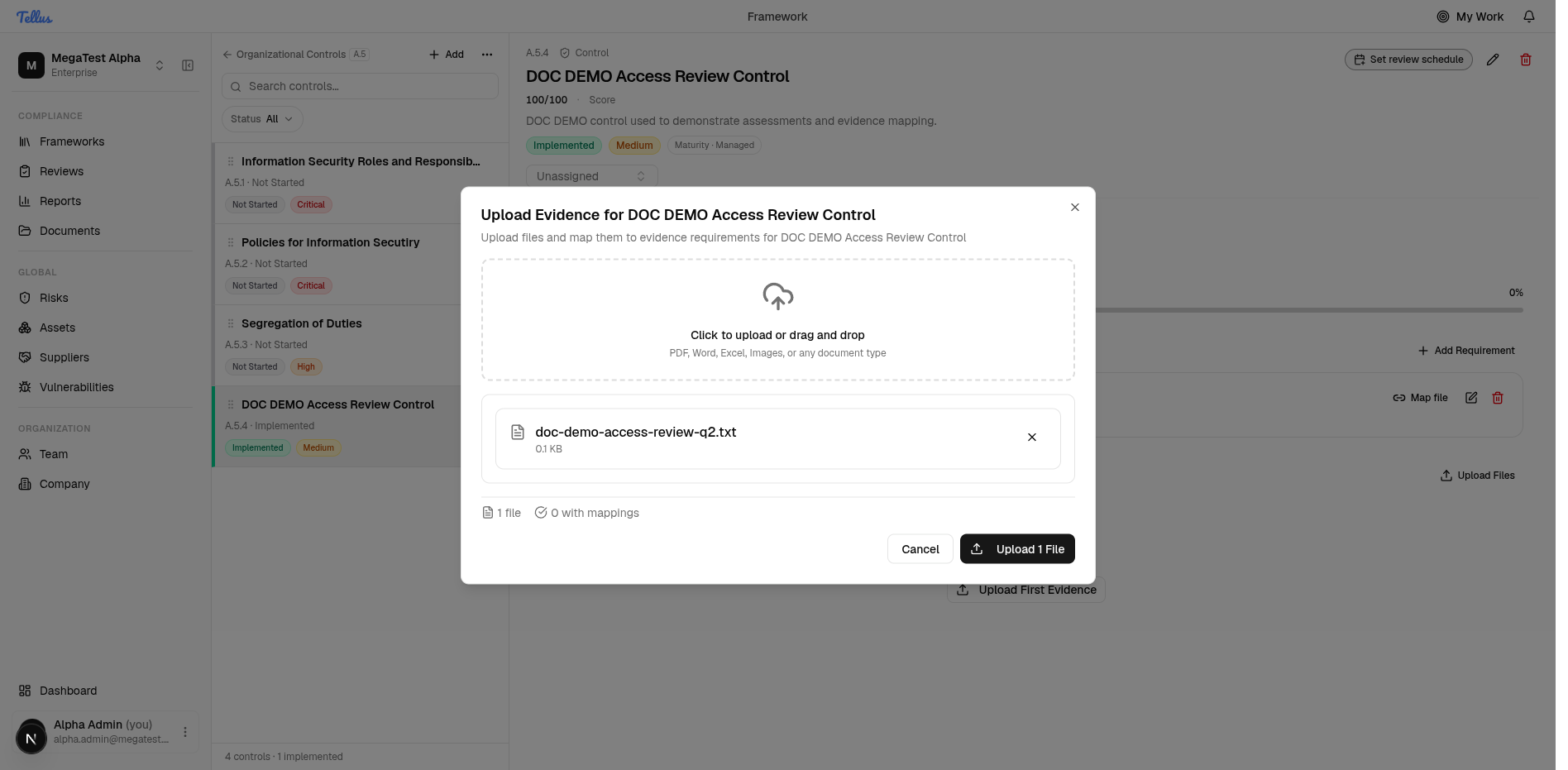
- Click Upload Files to open the Upload Evidence dialog.
- Add a file — the dialog shows the staged file name, its size, and a mappings counter.
- Click Upload 1 File. The file then appears under All Documents.
Map a file to a requirement
A file becoming part of a requirement is called a mapping — it records that the document covers that requirement.
- On the requirement, click Map file and pick the uploaded document from the dropdown of available files. (Equivalently, use Map to requirements on the document row.)
- The requirement updates to 1 file(s) mapped and nests the file beneath it with Download and Remove; the document row also notes its mappings.
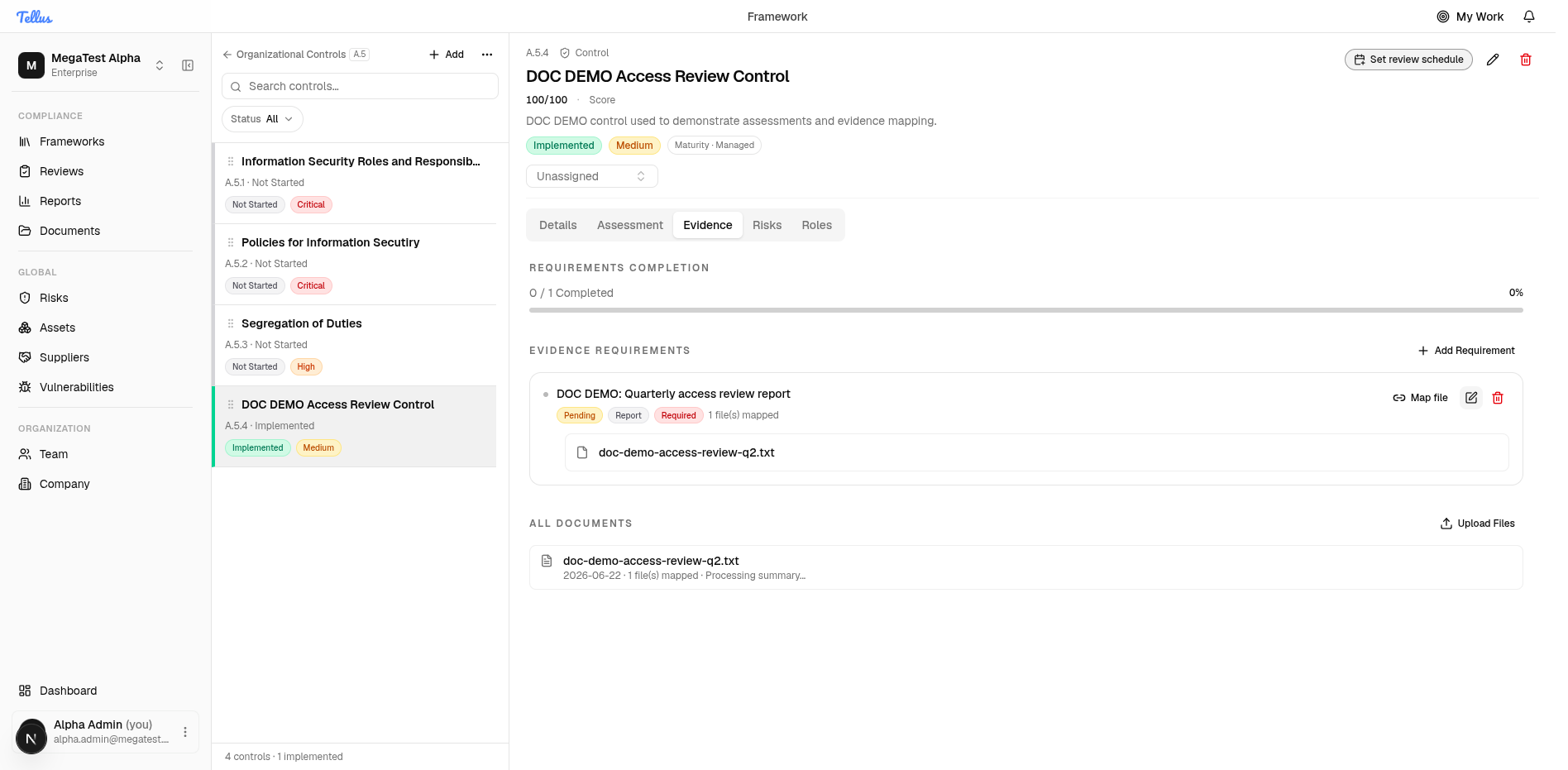
Mapping a file does not complete the requirement. After mapping, the requirement stays Pending and Requirements Completion stays 0 / 1 — completion is a separate, review-driven step, not "a file is attached." See below.
How Requirements Completion is calculated
The meter is:
Requirements Completion = (requirements marked completed) / (total requirements) × 100Key details:
- It counts all evidence requirements on the control — not only those flagged Required.
- With zero requirements the bar reads 0%.
- "Completed" is a boolean flag on each requirement (with a completion timestamp). It is not derived from whether files are mapped — it is set when an assessment is accepted that carries the relevant status mapping. Uploading and mapping files records coverage; marking the requirement complete happens through the review/assessment step.
Evidence locking and staleness
When an assessment is accepted, every evidence file reachable through the control's requirement mappings is locked (tied to that assessment). Locked files cannot be deleted, which preserves the approved audit trail. If you later version-bump a locked file, the assessment that locked it is flagged stale and must be re-accepted. The full mechanics live in Assessments & control status.
For managing documents outside the control context, see Documents.
Assessments & control status
Running an assessment and exactly how accepting it sets a control's status, score, and maturity — plus review scheduling, evidence locking, and staleness.
Control roles
Assigning per-control roles, what Control Editor and Control Viewer each grant, the control_owner relation, and how framework access is derived.