The control workspace
A control's header facts, the Details/Assessment/Evidence/Risks/Roles tab row, and editing the owner and details inline.
Opening a control gives you everything about it in one workspace: a header of facts, a row of tabs for its work, and inline controls for the owner and details.
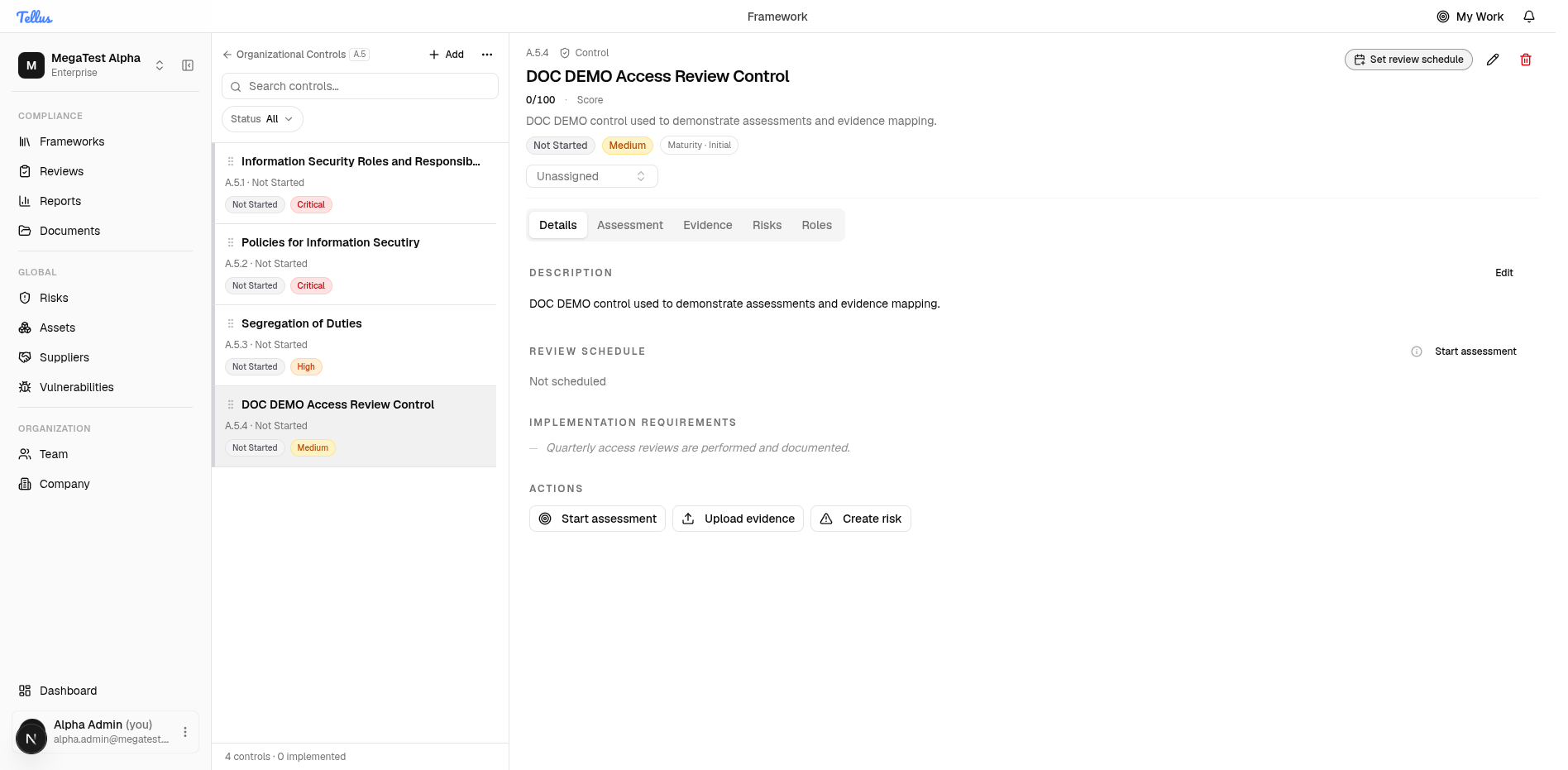
The header facts
The header carries the control's identity and current state:
- Code — section prefix plus optional suffix, e.g.
A.5.4(see the code rule). - Title and Description.
- Score — the implementation score out of 100.
- Status badge — one of Not Started, In Progress, Implemented, Partial, Not Implemented, or Not Applicable.
- Priority — Critical, High, Medium, or Low. Editor-set metadata only; it does not feed status, score, or maturity, and defaults to Medium.
- Maturity — optional CMMI-style level (Initial, Managed, Defined, Measured, Optimizing), shown only when set.
Score, status, and maturity are not computed from each other. They are whatever a reviewer enters on an assessment and then accepts — copied onto the control verbatim. A control can be Implemented with no maturity set, or carry a high maturity with a low score. See Assessments & control status.
The tab row
| Tab | What it holds |
|---|---|
| Details | Description, implementation requirements, priority, review schedule, owner. |
| Assessment | Run a new assessment and review/accept/reject pending and past assessments. See Assessments. |
| Evidence | Evidence requirements, uploaded files, and the requirements-completion bar. See Evidence. |
| Risks | Risks linked to this control. |
| Roles | Per-control role assignments and ownership. See Control roles. |
The three header action buttons — Start assessment, Upload evidence, Create risk — are shortcuts into the Assessment, Evidence, and Risks tabs.
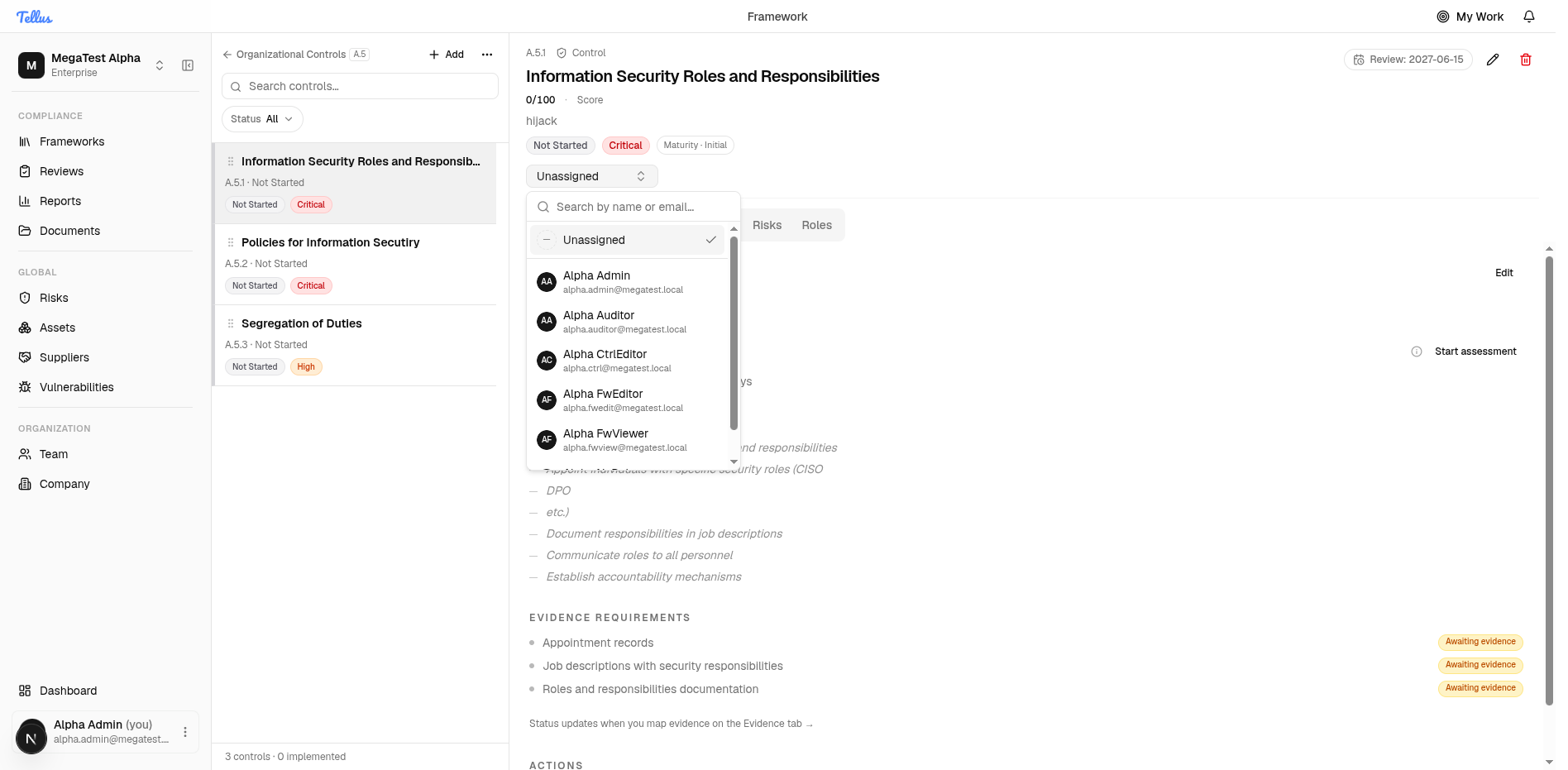
Change the owner inline
- Find the owner selector just below the header (it reads Unassigned when nobody is set).
- Click it to open a searchable dropdown of team members, each with name and email, plus an Unassigned option at the top.
- Pick a teammate. The change saves immediately — there is no separate save step.
Owning a control grants framework access
Becoming a control's owner (or holding any control role in its framework) automatically grants you a read-only view of the surrounding framework — its sibling controls and reports — so you can see the context you are responsible for. That derived access is reclaimed only once you hold no ownership and no control role anywhere in that framework.
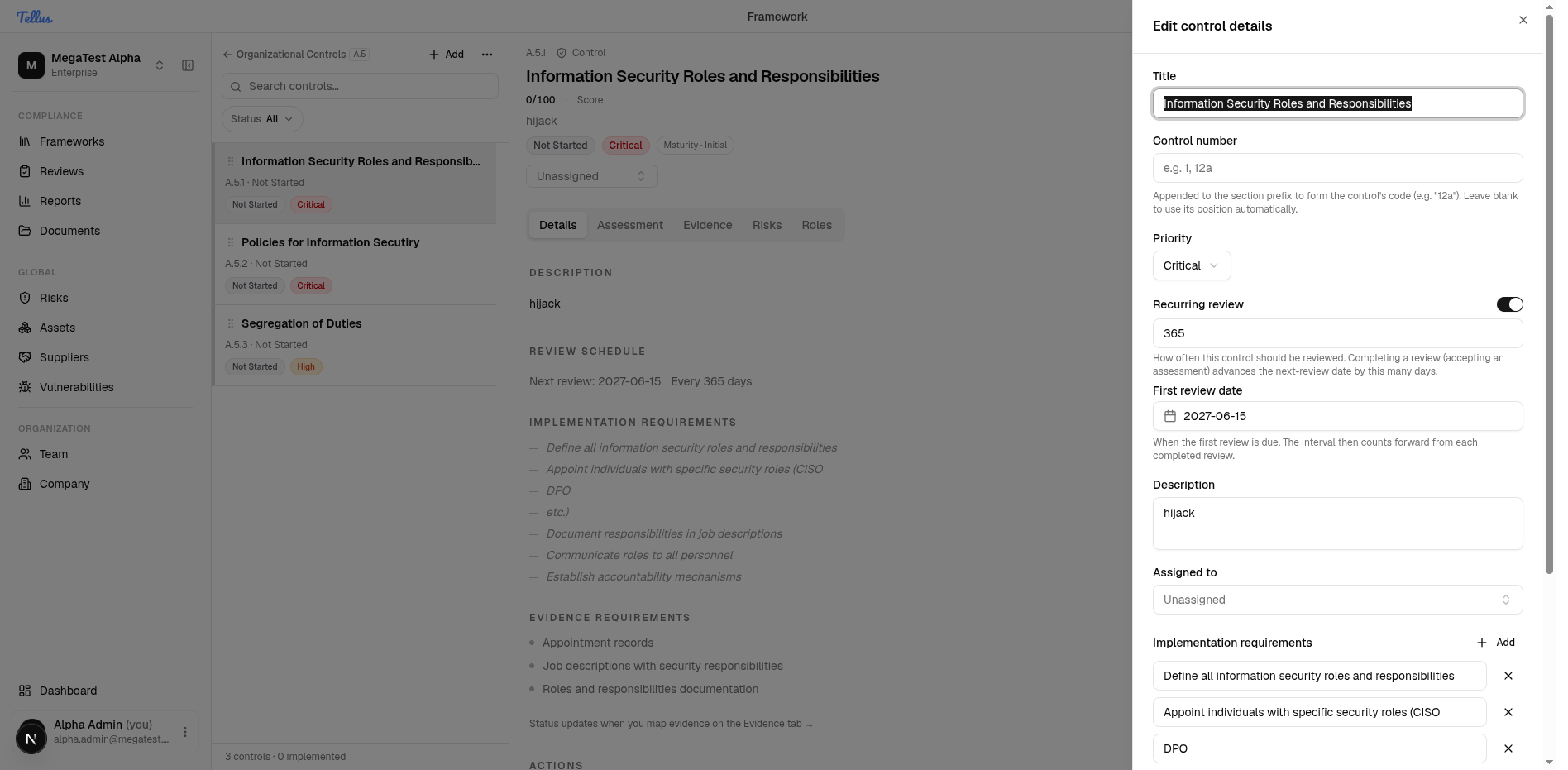
Edit details and requirements
- Click the Edit control (pencil) button in the header to open Edit control details.
- Adjust Title, Control number, Priority, the Recurring review toggle (with interval and first review date), Description, the Assigned to owner, and the list of implementation requirements (add or remove them).
- Click Save changes, or Cancel to discard.
There is no status dropdown in the header, and this dialog does not change status, score, or maturity. Those move only through an accepted assessment. Use the Assessment tab to move where the control stands. Note also that implementation requirements (edited here) are distinct from evidence requirements (the Evidence tab) — see Evidence & requirements.
Overview
Frameworks group requirements into sections, and sections hold the controls you implement and prove. This is your home base for compliance work in Tellus.
Assessments & control status
Running an assessment and exactly how accepting it sets a control's status, score, and maturity — plus review scheduling, evidence locking, and staleness.