Inviting members
Send, track, resend, and revoke invitations from the Team workspace, optionally attaching framework-scoped roles at invite time.
You add people to the company by sending them an invitation from the Team workspace. Sending an invite requires the invite:send permission. An invite carries one company role, optional framework-role assignments, an optional message, and an optional expiry; accepting it creates (or joins) the recipient's account and applies the granted roles atomically.
Send an invitation
- On Team → Members, click Invite User. (You can also start from the Invites tab's Send invite button.)
- A right-side Send invite panel opens with these fields:
- Email (required).
- Company role (required) — defaults to Company Admin.
- Message (optional note to the invitee).
- Expires at (optional date & time; defaults to 7 days from sending if left empty).
- Enter the email and any message.
- Choose the Company role. Only two options are offered — Company Admin and Company Member.
- Click Send Invite once the required fields are valid. The new invite appears on the Invites tab.
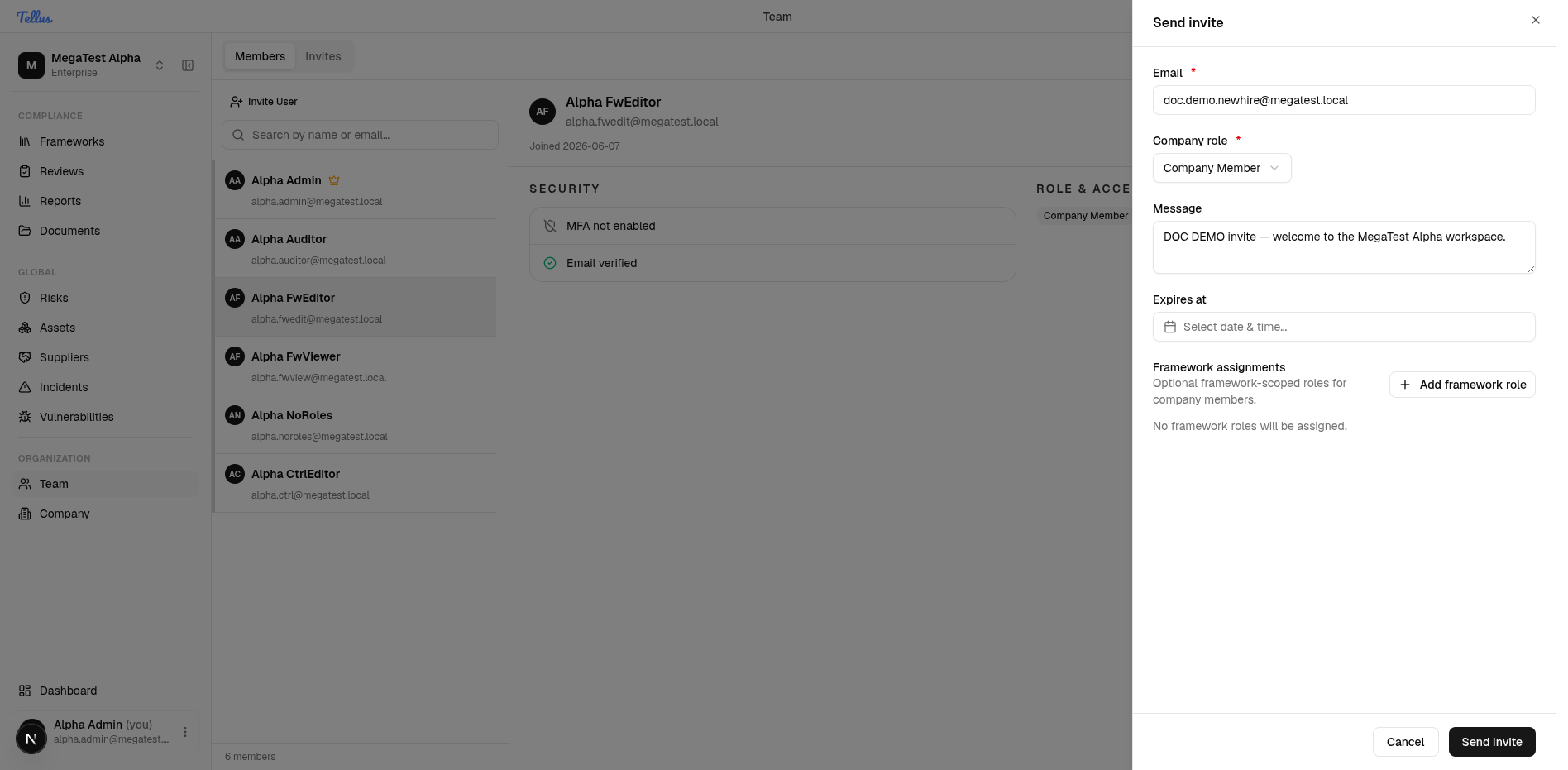
Invites can grant only company_member or company_admin as the company role — no other company-scoped role is selectable. The Send Invite button stays disabled until the email and company role are valid.
Attach framework roles at invite time
Choosing Company Member reveals a Framework assignments section ("Optional framework-scoped roles for company members") with an Add framework role button and the note "No framework roles will be assigned."
- Click Add framework role.
- A row appears pairing a framework selector with a role selector (the six framework roles) plus a Remove button.
- Pick a framework and a role; repeat to attach more.
When the recipient accepts, the company role and every attached framework binding are applied in one atomic step.
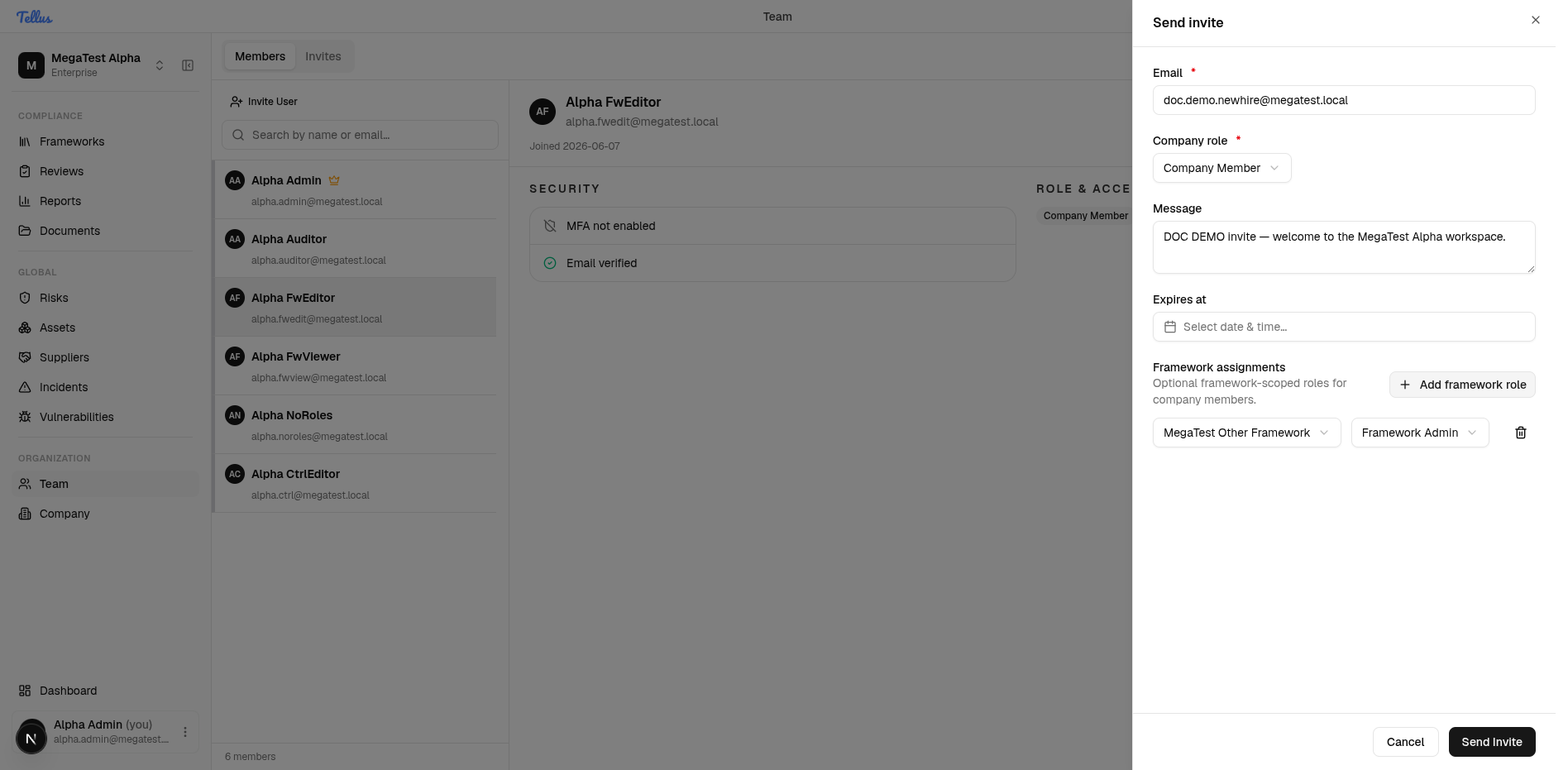
Framework assignments appear only for Company Member invites. A Company Admin already has company-wide access, so admin invites cannot carry framework-role assignments. Because a plain Member otherwise sees almost nothing (see Roles & permissions), attaching framework roles here is usually how you give a new Member something to work on from day one.
What the recipient receives
The invitee gets an email with a link to /public/invite?id=...&email=.... Accepting it either creates a new account or, if the email matches an existing account, joins that account to the company — then applies the company role plus any framework bindings. Joining as an existing logged-in user can resolve to one of: success, an invalid invite, an email mismatch, or "already a member".
Owner invites always grant Company Admin with company-owner status — the owner role and ownership relation cannot be downgraded through the invite form.
Track, resend, and revoke
Open the Invites tab on the Team page to see every invitation that hasn't been accepted yet. The table lists Email, Status, Company role, Frameworks, Sent, and Expires. If there are none, an empty state offers a Send invite shortcut.
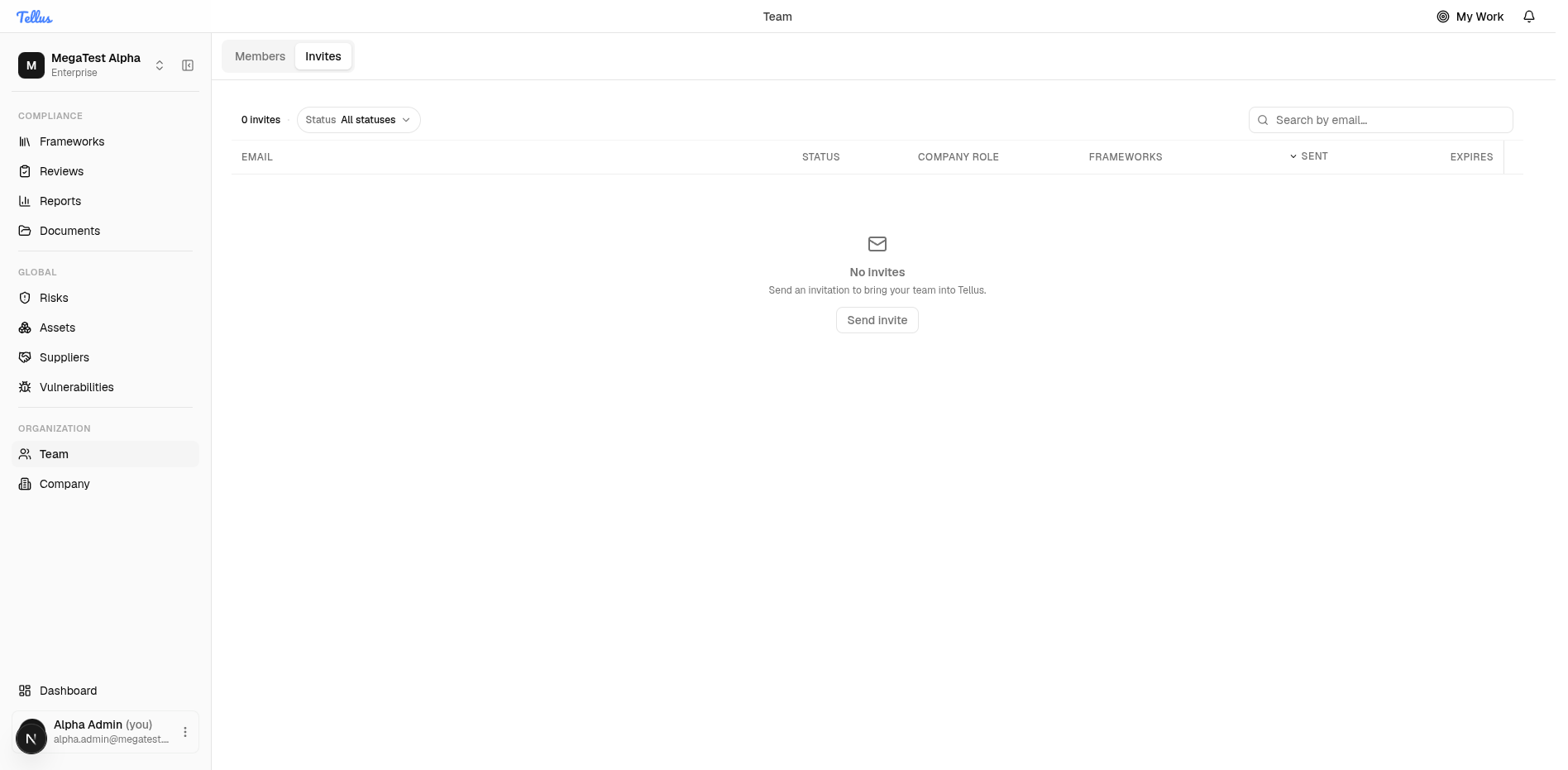
Invite status values:
| Status | Meaning |
|---|---|
sent | Delivered, awaiting acceptance. |
accepted | The recipient joined. |
revoked | Cancelled by an admin (cannot be un-revoked). |
| expired | Past its Expires date. This is derived from the expiry, not a stored status. |
Per-invite actions:
- Revoke — cancels a pending invite. There is no un-revoke; send a fresh invite instead.
- Resend — re-sends the email and refreshes the expiry to 7 days from now. Resending fails if the invite was already accepted or revoked.
Related
- Roles & permissions — what each company and framework role grants.
- Team & members — the member directory the Invites tab lives in.
Roles & permissions
How Tellus access works: scoped role bindings, ownership relations, the seeded role catalog, derived grants, and who may assign what.
Company settings & security
The company profile and the Security tab — MFA policy, assessment override strategy, incident reporting, reporter domains, and the CVD program.