Supplier reviews
Open a review cycle, build questionnaires, send them to vendor contacts, and understand answer-visibility and review lifecycle.
A supplier review is one assessment cycle for a supplier. Each review is its own workspace: it has a title, status, owner, due date, instructions, an outcome, and it owns the questionnaires, findings, attachments, and risk links raised during that cycle. Creating and working with reviews requires the supplier:update permission.
A review opens as a dedicated page (not a tab) at its own route. Creating one flips the supplier's display state to In review and surfaces an Open active review banner on the supplier detail.
Open a review
- On the supplier's Reviews tab, click Create review.
- The Create review dialog opens, pre-filled with a title (e.g. "DOC DEMO Cloud Hosting review"). Optionally set:
- Due at — the target completion date.
- Owner — who runs this review.
- Instructions — scope and guidance for the cycle.
- Click Create review. The app navigates to the review workspace.
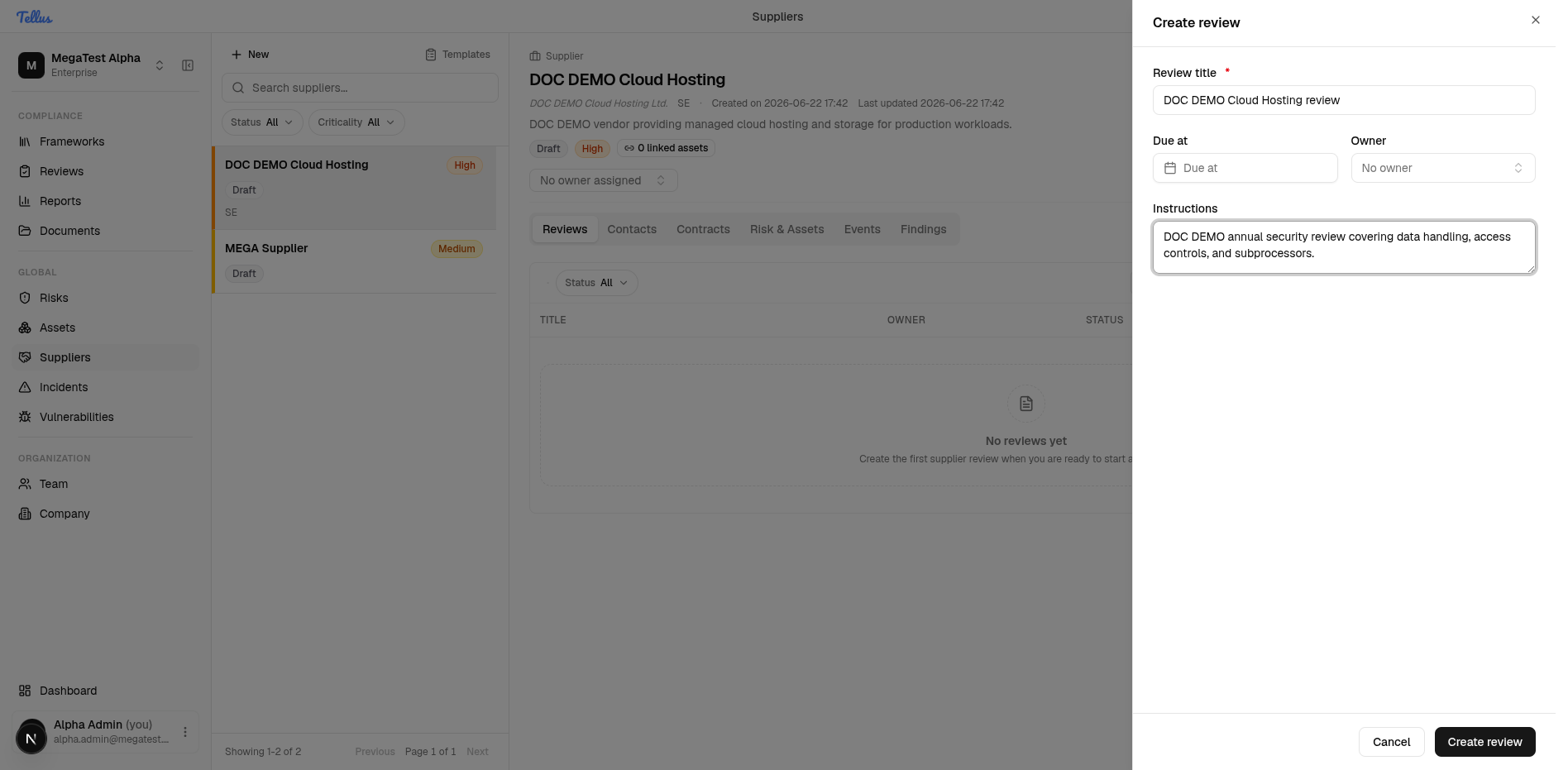
The review workspace has a two-column body: Questionnaires on the left and Review findings on the right. The header shows the review status (e.g. Active) and the supplier's criticality.
Reviews can be opened from a reusable review plan — a saved default configuration (name, default instructions, and a set of questionnaires) that can be company-wide or specific to one supplier. A supplier can also carry a default review plan plus a review frequency to drive scheduling. The status values a review moves through are draft, active, waitingForSupplier, closed, and canceled.
Add a questionnaire
A questionnaire used inside a review is a snapshot of a company questionnaire definition. Editing the company-level definition afterwards does not change a review already using it.
- In the Questionnaires column, click Add questionnaire.
- Pick a template. Only the built-in Blank questionnaire is offered until you have published your own — see Questionnaire templates.
- Optionally name it, then add it. It appears as a Draft questionnaire with 0 questions.
Add questions
- Click the questionnaire to expand it inline, then click Add question.
- Fill in the prompt, choose a question type, add optional help text, toggle Required, and set the attachment policy.
- Save. The question is listed and numbered, showing "No answer yet".
The implemented question types are:
| Label | Type | Use |
|---|---|---|
| Short text | text | One-line answer. |
| Long text | textarea | Multi-line answer. |
| Yes / No | boolean | Binary answer. |
| Single choice | singleSelect | Pick one option. |
| Multiple choice | multiSelect | Pick several options. |
Each question also has an attachment mode, independent of its type:
| Mode | Effect |
|---|---|
None | No upload affordance. |
Optional | Vendor may attach files. |
Required | Vendor cannot submit that answer without at least one attachment — enforced at submit. |
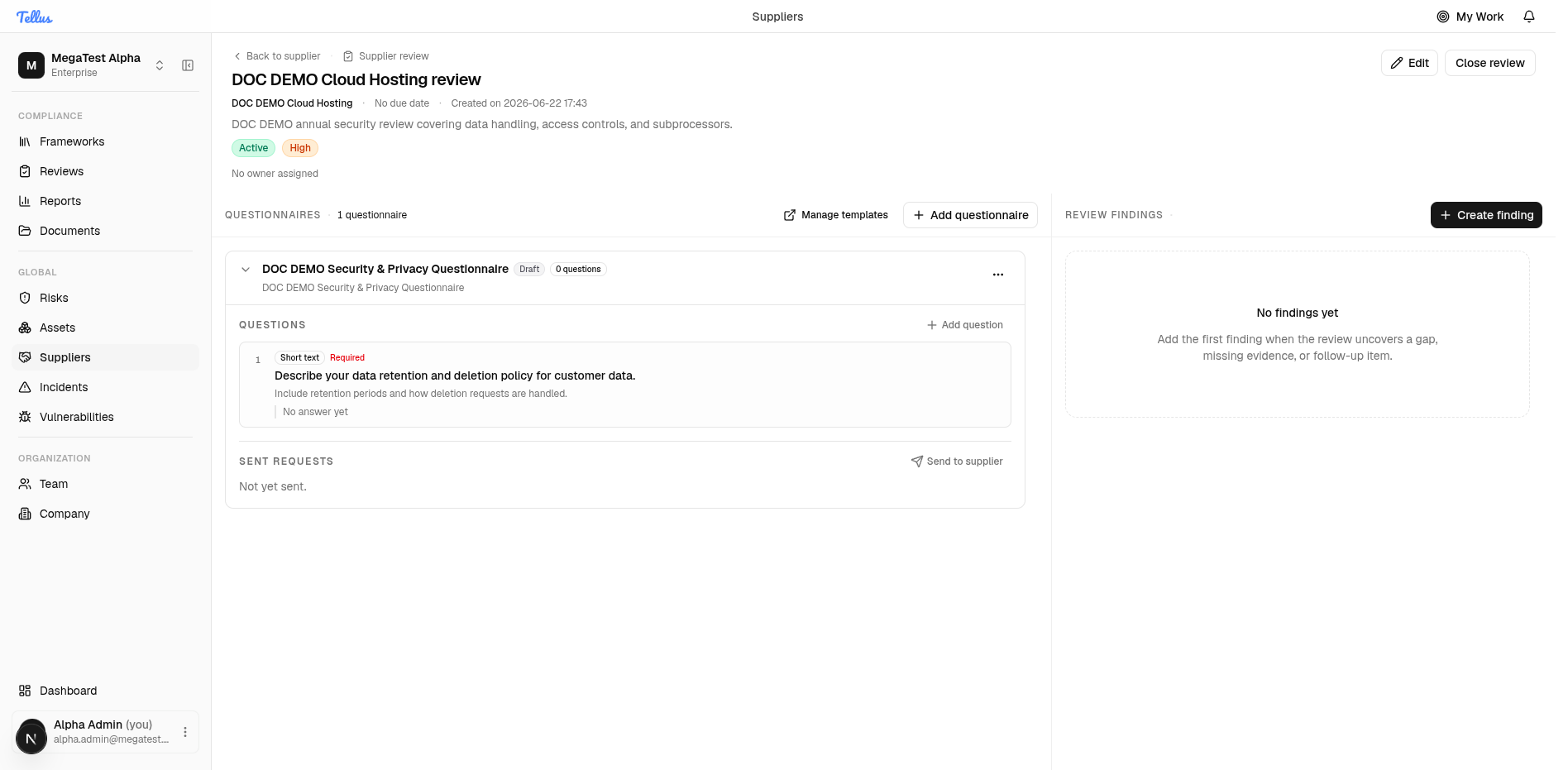
Send a questionnaire to the supplier
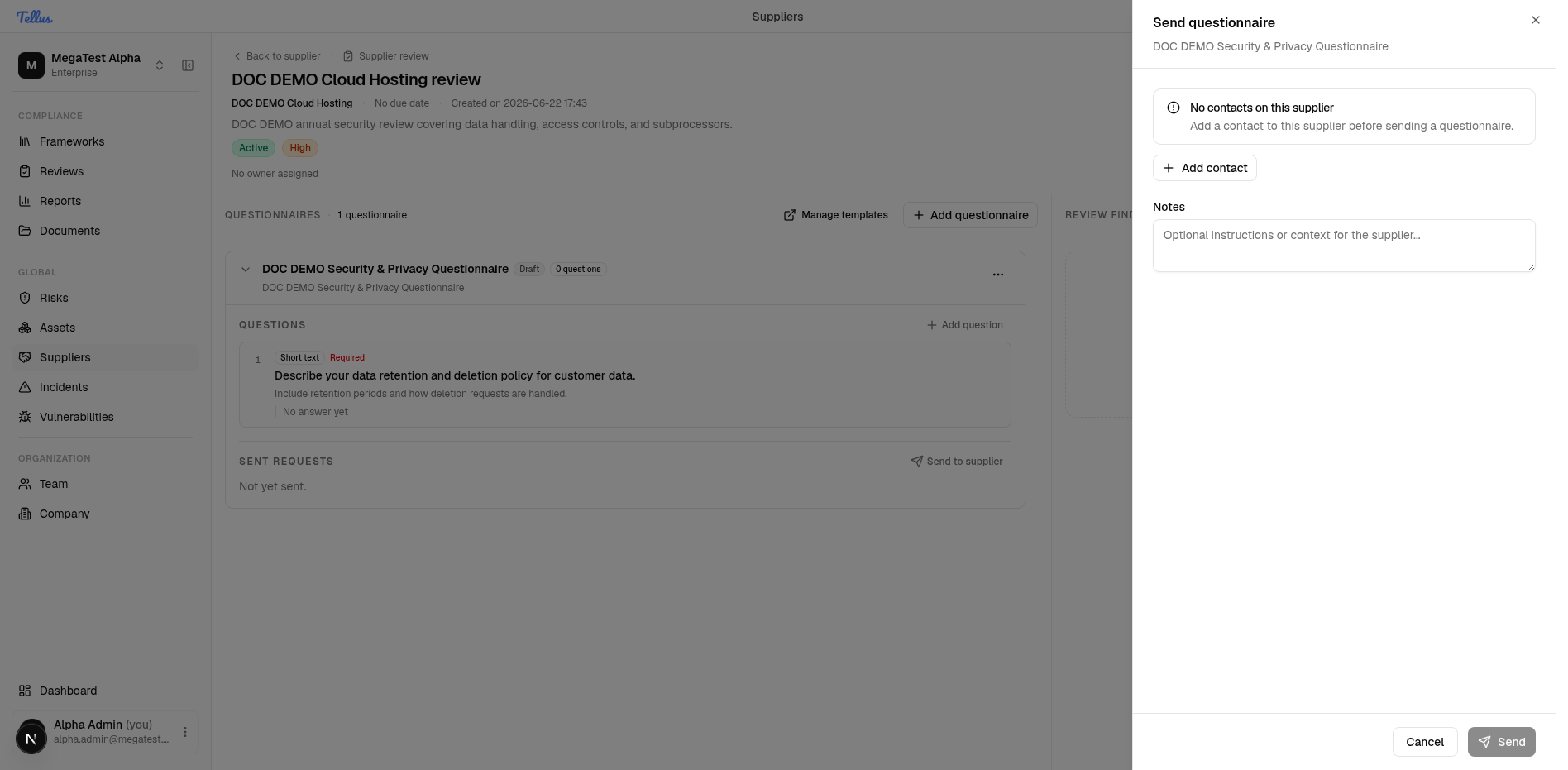
- Click Send to supplier.
- The Send dialog requires at least one supplier contact. If none exists, it shows a warning with an Add contact shortcut and the Send button stays disabled.
- With a contact present, choose the recipient(s) and send.
A send creates a questionnaire request of type Initial (follow-up sends are FollowUp). The request tracks its own status, recipients, chase count, escalation level, and timestamps for when it was sent, last chased, and last answered. Add the contact first — see Contacts & findings.
How vendors answer (the portal)
Recipients answer through the vendor portal at /portal. A supplier contact authenticates with a one-time code emailed to them (an OTP challenge, rate-limited and time-limited). Once in, they can list their assigned questionnaires, save drafts, submit answers, upload/download/delete attachments, and invite or revoke their own teammates.
Vendor answers are hidden from you until the request is submitted. While a request is Draft, Sent, or InProgress (the vendor saved progress but has not submitted), their answers and attachments are not visible to your company. Only PartiallyAnswered, Answered, or Closed reveal answers.
The portal is strictly a questionnaire portal. It does not show or compute any supplier trust score or risk score.
Closing and reopening
A review is closed and reopened through dedicated actions. Reopening is tracked with a reopen count and timestamps, so the history of a cycle is preserved. Issues you uncover during a review are recorded as findings in the right-hand panel — see Contacts & findings.