Contacts & findings
Manage supplier contacts that drive portal access and questionnaire delivery, and raise findings during reviews.
This page covers two related parts of a supplier record: contacts (the people you deal with, who receive questionnaires and access the portal) and findings (issues you raise while reviewing a supplier). Both require the supplier:update permission.
Contacts
A supplier contact is a managed person at the supplier. Contacts are the recipients of questionnaire requests and the attribution for responses, and they are what gates the questionnaire send flow — you cannot send a questionnaire to a supplier with no contact.
Add a contact
- On the supplier's Contacts tab, click Add contact. (You can also reach this from the Add contact shortcut in the Send-questionnaire dialog.)
- Fill in the dialog:
- Contact name (required).
- Email (required).
- Job title.
- Primary contact — toggle to mark the main point of contact.
- Portal access enabled — on by default; controls whether this contact can log into the vendor portal.
- Save. The contact appears with its badges, and the tab header summarises counts (e.g. "1 active · 1 portal").
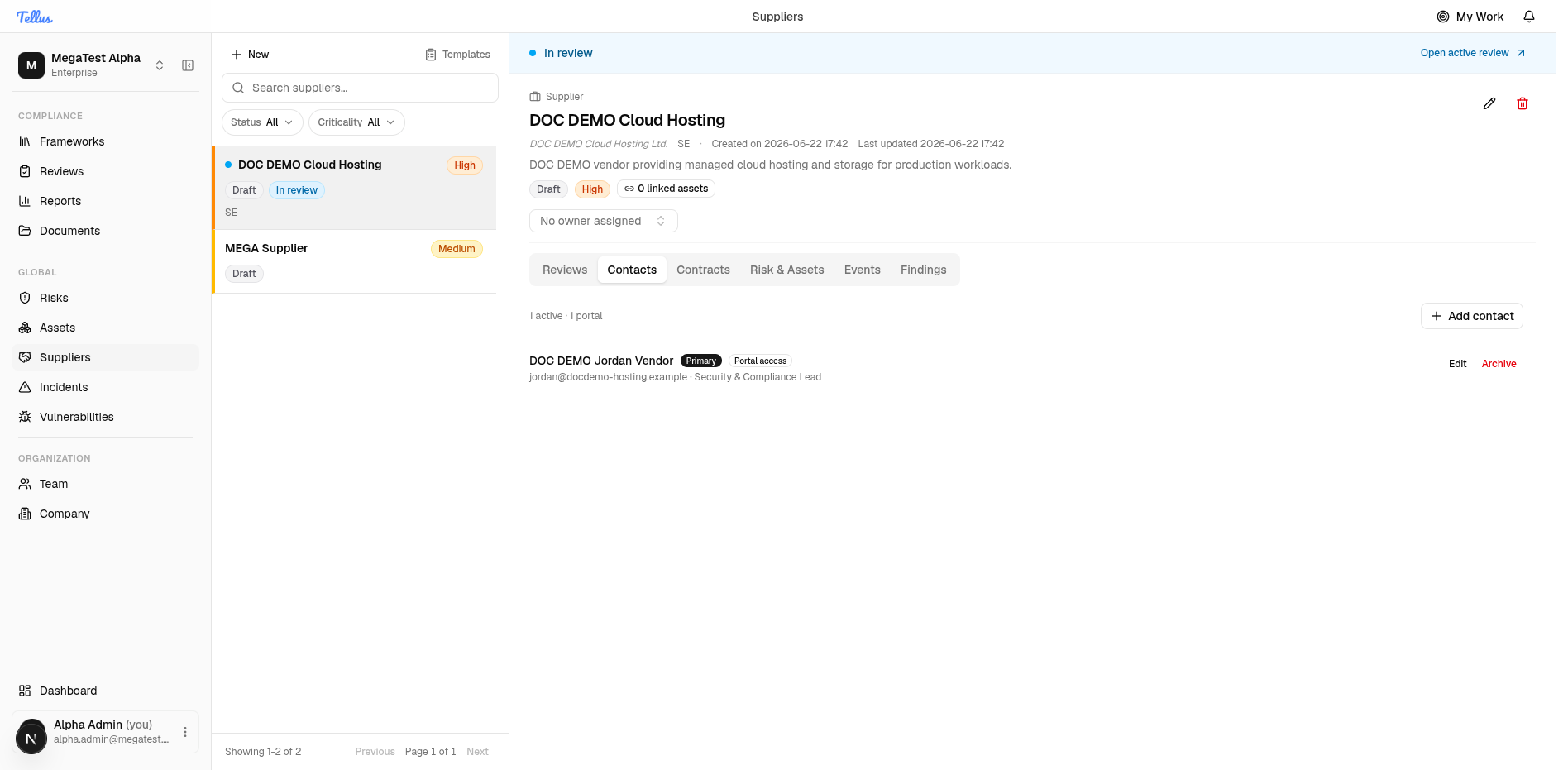
Portal access enabled is what lets a contact authenticate to the questionnaire portal with an emailed one-time code and answer requests. A contact's last-invited time is tracked, and contacts can be archived. See the portal flow in Supplier reviews.
Findings
A finding is an issue discovered while examining a supplier. Findings are normally raised inside a review, not from the supplier's Findings tab.
The supplier-level Findings tab is a read-only aggregation of active findings across the supplier. To create a finding, open the active review and use Create finding there.
Raise a finding
- Open the supplier's active review (via the Open active review banner or the Reviews tab).
- Click Create finding.
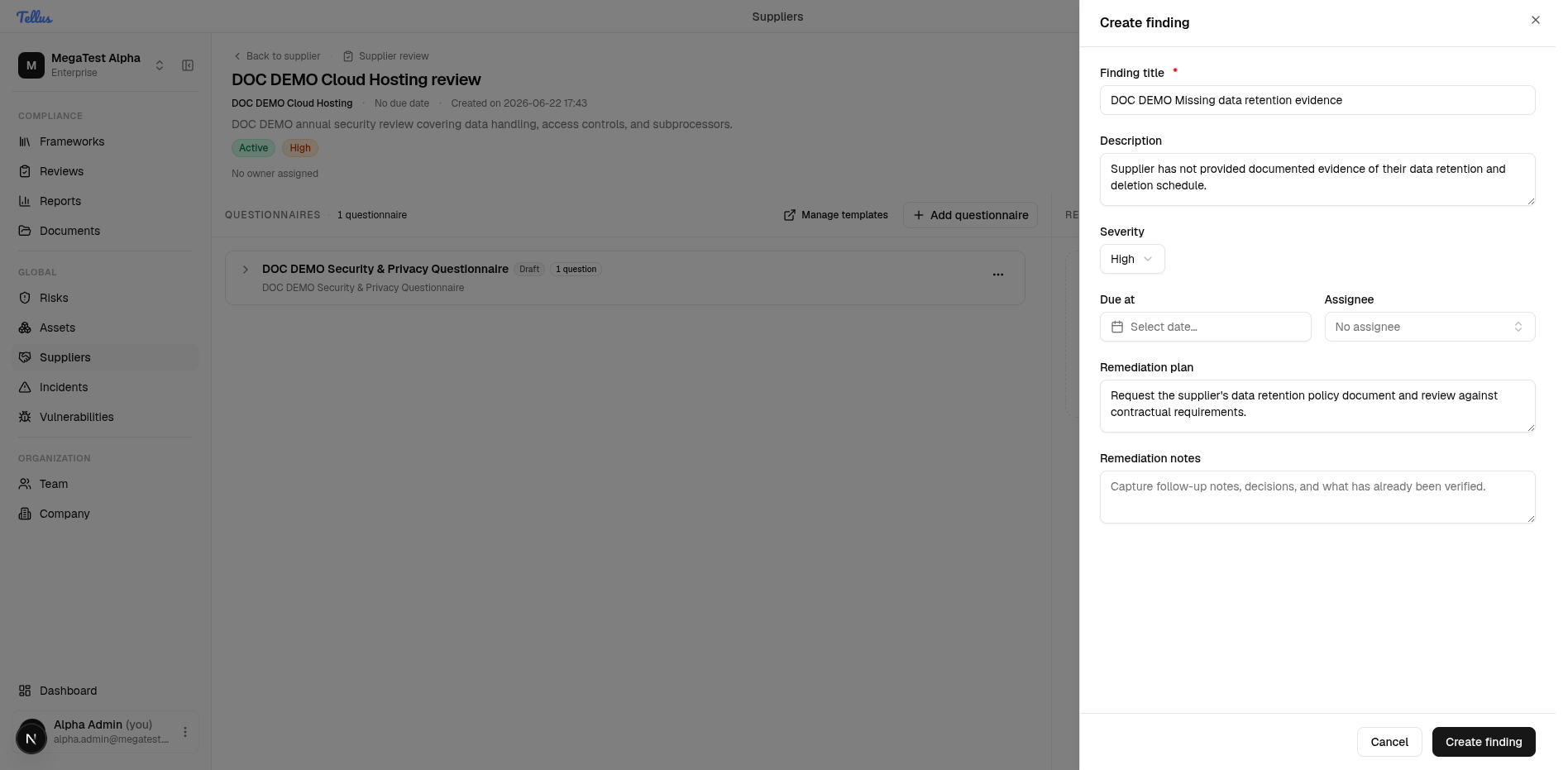
- Fill in the dialog:
- Finding title (required).
- Description.
- Severity — Low / Medium / High / Critical.
- Due at.
- Assignee — the finding owner.
- Remediation plan and Remediation notes.
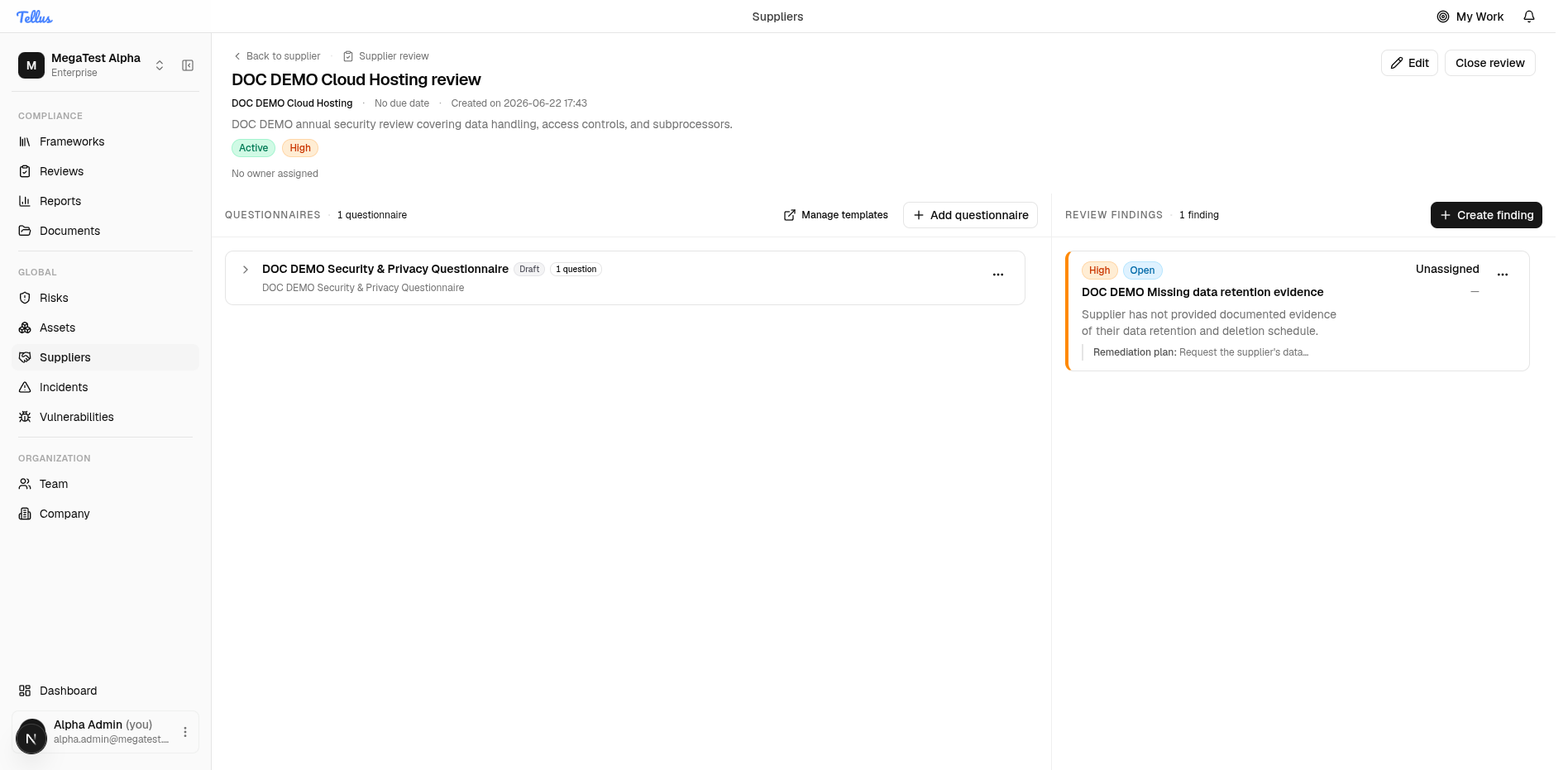
- Save. The finding is added to the review's Review findings panel, and the supplier's Findings tab reflects it.
A finding records its severity, status, owner, optional due date, remediation plan and notes, and has an append-only event log. It also carries a separate follow-up track — a follow-up assignee, follow-up due date, and follow-up note that are deliberately distinct from the finding's owner.
Finding status lifecycle
| Status | Meaning |
|---|---|
open | Newly raised. |
accepted | Acknowledged, to be worked. |
resolved | Addressed. |
closed | Completed and closed out. |
promoted_to_risk | Escalated into a formal Risk. |
dismissed | Judged not to require action. |
follow_up_requested | A follow-up has been requested. |
Transitions are guarded, not free-form:
- Dismiss and Resolve are allowed only from
open,accepted, orfollow_up_requested. - Reopen is allowed only from
resolved,closed, ordismissed. - Request follow-up is allowed only from
openoraccepted. - Complete follow-up is allowed only from
follow_up_requested.
A closed timestamp is stamped when a finding becomes resolved, closed, promoted_to_risk, or dismissed.
Requesting a follow-up assigns the follow-up to a follow-up assignee and never changes the finding's owner. The two roles are intentionally independent.
When a finding is promoted to a risk (promoted_to_risk), the supplier becomes linked to that risk. See Linking risks & assets.