Adding a supplier
Create a new supplier record with the New form, and understand what status, criticality, and the other fields actually do.
You add suppliers manually. Creating one requires the supplier:create permission.
Create a supplier
- Open Suppliers from the left sidebar (under the Global group).
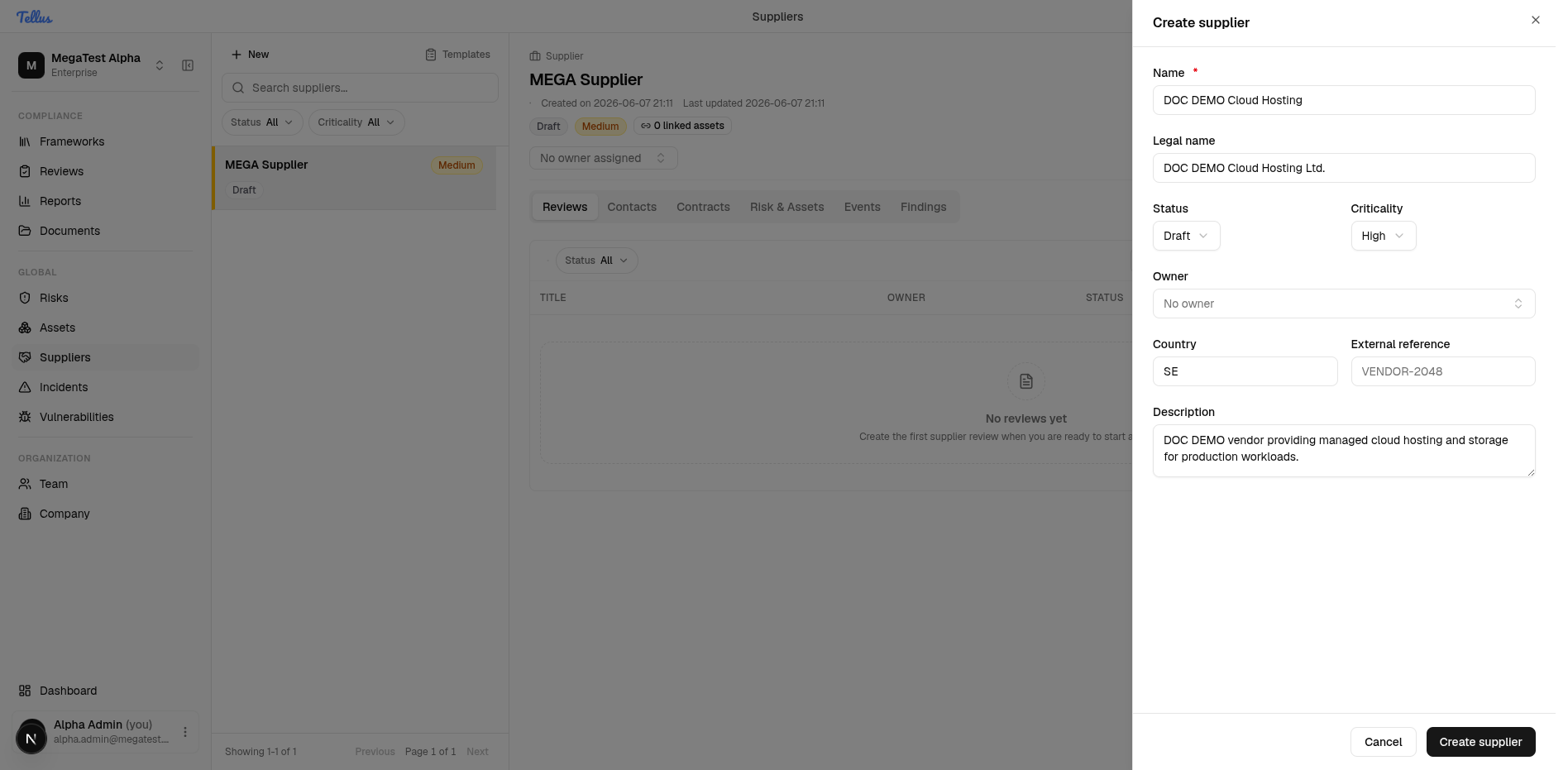
- Click New at the top of the supplier list. A Create supplier slide-over opens from the right.
- Fill in the fields:
- Name (required) — the supplier's common name. The Create supplier button stays disabled until this is filled.
- Legal name — the formal registered entity name.
- Status — defaults to Draft.
- Criticality — defaults to Medium.
- Owner — the user accountable for this supplier.
- Country — a two-letter country code (validated to exactly two characters, e.g.
SE). - External reference — your own code or ID for the supplier.
- Description — a short note on what they provide and why they matter.
- Click Create supplier.
The supplier is created and immediately selected in the master-detail view. Its header shows the status and criticality badges, an Owner selector, and the six tabs (Reviews, Contacts, Contracts, Risk & Assets, Events, Findings).
What the fields mean
Criticality
Criticality answers "how much does this supplier matter to us?" and is independent of any risk or quality assessment. Seeded values:
| Value | Meaning |
|---|---|
low | Minor dependency; easily replaced. |
medium | Default. Standard dependency. |
high | Important dependency. |
critical | Loss would materially affect operations. |
Status
Status is the lifecycle state of the record. Seeded values:
| Value | Meaning |
|---|---|
draft | Default on creation. Being set up. |
active | In use. |
inactive | No longer actively used, but retained. |
archived | Retired. Set only via the archive action. |
There is no enforced state machine between draft, active, and inactive — you can move freely among them at any time. The one rule the service enforces is that you cannot set status to archived through the create or edit form; attempting it is rejected with "Archived is not a valid status when creating or updating a supplier."
Both Status and Criticality are stored as text validated against your company's supplier_status and supplier_criticality registries, so a company may have customised values beyond these defaults.
After creation
A brand-new supplier has no reviews, findings, or links yet — those tabs show empty states until you populate them. From here you typically:
- Add a contact so you can later send questionnaires — see Contacts & findings.
- Open a review to assess the supplier — see Supplier reviews.
- Record contracts — see Contracts.
Editing and archiving
Use Edit in the supplier header to change any field (except status to archived). Editing requires supplier:update.
To retire a supplier, use the Archive action. Archiving sets the status to archived, stamps an archived timestamp, and removes the supplier from the default list view. It requires supplier:delete. Archived suppliers are not deleted — they remain retrievable when an "include archived" view is requested.