Generating & exporting
Pick a template and framework, generate a report, watch it build, and download the finished PDF.
Generating a report is a two-step choice — a template, then (for framework templates) a framework — followed by a wait while the document is built in the background. This page walks the flow and explains what each control actually does.
Open the Reports list
- In the left sidebar, under Compliance, click Reports.
- The page opens in a two-pane layout: the report list and its toolbar on the left, a detail/preview pane on the right.
- On a new company the list shows No reports generated yet and the detail pane reads No report selected.
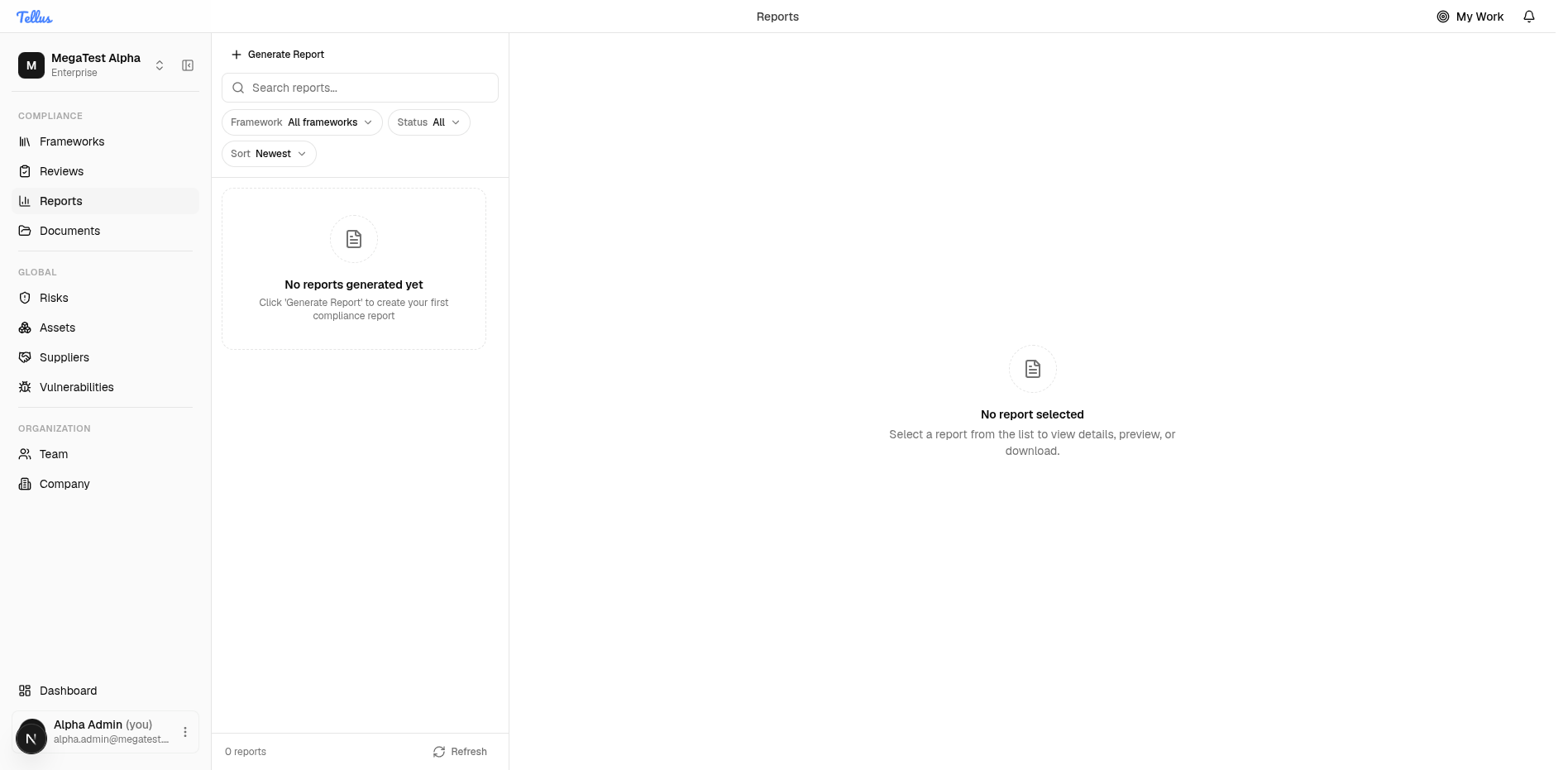
What you'll see as a member
The screenshots show an admin's view. Reports only appears in the sidebar if you have reports to see at all. Admins and company-wide readers see every report; if your access is scoped to specific frameworks, the list shows only those frameworks' reports and the Framework filter is reduced (often to a single framework). You can read and download reports, but the Generate Report button only appears for users who can generate (admins and framework admins/editors) — plain members do not see it.
The toolbar above the list has a Search reports… box and three dropdowns — Framework, Status, and Sort (default Newest) — plus a Refresh control and a live report count (for example "2 reports"). Use these to find a report once the list grows.
Generate a report
-
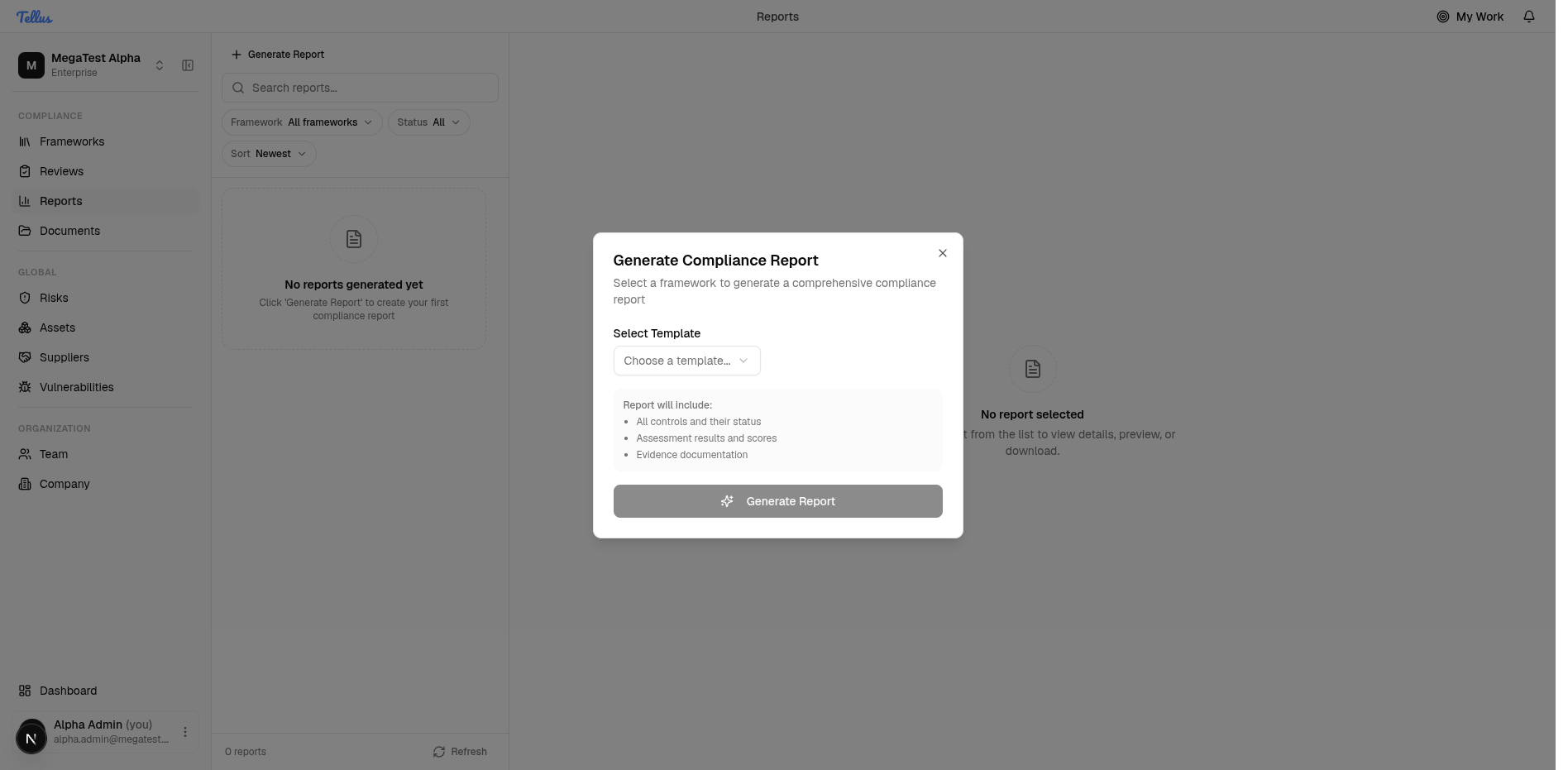
Click Generate Report at the top of the list (or the empty-state button if you have no reports yet).
-
The Generate Compliance Report dialog opens. A fixed Report will include summary lists "all controls and their status", "assessment results and scores", and "evidence documentation".
-
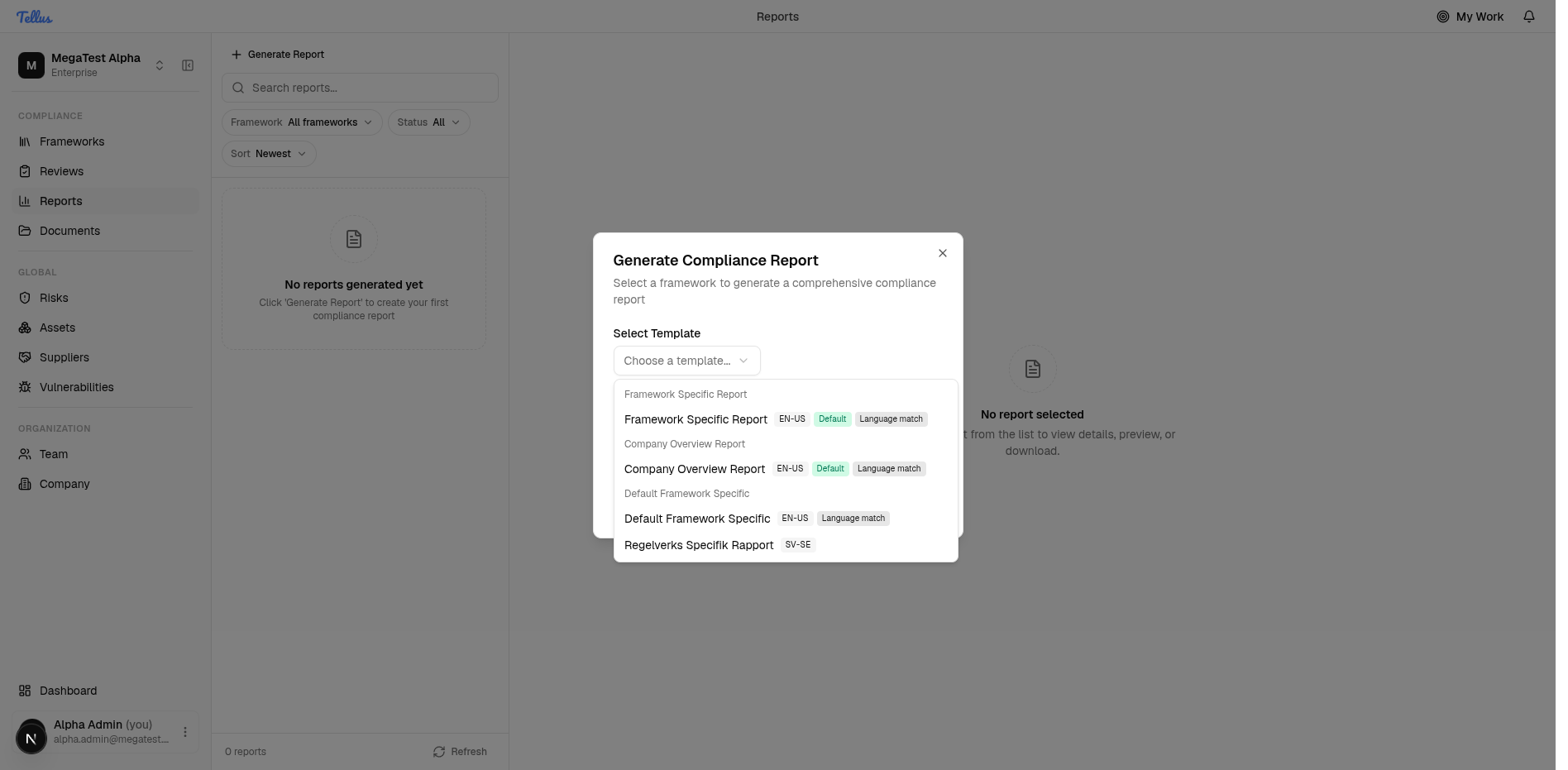
Open Select Template. Templates are grouped by report type. You will typically see a Framework Specific Report group (with its default and any localized variants — for example a Swedish Regelverks Specifik Rapport) and a Company Overview Report. Each variant is tagged with its locale and a Default / language-match badge.
-
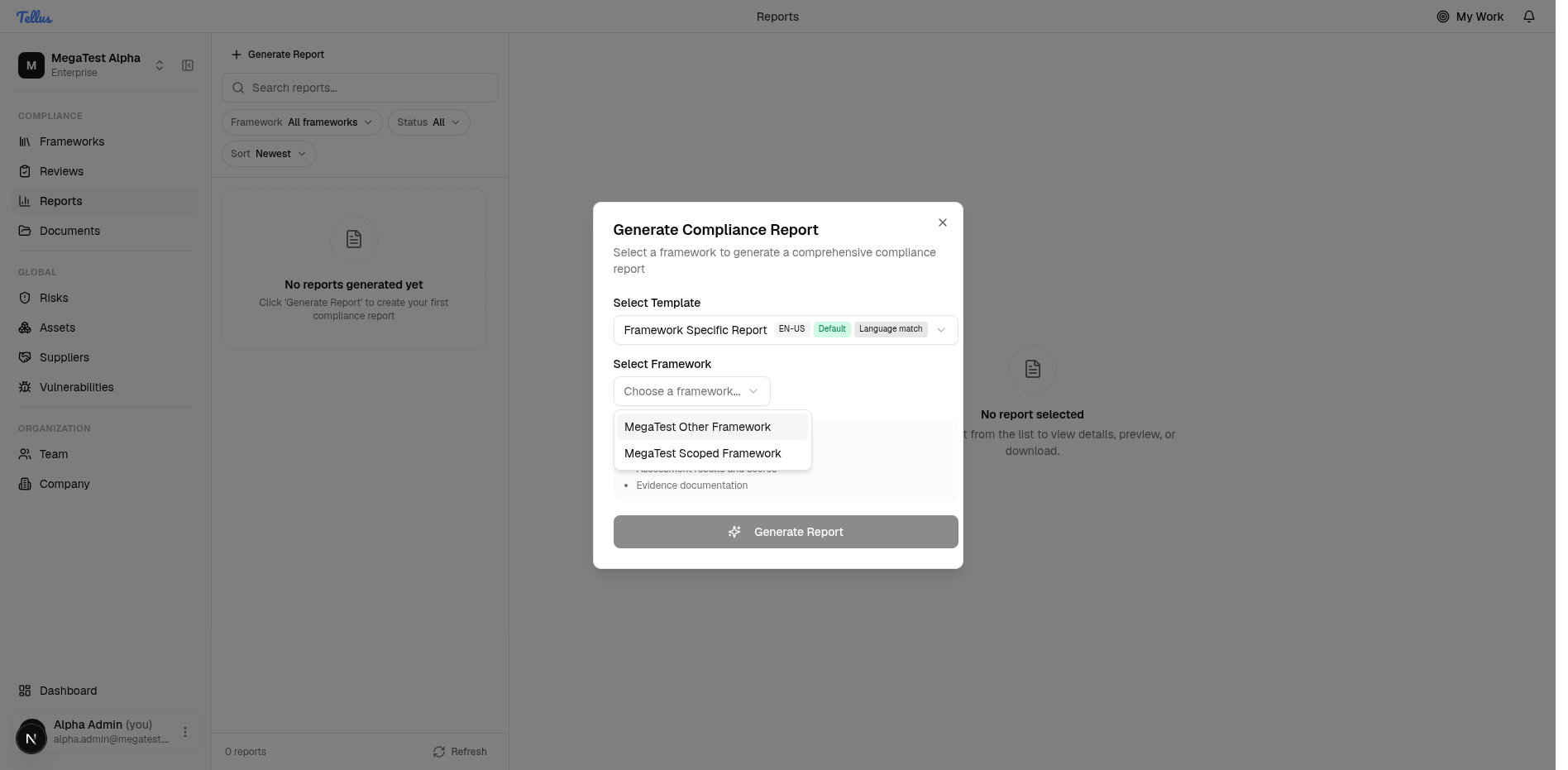
If you picked a Framework Specific template, a second Select Framework dropdown appears. Open it and choose the framework to drill into. A Company Overview template does not show this step.
-
Click Generate Report at the bottom of the dialog. The dialog closes and a new report card is prepended to the list with a Generating badge.
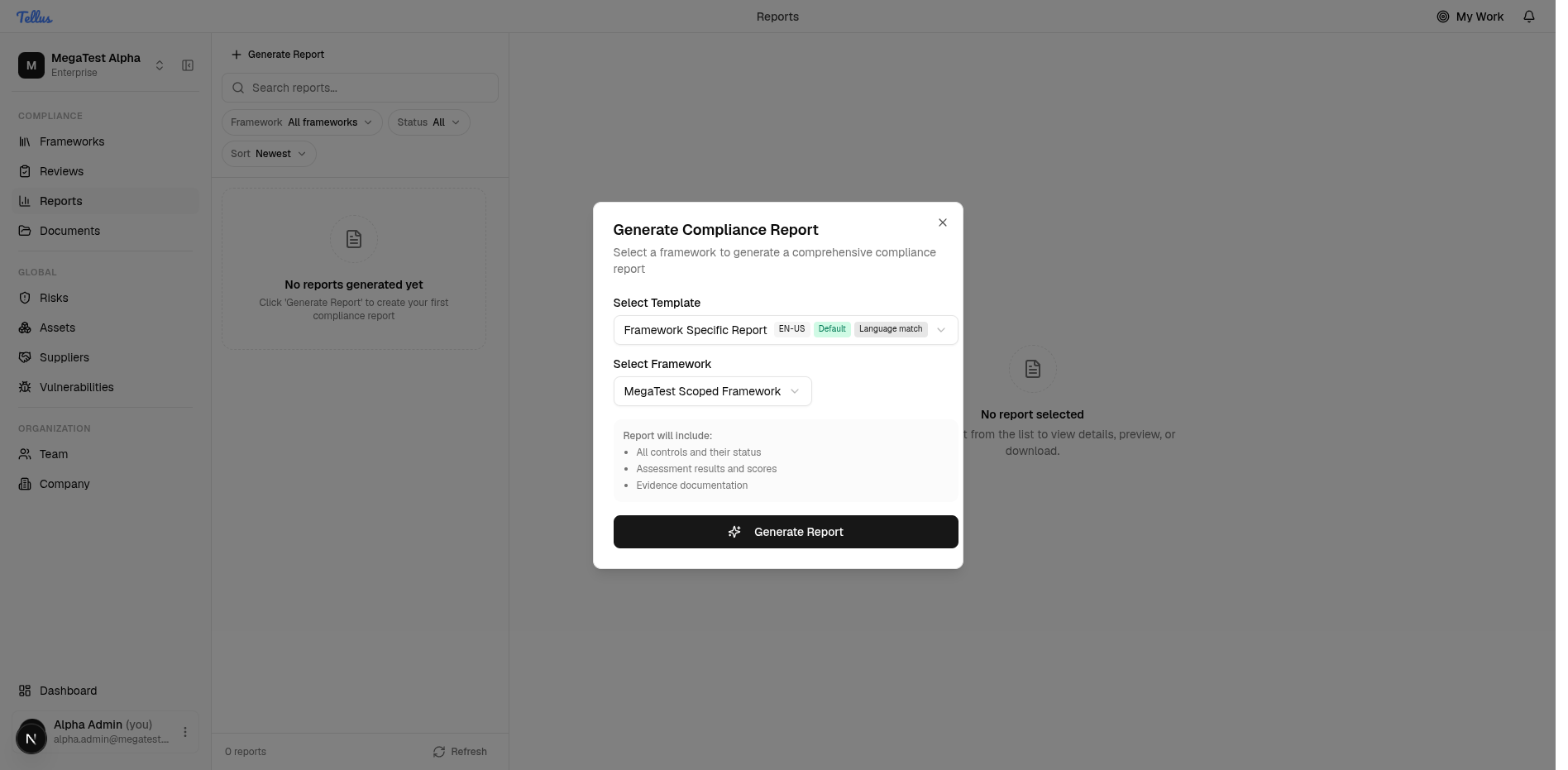
The Generate Report button stays disabled until your selections are complete: a template is always required, and a framework is also required for Framework Specific templates. There is no name field — the report is named automatically as <Framework name or "Company Overview"> Report <yyyy-MM-dd_HH-mm-ss>, so two reports of the same kind are told apart by their timestamp.
About the dialog's options
The dialog promises a little more than the document delivers, so it is worth being precise:
- Detail level does not change report depth. The dialog always sends
standard; the renderer only echoes that word into a "Version" field on the PDF. There is no selectable depth control. - Include evidence / "Evidence documentation" is currently not honored. The rendering pipeline does not read this flag and adds no evidence files or document content to the PDF. The report references your control and assessment data, not attachments. (See Documents for evidence files themselves.)
Choosing the right template
Pick a Framework Specific template when the audience cares about one framework and wants its sections broken out. Pick Company Overview when you want a single document covering every framework at once. Remember that both still include a company-wide summary and an all-frameworks table — the difference is only the per-section drill-down (see Reports overview for the full content breakdown).
If a template offers more than one language variant, choose the one matching your audience; the picker flags the variant that matches your interface locale.
How generation works
Generating is asynchronous — nothing renders inline. When you click Generate Report:
- A report row is created with status generating and the request is queued in the same database transaction; the request returns immediately (HTTP 202 Accepted).
- A background worker picks up the job, compiles the template (a self-contained Handlebars HTML document), renders it against your live compliance data, and converts it to an A4 PDF using headless Chrome.
- On success the PDF is stored and the report flips to ready; on failure it goes to error with a reason.
While any report is in generating, the list auto-refreshes every 5 seconds and updates on its own when the report finishes. You can also click Refresh manually.
Because rendering runs in a sandboxed browser with JavaScript disabled and all external requests blocked, every chart and visual in the PDF is pure HTML/CSS with fonts embedded by the worker. Reports therefore look identical wherever they are opened — but they also cannot pull in anything live after generation.
Status values
| Status | Meaning |
|---|---|
| Generating | Created and queued, or currently being built. Download is not yet available. |
| Ready | Built successfully and stored. Download is available. |
| Failed | Generation failed; the detail pane shows the reason (for example "Template not found." or a generic "Report generation failed."). |
The Status filter on the list uses these states. ("Failed" is the label for the underlying error state.)
Preview and download
-
Click a report card. The right pane becomes the report's detail view and the URL gains a
?reportId=<id>parameter. -
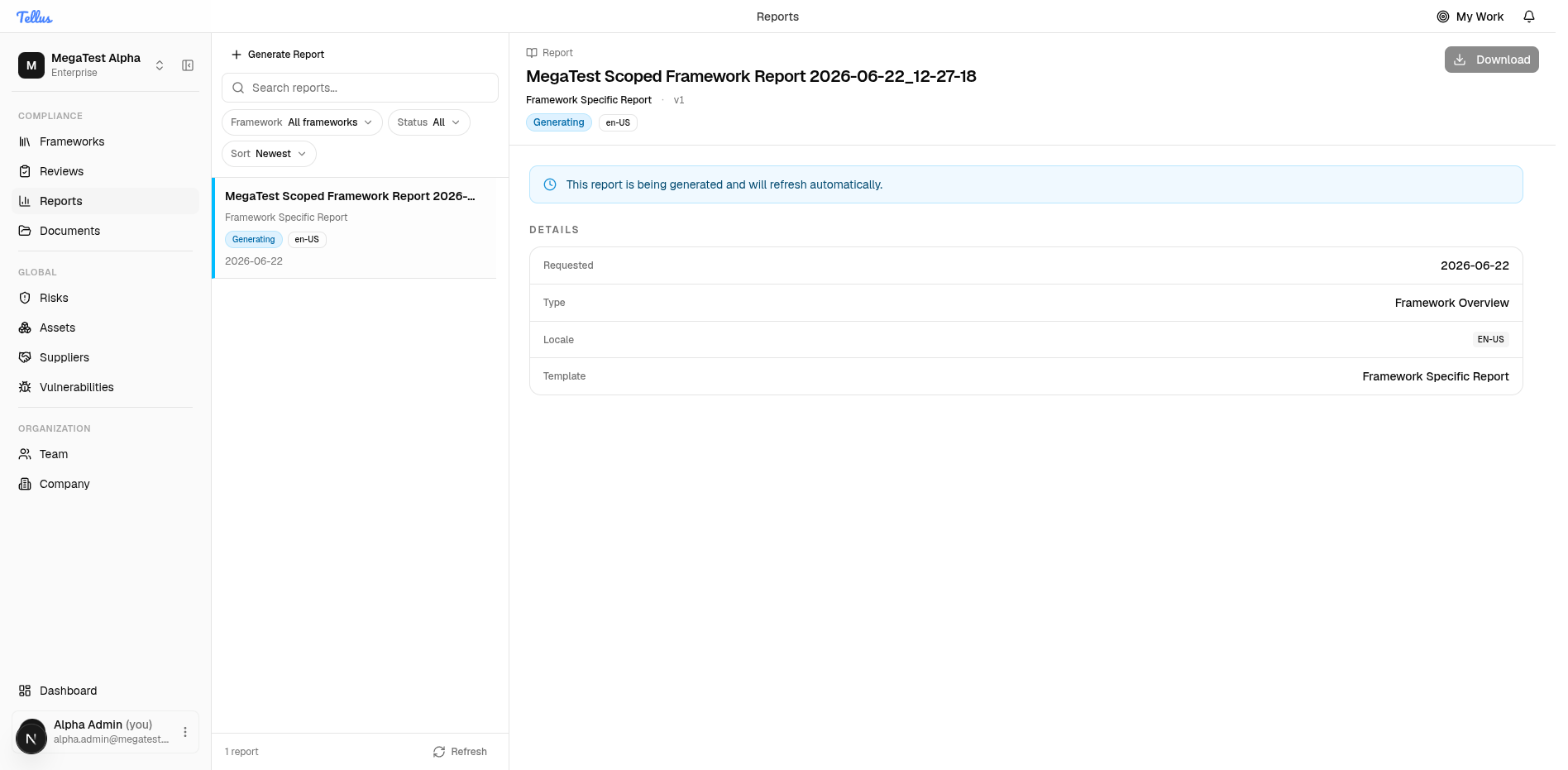
The detail pane is the in-app preview: it shows the report title, the template name with a version tag (for example "· v1"), the status and locale badges, and a Details section listing Requested (date), Type (for example "Framework Overview"), Locale, and Template.
-
Click Download at the top right of the detail pane to export the finished PDF.
There is no separate "Preview" button — the detail pane is the preview, and Download is the only export action. While a report is still generating, the pane shows "This report is being generated and will refresh automatically", and Download does nothing useful until the status reaches ready. The file is delivered as a PDF named after the report (its framework name plus timestamp).
If a download returns nothing, the report is almost certainly still generating — wait for the list to refresh to ready and try again. If it shows Failed, read the reason in the detail pane and generate a new report once the underlying issue (missing template, etc.) is resolved.
Related
- Reports overview — the two report types and exactly what each report contains.
- Frameworks and Risks — the source data a report summarizes.