Mitigation & reviews
Track mitigation through status and actions, and set recurring review schedules that drive the Reviews page.
A scored risk is only useful if it's being managed. Tellus tracks that two ways: a status (and mitigation actions) that say how the risk is being treated, and a recurring review schedule that keeps someone returning to it on a cadence. This page covers both.
Status: how the risk is being treated
A risk's status communicates its treatment state. The selectable values, and how each is coloured, are:
| Status | Meaning | Tone |
|---|---|---|
| Open | Needs triage; default for a new (or blank) risk. | blue |
| In Progress | Being worked on. | amber |
| Mitigated | Controls or actions have reduced it. | green |
| Transferred | Treated by moving it elsewhere (e.g. to an insurer). | green |
| Accepted | Consciously accepted as-is. | grey |
| Closed | No longer active. | grey |
Set the status inline from the detail header. A risk with no stored status displays as Open.
Status is a free-text field on the backend, not a strict enum, and the dropdown shows the fixed list above. Mitigated and Transferred both read as green ("treated"), while Accepted and Closed are grey — so an accepted risk is visually distinct from a mitigated one. Clearing the status on edit does not wipe the existing value; a blank status is ignored.
Mitigation actions
On the Overview tab, the Actions panel is where you record the concrete steps that bring the risk down — the mitigation work. Add an action with what needs doing, an owner, and a deadline, and mark actions complete as they're done.
Actions matter beyond the risk page because they drive how a risk surfaces in My Work:
What a risk's My Work due date really is
In My Work, a risk you own appears with a due date equal to the earliest deadline among its incomplete linked actions — not its next review date. Its My Work priority comes from the risk's level (Low/Medium/High). Recurring reviews do not affect a risk's My Work ranking; review obligations live on the separate Reviews page (below).
Recurring reviews
A recurring review keeps the risk on someone's radar. It is off by default.
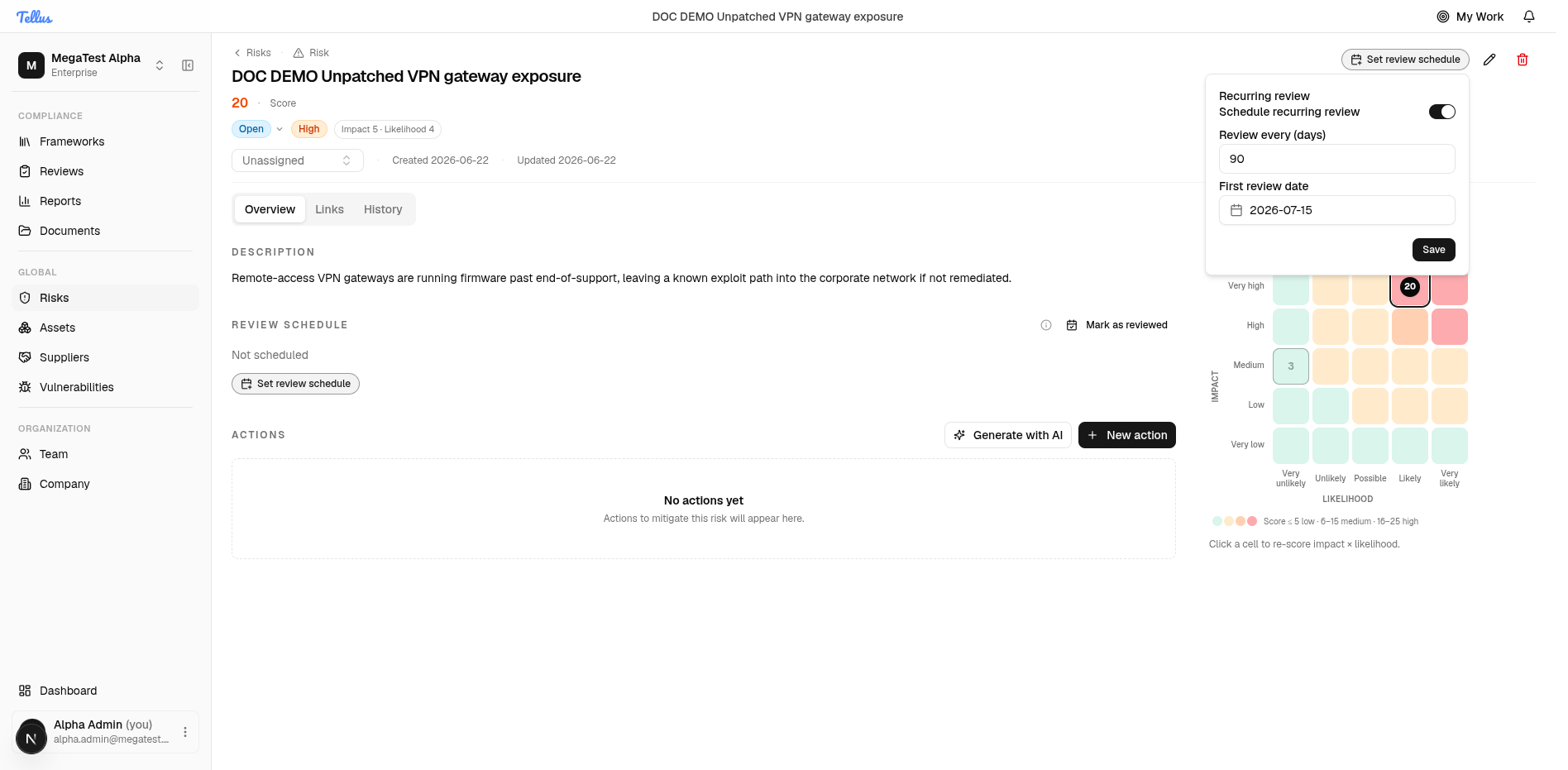
- In the detail header click Recurring review (or, on the Overview tab, the Review schedule card, which initially reads "Not scheduled"). The Recurring review dialog opens with a Schedule recurring review toggle set to Off.
- Turn the toggle On. Two fields appear: Review every (days) and First review date.
- Enter an interval in Review every (days) — valid range 1-3650. For example,
90. - Click First review date and pick a date from the calendar popover.
- Click Save. Save stays disabled until both the interval and the date are valid.
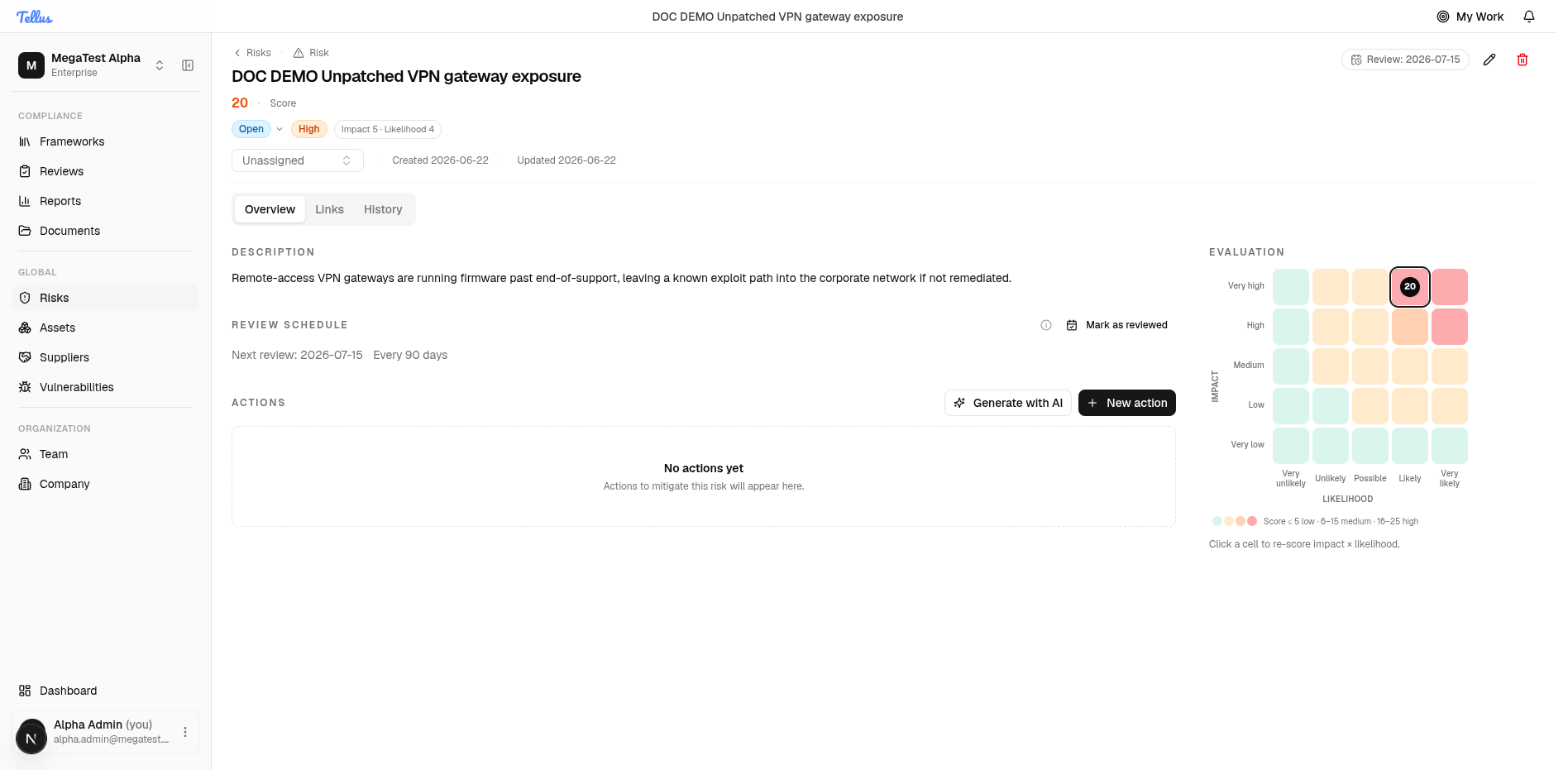
Once set, the next-review date shows up in the header button (e.g. "Review: 2026-07-15"), in the Overview Review schedule card ("Next review: … / Every 90 days" with a Mark as reviewed action), and in the register's Next review column.
Marking a review done
When you've reviewed the risk, click Mark as reviewed. This stamps the last-reviewed time to now and rolls the next-review date forward by the interval. If no positive interval is set, the next-review date is cleared and reminders stop.
Turning a review off
Open the dialog and switch the toggle Off (equivalently, setting the interval to 0). This clears both the interval and the next-review date.
An interval of 0 (or any value ≤ 0) means turn recurring review off — not "review every zero days." Leaving the interval untouched leaves the schedule unchanged.
How reviews reach the Reviews page
The Reviews page lists the risks and controls that you own and that have a next-review date set, sorted by due date (soonest first). The page buckets them by urgency (overdue, this week, and so on) and colours overdue items red.
Reviews are owner-scoped
Only the user set as the risk's owner sees its recurring review on their Reviews page. A scheduled review is not shared with every viewer — so assign an owner if you want the review to actually reach someone. See Creating & re-scoring risks for setting the owner.