Creating & re-scoring risks
The new-risk form and its defaults, plus re-scoring a risk on the 5x5 evaluation grid with its before/after confirmation.
A risk needs only a title to exist; everything else has a sensible default and can be changed later. This page covers creating a risk and adjusting its impact and likelihood afterward. For how the resulting score and level are computed, see The risk register.
Create a risk
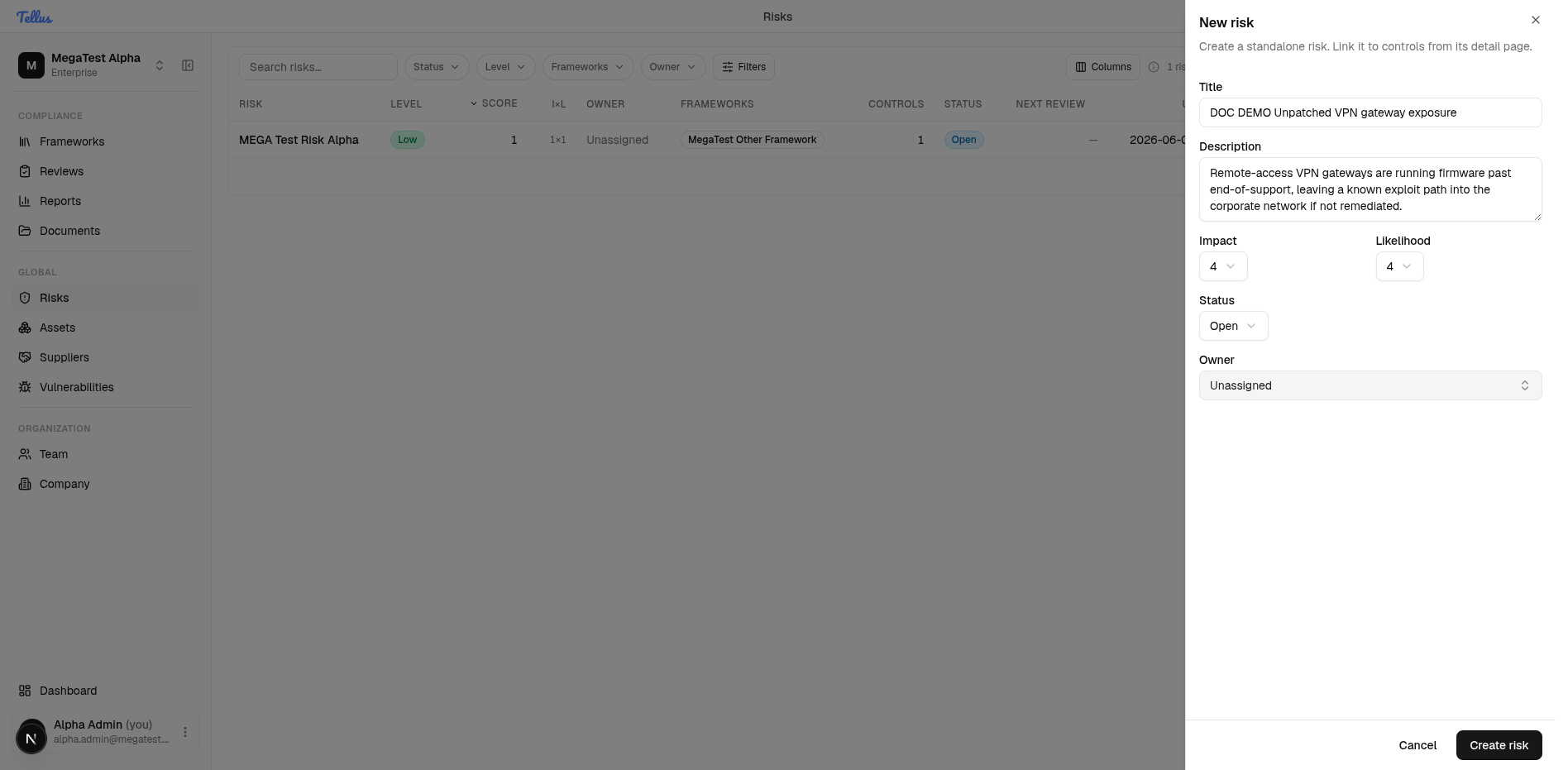
- Open the register (sidebar → Global → Risks) and click New risk in the top right of the toolbar. The New risk dialog opens.
- Enter a Title — a short, specific risk statement (for example, "Unpatched VPN gateway exposure"). The Create risk button stays disabled until a title is present.
- Add a Description explaining what the risk is and why it matters.
- Set Impact and Likelihood from the two dropdowns. Both default to 3.
- Optionally set Status (defaults to Open) and Owner (defaults to Unassigned).
- Click Create risk. The app saves the risk and takes you straight to its detail page at
/risks/<id>. The risk also appears in the register table and is plotted on the exposure matrix.
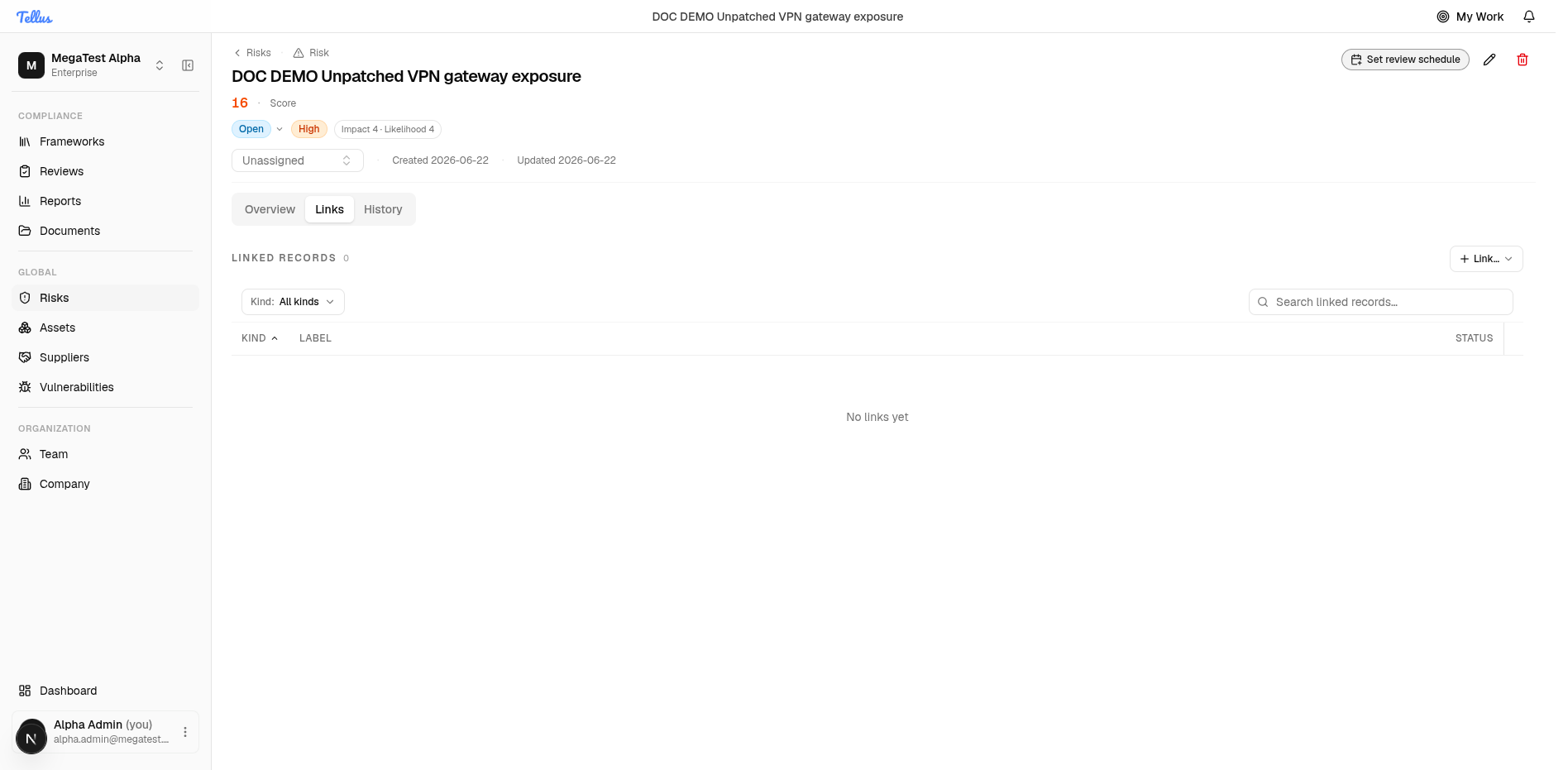
The detail header then shows the derived Score and a Level badge with the impact and likelihood that produced it (for example, Impact 4 x Likelihood 4 = 16, badge High), an editable Status, an inline Owner combobox, and Recurring review / Edit details / Delete actions alongside the Created and Updated dates.
Defaults and field notes
| Field | Default | Notes |
|---|---|---|
| Title | — | Required; the only field that gates Create risk. |
| Impact | 3 | 1-5 scale (Very low to Very high). |
| Likelihood | 3 | 1-5 scale (Very unlikely to Very likely). |
| Status | Open | Selectable: Open, In Progress, Mitigated, Accepted, Transferred, Closed. A risk with no status displays as Open. |
| Owner | Unassigned | Must be a company member. Owning a risk is what surfaces its reviews and work to that person — see Mitigation & reviews. |
Impact and likelihood are intended as integers 1-5, and the UI only offers those. The API itself does not enforce the 1-5 range, but the matrix and the AI generator only ever produce integers, so in normal use your scores land between 1 and 25.
Re-score on the evaluation grid
Once a risk exists, the cleanest way to change its exposure is the evaluation grid on the Overview tab.
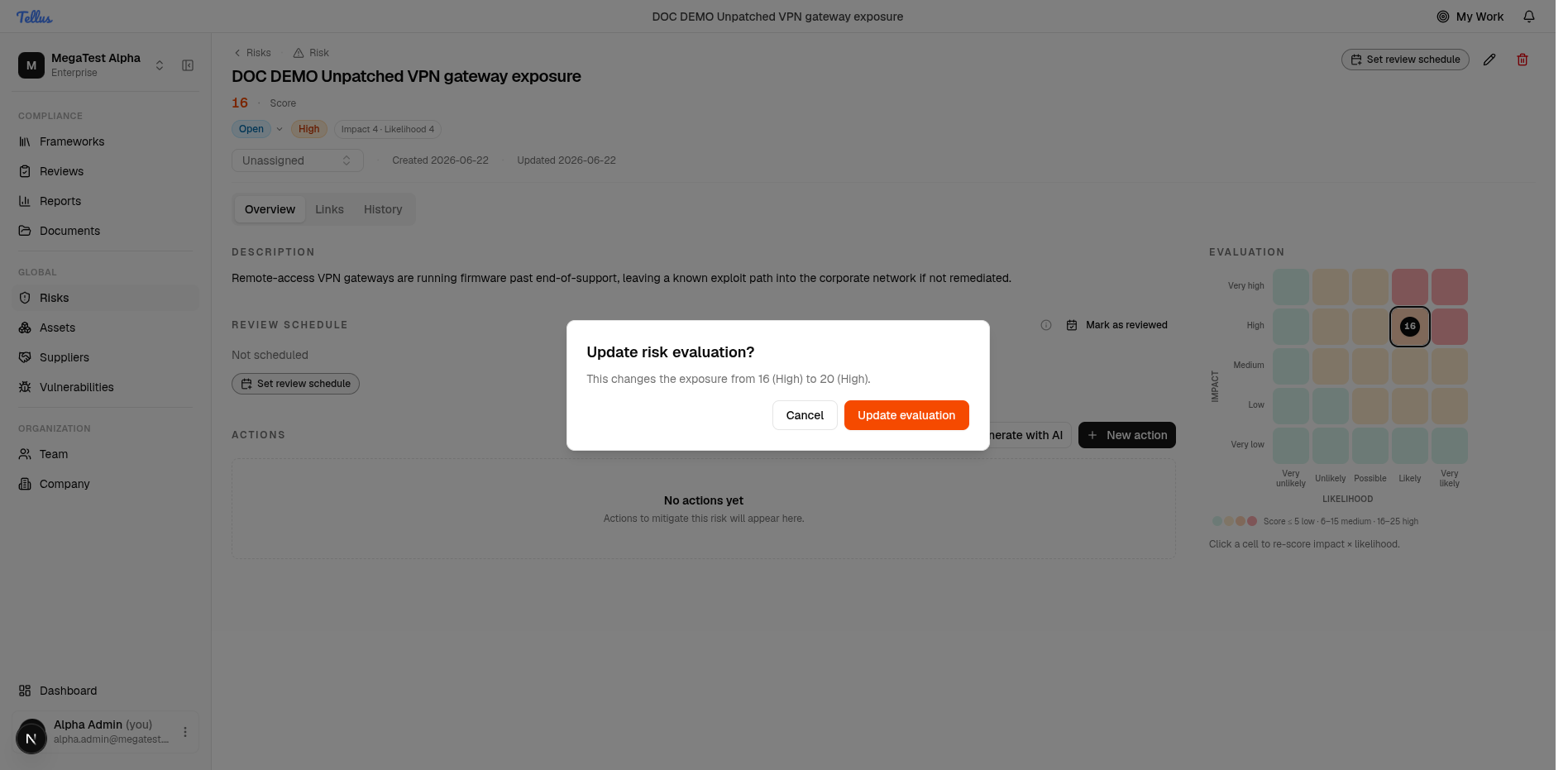
- On the risk's detail page, open the Overview tab. The right column has an Evaluation section with a 5x5 impact-by-likelihood grid. The current cell is highlighted, and a legend reads "Score ≤ 5 low · 6-15 medium · 16-25 high" with the hint "Click a cell to re-score impact x likelihood."
- Click the cell for the new impact and likelihood — for example, Impact 5 x Likelihood 4 (value 20).
- An Update risk evaluation? dialog appears stating the change explicitly, e.g. "This changes the exposure from 16 (High) to 20 (High)."
- Click Update evaluation. The header score and the badge update immediately.
Re-scoring is guarded
A single grid click never silently changes the risk. The before/after confirmation dialog always appears first, so an accidental click can be cancelled without altering the recorded exposure.
You can also change impact and likelihood from Edit details, but the grid is faster and shows you exactly where the risk moves on the matrix. Either way, the score and level are recomputed server-side on save.
AI-proposed risks
Risks can be generated by AI from a control's content (from the framework's risk view). The generator is instructed to use integers 1-5 for impact and likelihood, to match the source content's language, and to avoid duplicating existing risks. Generated risks are saved with status AI Proposed and are auto-linked to the control they came from.
These drafts are grouped separately in the UI and are meant for human review: open one, adjust its impact/likelihood and description, set a real owner, and move its status to Open (or another workflow status) once you accept it. AI Proposed is filterable in the register but is not offered in the normal status dropdown — you promote a draft by giving it a regular status.