Linking risks
Connect a risk to controls, suppliers, incidents, assets, and vulnerabilities from the Links tab, and understand what each link means.
A risk rarely stands alone. From a risk's Links tab you can connect it to the records it relates to — the controls that address it, the suppliers and assets it touches, the incidents it caused or was realised by, and the vulnerabilities behind it. This page covers how to link and unlink, and what each link type actually represents.
The Links tab
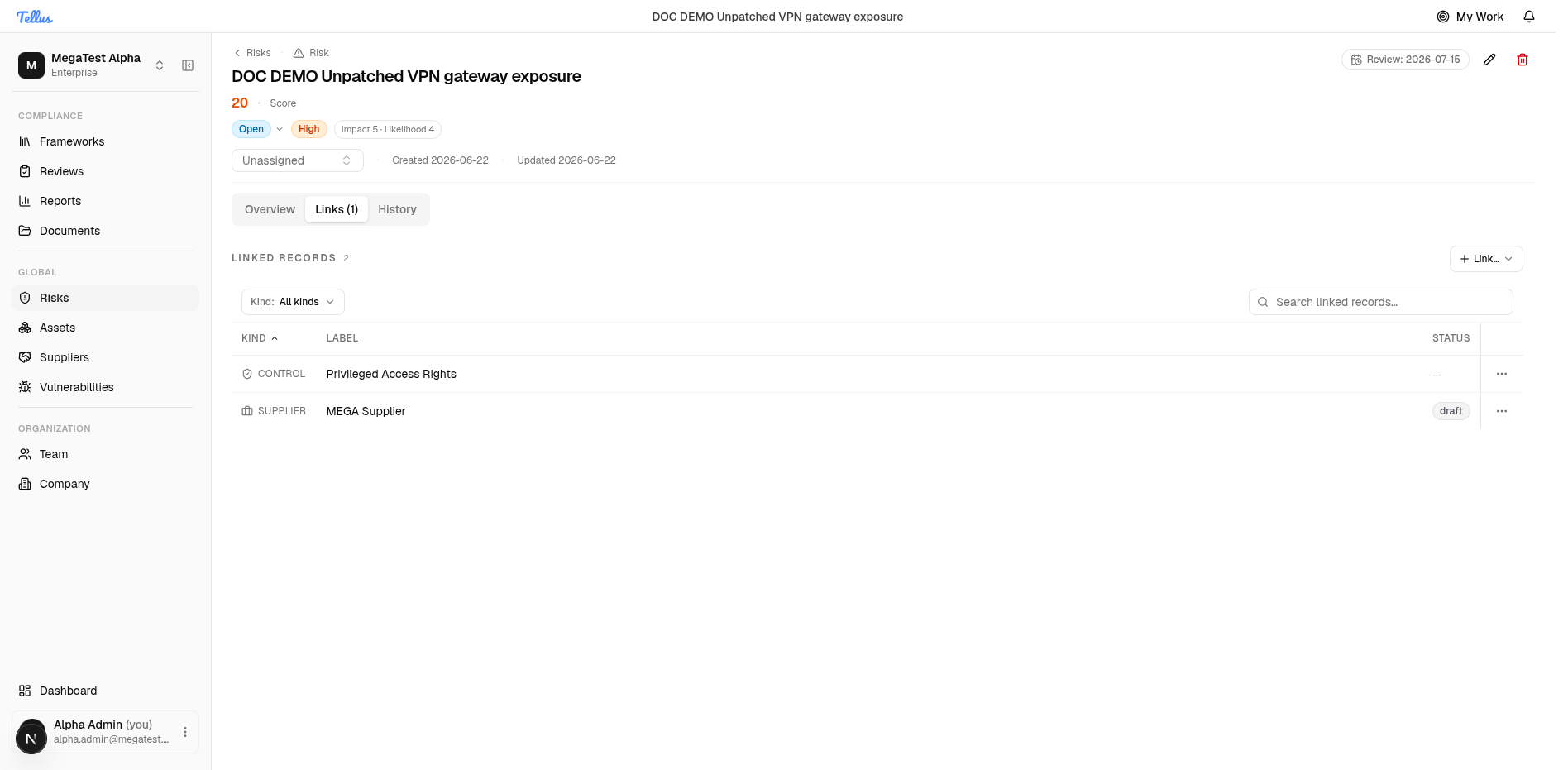
- Open a risk and click the Links tab. It starts at "No links yet" with a count of 0.
- Linked records appear in a table showing each item's kind, label, and status, each with an inline Unlink action. The Linked records count reflects the total.
- To add a connection, click Link… in the top right.
What you can link
Clicking Link… opens a kind menu: Controls, Assets, Suppliers, Vulnerabilities, Incidents.
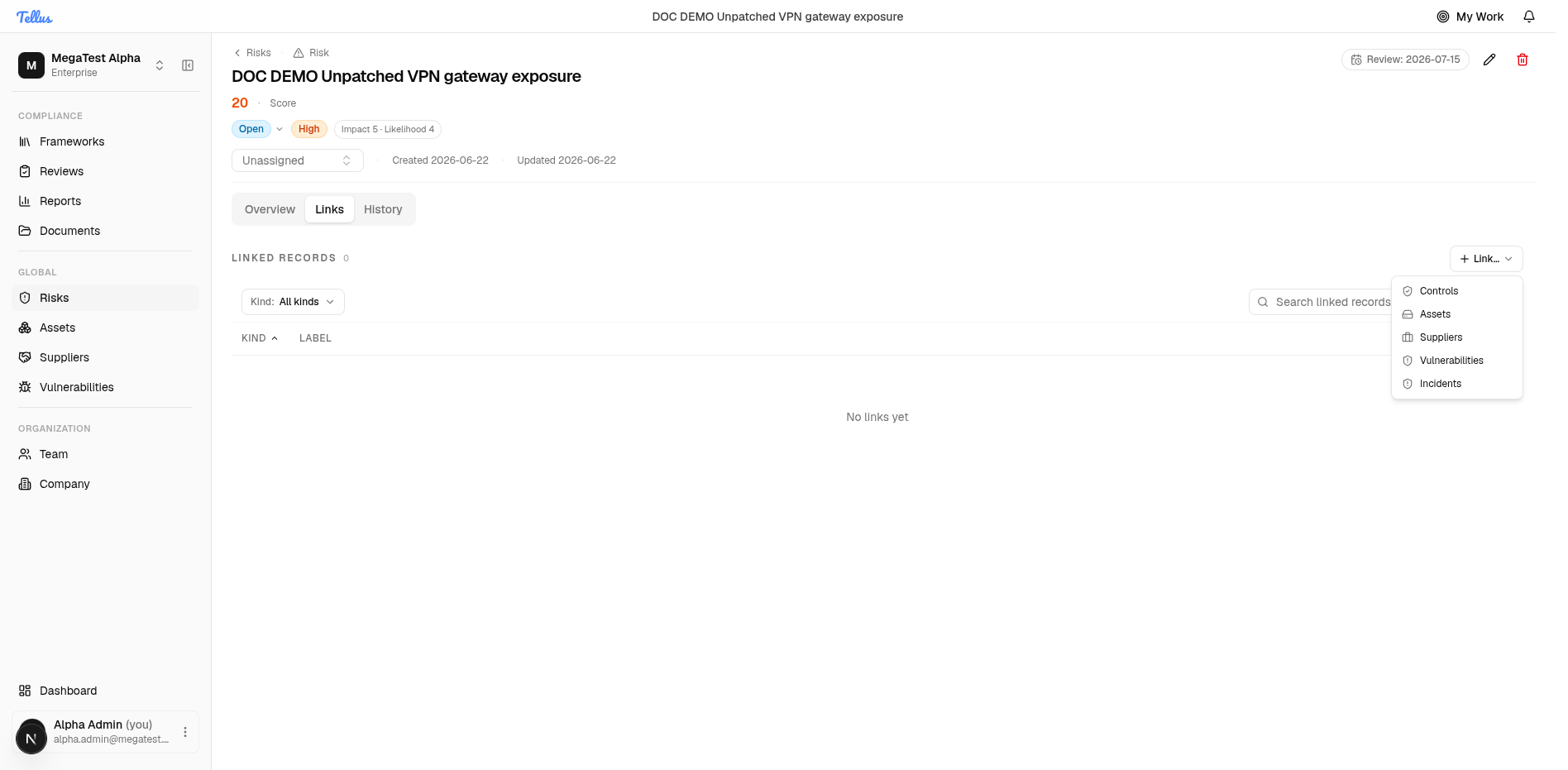
Two different pickers are used depending on the kind:
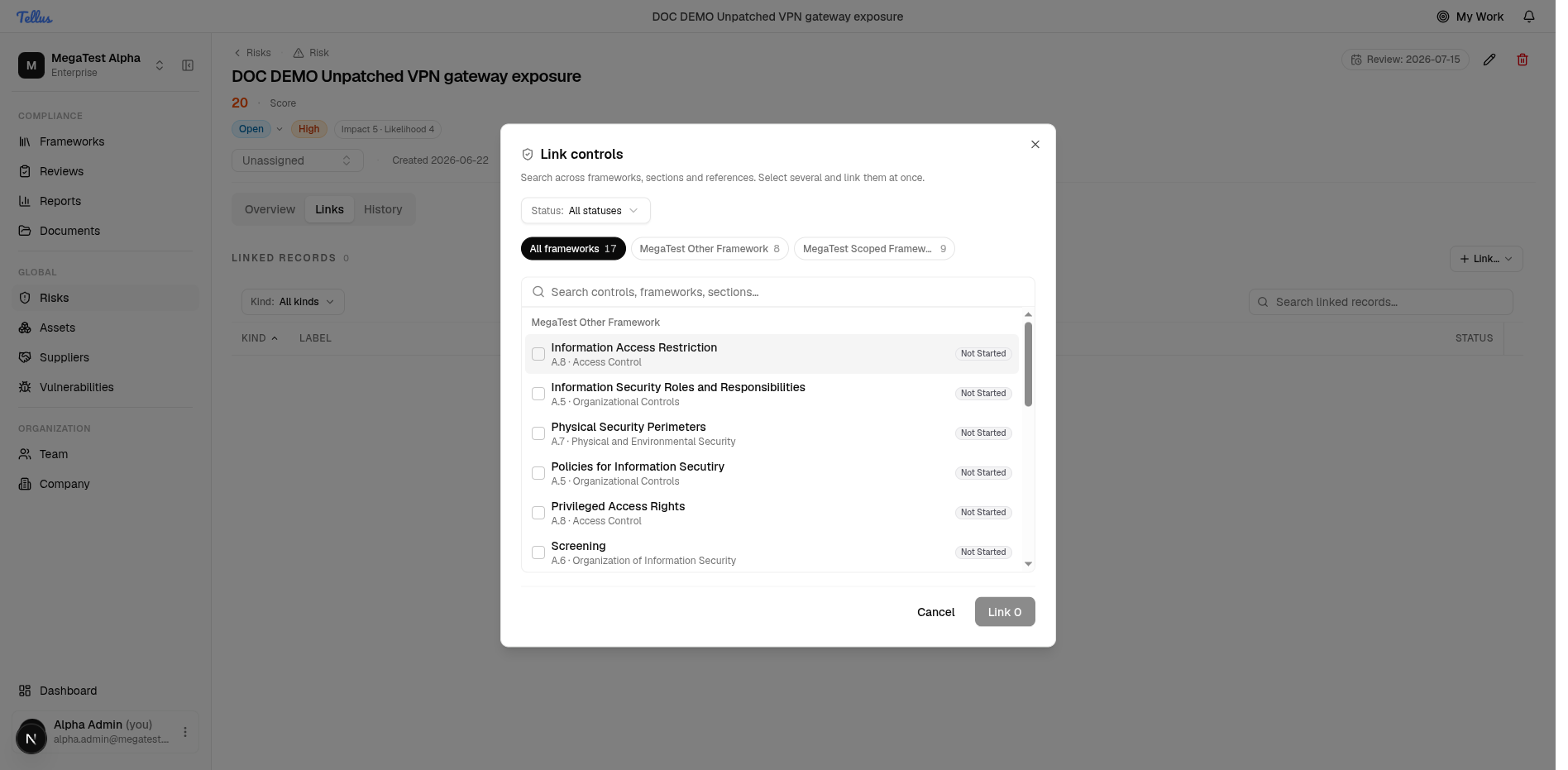
- Controls open a dedicated, fully filterable picker — search, a Status filter, framework tabs with counts, and controls grouped by framework showing each one's reference (e.g. A.8 · Access Control) and implementation status. This mirrors how controls are browsed elsewhere, so you can find the right one at scale.
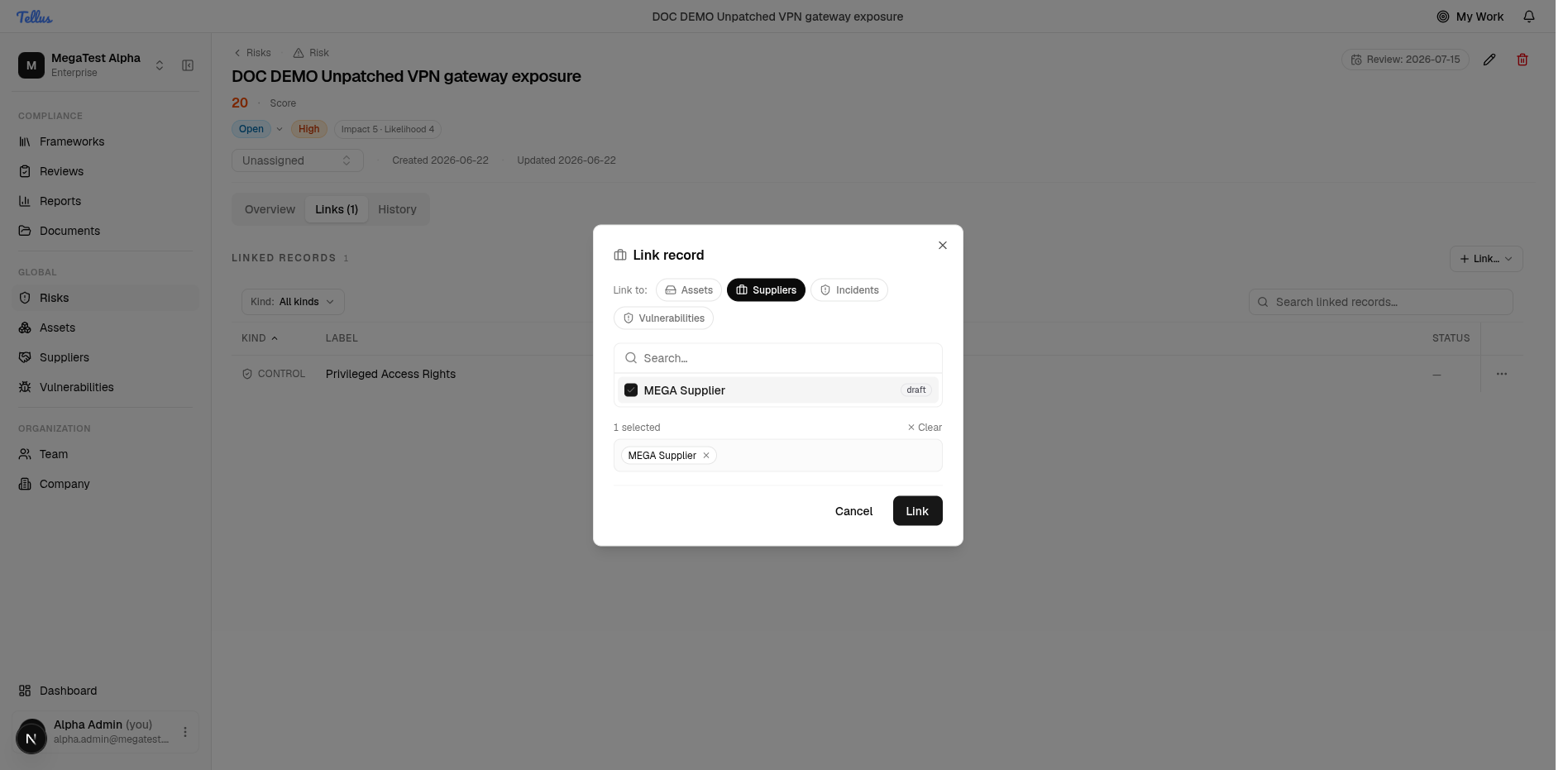
- Assets, Suppliers, Vulnerabilities, Incidents use the lighter unified Link record dialog: radio tabs to switch kind and a searchable suggestion list.
In either dialog, click items to select them (selected items show as chips with a running count), then click Link to attach them all at once. The new rows appear in the Links table.
Linking a control
- Click Link… → Controls.
- Use the search box, Status filter, and framework tabs to find the control, then click it. It shows as a chip and the action button updates (e.g. Link 1).
- Click Link N. The control appears in the Links table.
Linking a supplier (or asset / vulnerability / incident)
- Click Link… and choose the kind. The Link record dialog opens with the kind radio tabs.
- Search and select one or more records (each shows a "selected" chip).
- Click Link. The rows are added to the Links table.
To remove any link, click Unlink on its row in the Links table.
What each link type means
Each link kind is its own relationship — there is no single combined links table — and they behave slightly differently:
| Link | Represents | Notes |
|---|---|---|
| Controls | The controls that mitigate or relate to the risk. | The original, most common link. Managed entirely from the risk page. |
| Suppliers | A third party the risk involves. | Can be created by hand here, or arise automatically when a supplier-review finding is promoted to a risk. The Links table shows both the same way. |
| Incidents | Incidents the risk relates to. | Linked as a related connection. The richer incident relationship lives on the incident page. |
| Vulnerabilities | CVD reports / vulnerabilities behind the risk. | |
| Assets | Assets in scope of the risk. |
Linking and unlinking from the risk side requires risk:update (asset links also require asset:update). If a kind's picker shows nothing or the action is unavailable, you likely lack the permission for that kind.
Two people, different links
The reverse link lists on a risk are filtered by the viewer's permissions, even though the risk itself is readable. Linked controls are limited to those whose framework/section/control you can read; supplier links require supplier:read, vulnerability links require cvd:view, and incident links require incident:view. If you lack the relevant permission you get an empty list for that kind — not an error. As a result, two users can legitimately see different link sets on the same risk.
Deleting a linked risk
A risk that is linked to one or more incidents cannot be deleted. The attempt returns a 409 Conflict asking you to unlink it from those incidents first. This is deliberate — it preserves the incident's regulatory linkage. Remove the incident link(s) from the Links tab, then delete the risk.
For how a risk's mitigation status and reviews are tracked, see Mitigation & reviews; for scoring and the register, see The risk register.
Mitigation & reviews
Track mitigation through status and actions, and set recurring review schedules that drive the Reviews page.
Incidents overview
Log, triage, and resolve security and operational events from first detection through close — with a full audit timeline and regulatory deadline tracking.