Reporting an incident
Log an incident through the report form, then complete the triage profile that captures regulatory frameworks, awareness time, and per-regime required fields.
Reporting an incident is a two-part flow. The Report incident dialog captures the essentials needed to start triage. If the incident is regulated, a separate Complete triage profile step gathers the heavier regulatory detail. Splitting them this way keeps the initial report fast — you record what you know now and refine later.
You need the incident:report permission to create an incident.
Member view
The New and Edit triage profile buttons shown below are only visible to incident responders, managers, and admins. A view-only member opens an incident in read mode with no create or triage controls.
Open the report form
- Open the Incidents page from the sidebar, or go to
/incidents. - Click New at the top of the queue.
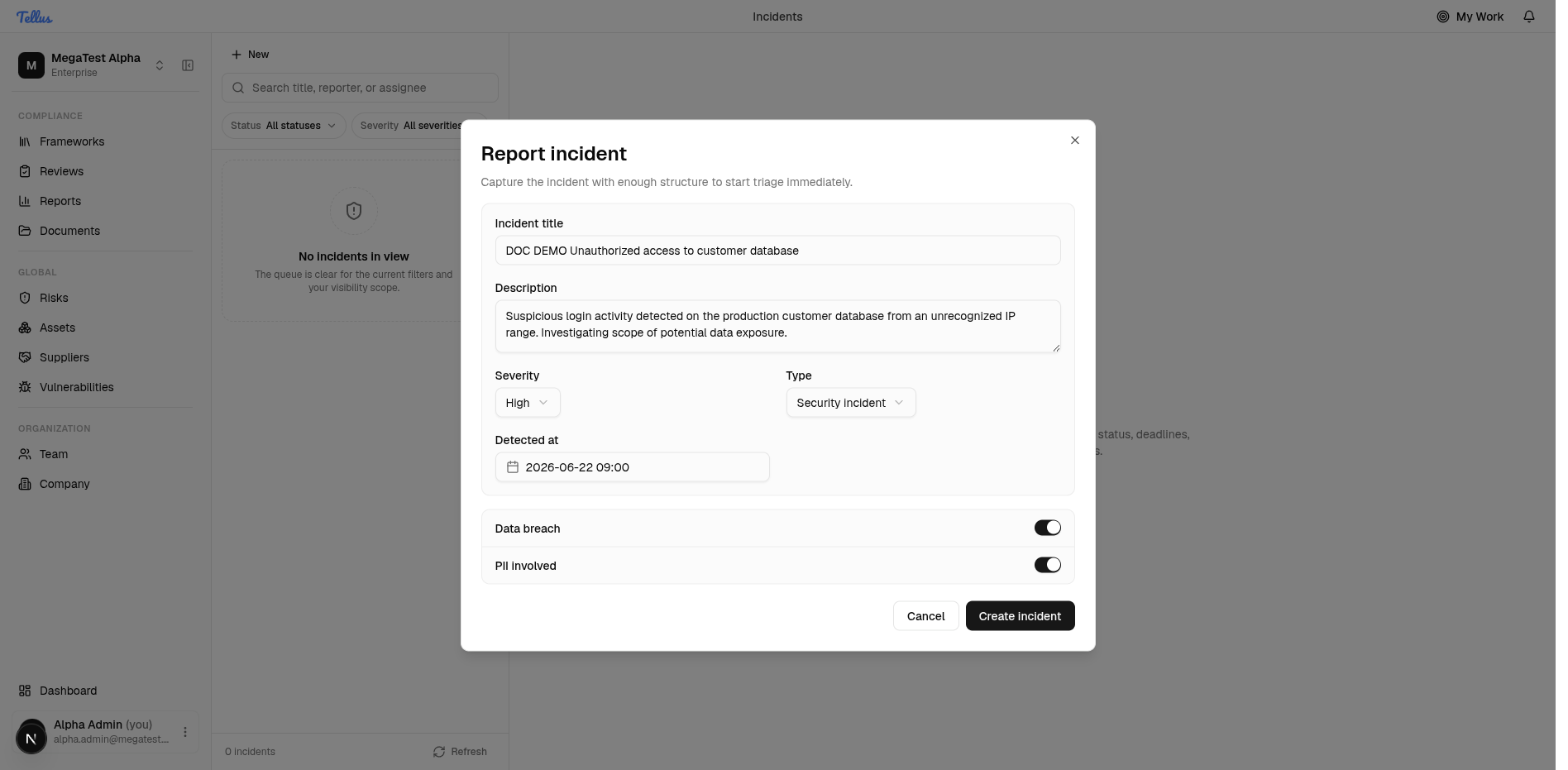
- The Report incident dialog opens.
Fill in the base fields
The report form is intentionally lightweight. It captures:
| Field | What it is |
|---|---|
| Incident title | A short name for the event. Required. |
| Description | What happened and what you know so far. |
| Severity | Low, Medium, High, or Critical. |
| Type | General, Data breach, Service disruption, Security incident, Supply chain, or Physical. |
| Detected at | When the incident was detected (date and time). |
| Data breach / PII involved | Toggles marking the incident as a data breach and/or involving personal data. |
- Enter a clear title and a short description.
- Set Severity and Type to match the situation.
- Open the Detected at picker, choose the date and time you became aware, and confirm. You can only pick today or earlier — future times are rejected (a small clock skew is tolerated).
- Toggle Data breach and PII involved on if personal or breached data is involved.
- Click Create incident.
The incident is created and immediately selected; the URL gains ?incidentId=… and the detail pane renders the full workspace. The new card appears in the queue with its severity, a Reported status, and a Breach chip if you flagged it.
Type is not the same as regulatory scope
The Type field (Data breach, Security incident, …) is a coarse operational label. It does not decide which laws apply. The data_breach and PII involved flags are separate regulatory trigger flags, and which frameworks actually run is set in the triage profile below. An internal-only breach can be typed "Data breach" without GDPR applying.
Detection time vs awareness time
Two timestamps matter and they are deliberately different:
- Detected at — when the incident was detected. This is the clock-start for DORA deadlines.
- Awareness at — when responsible personnel gained credible knowledge of the incident. This is the legal clock-start for GDPR and NIS2 deadlines.
Awareness must be no earlier than detection, and neither may be in the future. The base form captures detection; awareness is set in the triage profile.
Complete the triage profile
When an incident is regulated — for example a Security incident with Data breach and PII involved on — the workspace shows a Triage incomplete — action required banner listing the regulatory fields still needed.
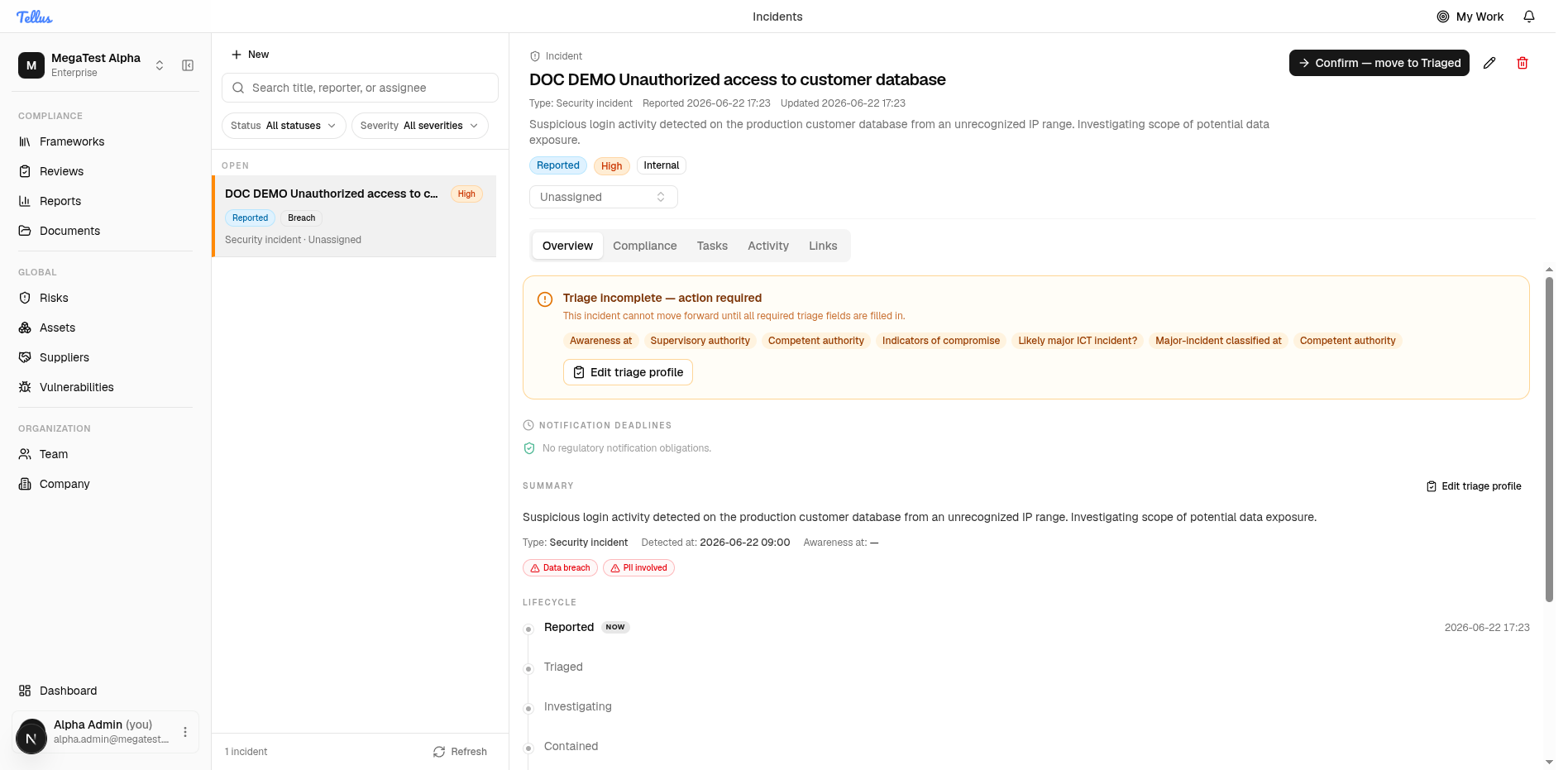
- Click Edit triage profile in the banner.
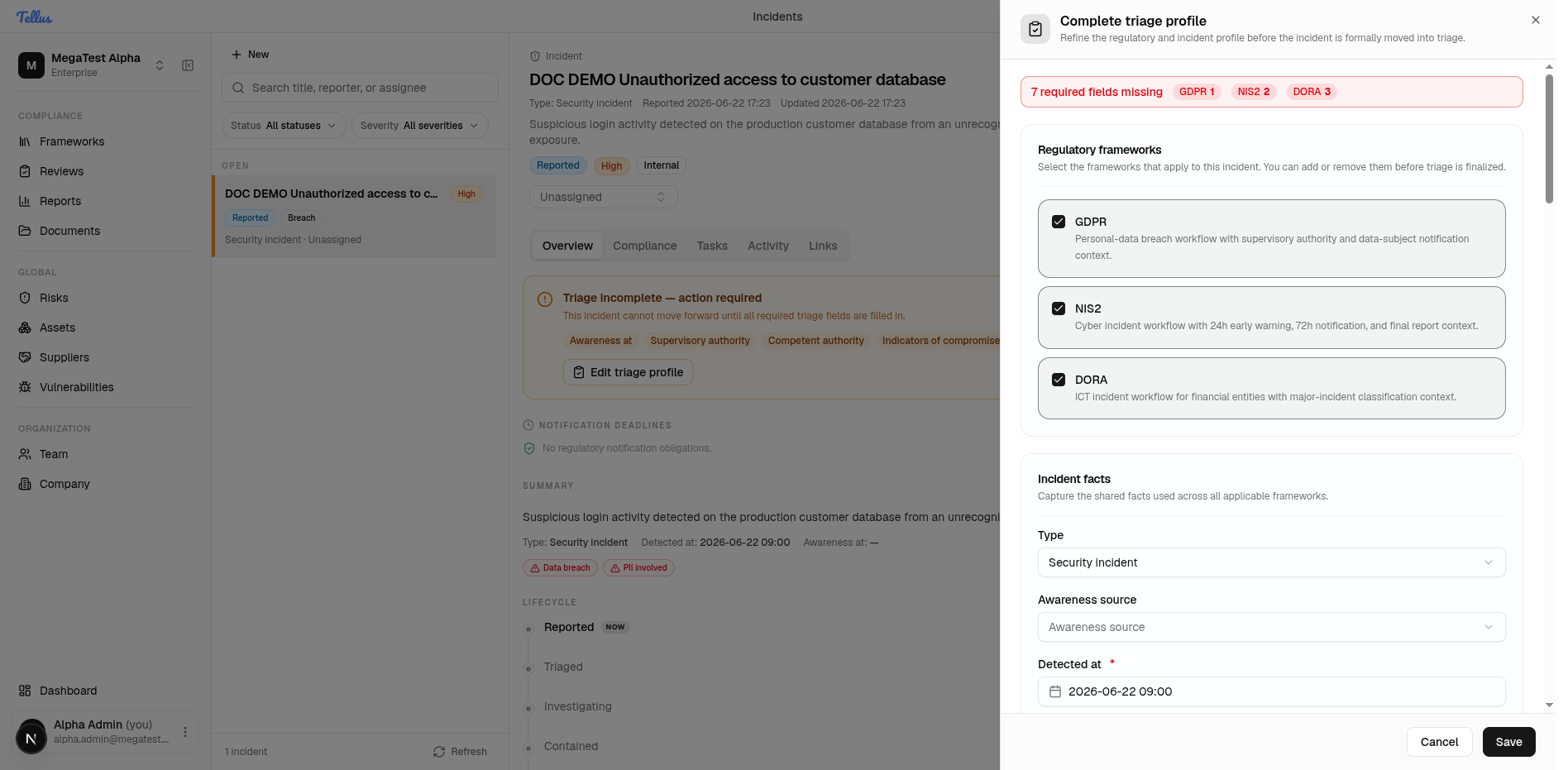
- The Complete triage profile dialog opens. It auto-selects the applicable Regulatory frameworks based on the flags you set — selecting data breach + PII on a security incident applies GDPR, NIS2, and DORA.
- Fill the Incident facts block: awareness source, Awareness at, affected jurisdictions, and the cross-border / data breach / PII switches.
- Complete each per-framework section that appears:
- GDPR — supervisory authority (e.g. Datatilsynet).
- NIS2 — competent authority (e.g. Center for Cybersikkerhed) and indicators of compromise.
- DORA — competent authority (e.g. Finanstilsynet), whether this is a likely major ICT incident, and the major-incident classification timestamp.
- Click Save.
On save the triage banner clears, the header gains a Regulated chip and a Notification deadline timestamp, and the summary shows GDPR / NIS2 / DORA chips alongside the data breach / PII facts.
The framework selection, jurisdictions, and per-regime fields are stored as a single regulatory-context document on the incident. The active frameworks array determines which per-framework blocks are required and validated, and — together with the awareness and detection times — which deadline clocks start running. See Regulatory notifications.
The three supported frameworks are GDPR, NIS2, and DORA; no others are validated. Once the profile is complete, work the incident through its lifecycle and action its notification deadlines.
Incidents overview
Log, triage, and resolve security and operational events from first detection through close — with a full audit timeline and regulatory deadline tracking.
Working an incident
Advance an incident through its forward-only status lifecycle, read the lifecycle rail and audit timeline, post discussion, and manage remediation tasks.