Regulatory notifications
How Tellus computes GDPR, NIS2, and DORA notification deadlines from awareness and detection times, and how to mark each regulator dispatch as sent.
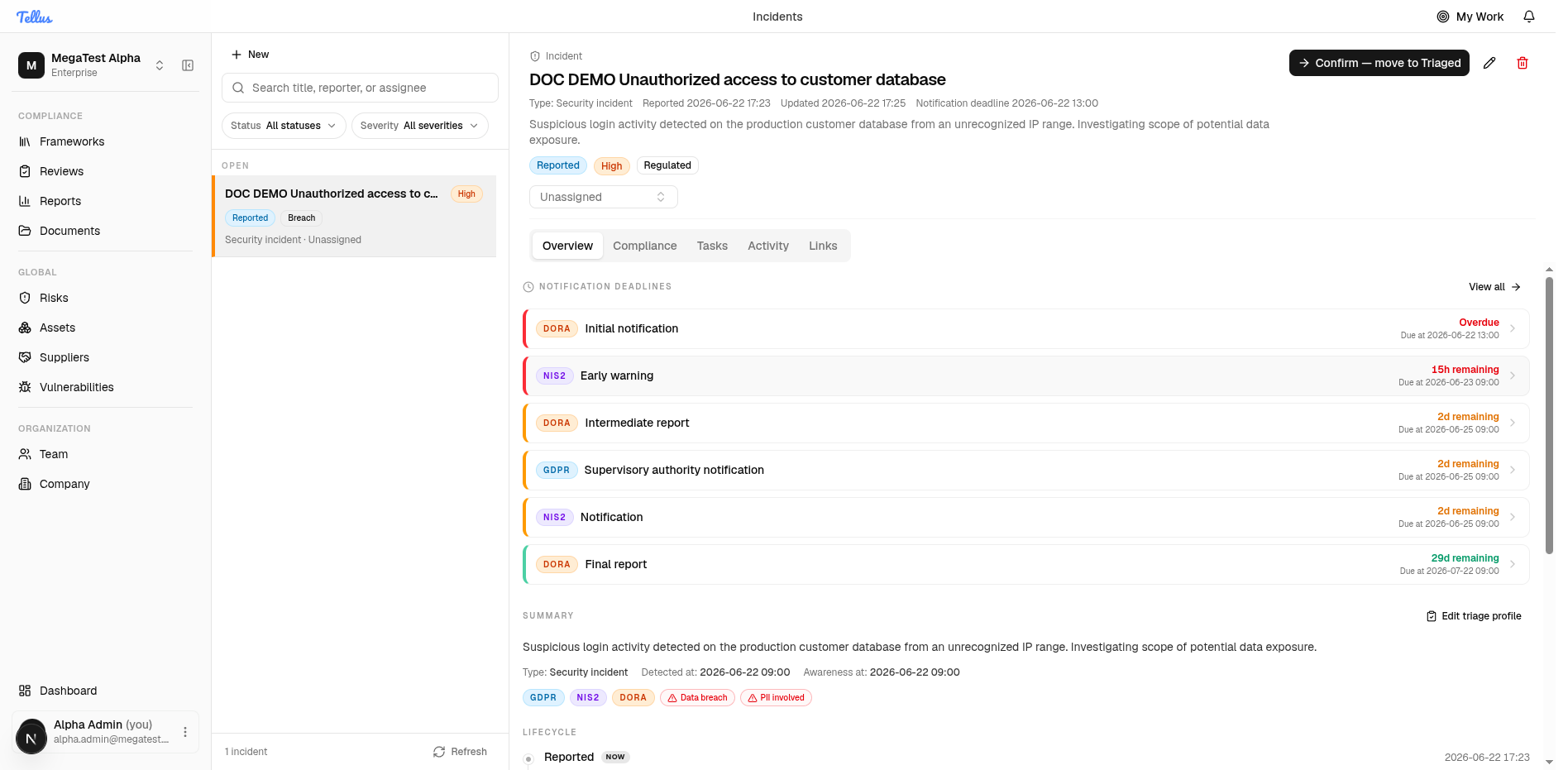
When an incident is regulated, Tellus generates the full notification schedule from the frameworks you applied in the triage profile and the incident's awareness and detection times. A single incident can produce a combined GDPR + NIS2 + DORA schedule, each obligation with its own deadline and live countdown.
Where deadlines appear
- The Overview tab shows a Notification deadlines panel summarizing each obligation with its framework badge, label, a live countdown ("Overdue", "15h remaining", "29d remaining"), and the absolute due time.
- The Compliance tab is the full workspace: obligations grouped by state — OVERDUE / PENDING / MET — across DORA, NIS2, and GDPR, with a Mark as sent action on each.
When the clocks start
Deadline clocks only appear once their clock-start timestamp is set:
- GDPR and NIS2 clocks run from awareness at — the moment responsible personnel gained credible knowledge.
- DORA clocks run from detected at — when the incident was detected.
Until awareness is recorded, no GDPR/NIS2 deadlines show; until detection is recorded, no DORA deadlines show.
There is no single universal clock-start. GDPR and NIS2 start from awareness; DORA is the exception and starts from detection. Set both times accurately in the triage profile.
Deadlines per framework
Each framework has its own policy. The stages Tellus actually computes:
| Framework | Stage | Due |
|---|---|---|
| GDPR | Supervisory-authority notification | awareness + 72 hours |
| NIS2 | Early warning | awareness + 24 hours |
| NIS2 | Notification | awareness + 72 hours |
| NIS2 | Final report | 1 month after the notification stage is marked sent |
| DORA | Initial notification | the earlier of classification + 4h or detection + 24 hours |
| DORA | Intermediate report | detection + 72 hours |
| DORA | Final report | detection + 1 month |
GDPR has exactly one modeled deadline clock — the 72-hour supervisory-authority notification. Tellus does not track GDPR data-subject (Article 34) notification as a separate deadline clock.
The header carries a single Notification deadline value: the nearest upcoming deadline across all active frameworks and stages. It is recomputed as stages are completed or inputs change. The per-framework, per-stage detail lives in the incident's regulatory-context record.
Marking a dispatch as sent
When you have notified a regulator, record it so the obligation is satisfied and the timing captured.
- Open the Compliance tab. Each pending obligation reads "No regulator dispatch has been recorded" with a Mark as sent button.
- Click Mark as sent on the relevant obligation (for example the overdue DORA initial notification).
- The obligation moves to the MET group immediately — there is no confirmation dialog. The header tally updates (e.g. from "1 overdue / 5 pending" to "5 pending / 1 met"), and the entry records "Satisfied at …" with timing detail such as "Met in 1d 4h · 4h 32m after deadline".
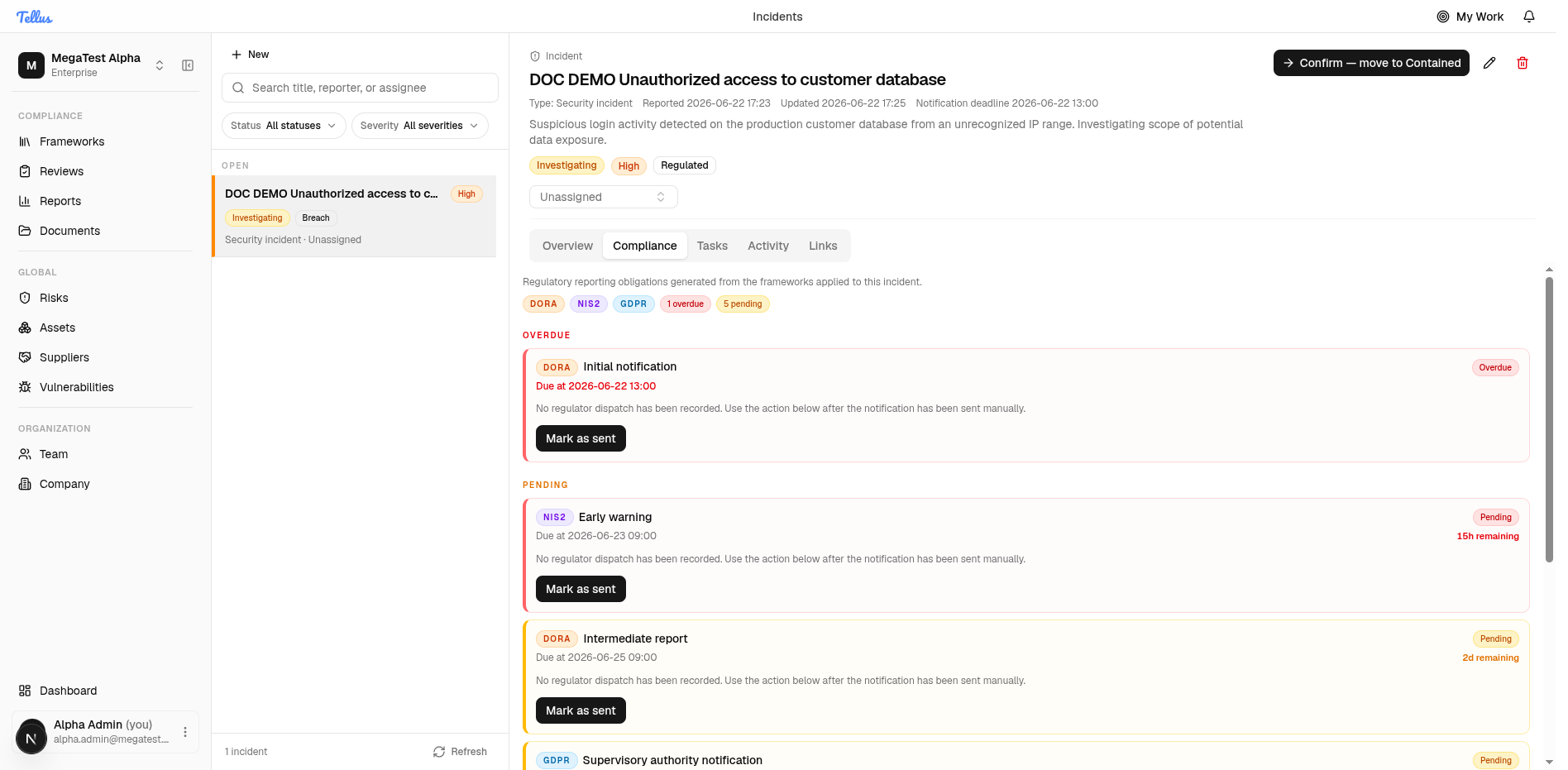
A stage shows as Met once its sent timestamp is recorded, and on-time vs late is computed relative to its deadline. Marking the NIS2 notification stage sent is also what starts the NIS2 final-report clock.
Permission note
Marking a regulatory deadline as sent is governed by the incident:task permission — the same permission that manages remediation tasks — not a dedicated notification permission.
Automated deadline tracking
A background worker watches incidents whose nearest deadline is approaching. As a stage comes due it records a regulator-type notification tagged with the framework and stage, queues the outbound message, and advances the incident's tracked deadline to the next pending stage. The schedule you see on the Compliance tab is the authoritative view; "Mark as sent" is the manual action that satisfies an obligation.
The frameworks supported are GDPR, NIS2, and DORA. Set them in the triage profile, and link the affected controls and risks on the Links tab.
Working an incident
Advance an incident through its forward-only status lifecycle, read the lifecycle rail and audit timeline, post discussion, and manage remediation tasks.
Linking incidents
Connect controls, risks, evidence, reports, and assets to an incident from the Links tab, using the dedicated framework-aware pickers.