Working an incident
Advance an incident through its forward-only status lifecycle, read the lifecycle rail and audit timeline, post discussion, and manage remediation tasks.
Once an incident is reported, the detail pane is your workspace for driving it to close. It has five tabs: Overview (facts, notification deadlines, summary, lifecycle rail, recent activity), Compliance (the regulatory workspace — see Regulatory notifications), Tasks, Activity (discussion plus audit log), and Links (see Linking incidents).
The status lifecycle
Incidents move through an ordered, forward-only lifecycle. The allowed steps are exactly:
Reported → Triaged → Investigating → Contained → Eradicated → Resolved → Post-review → Closed
You advance one stage at a time using a single contextual button in the detail header — there is no free-form status dropdown.
- The header shows the next move, e.g. Confirm — move to Triaged.
- Click it. The incident advances and the button relabels to the next step (Confirm — move to Investigating, then Confirm — move to Contained, and so on).
You cannot skip a stage, and Eradicated (between Contained and Resolved) and Post-review (between Resolved and Closed) are mandatory, not optional. The only backward move is Resolved → Investigating (re-opening), and it requires a note explaining why. Any other jump is rejected.
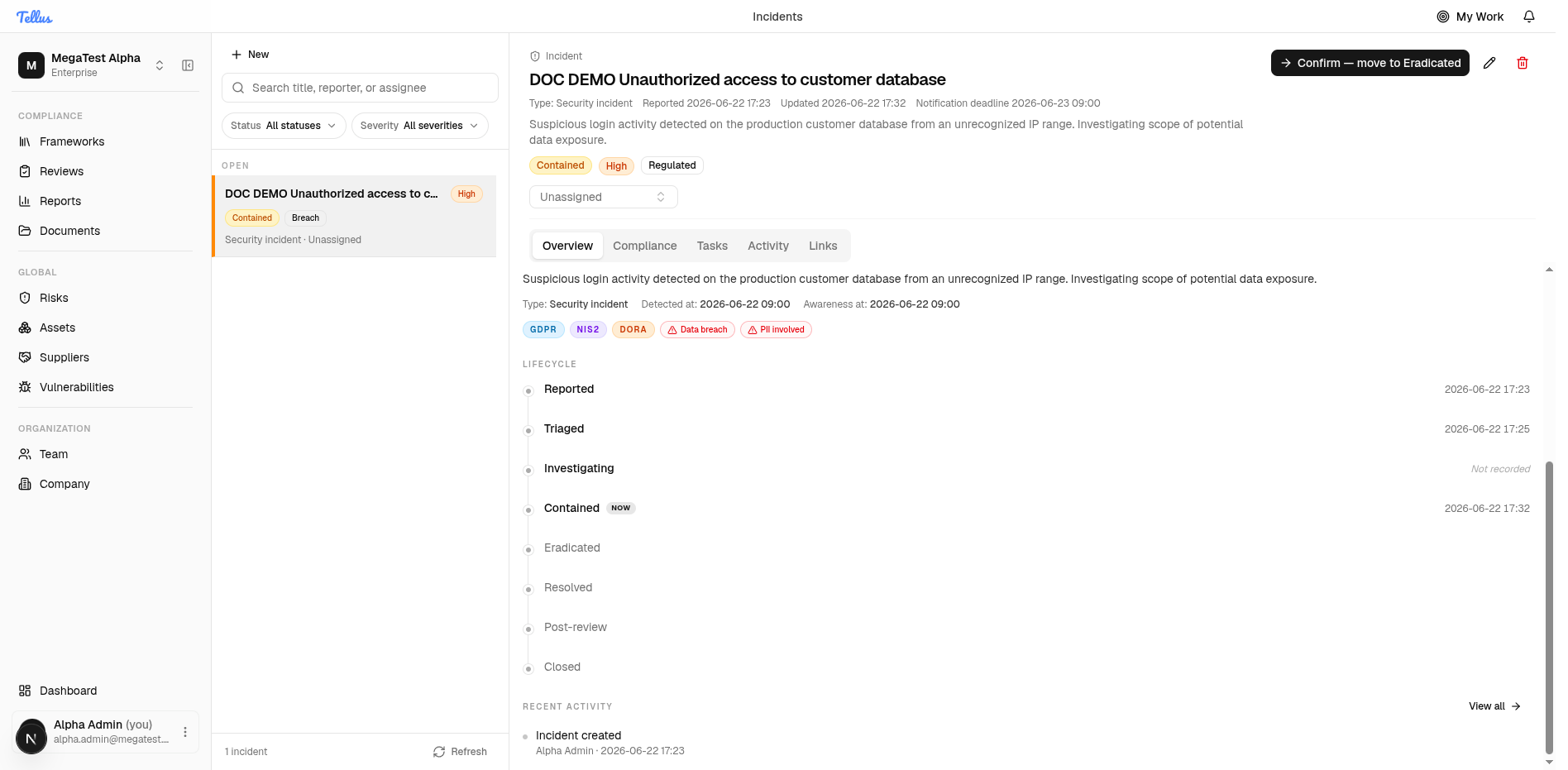
Reaching certain stages auto-stamps a timestamp that powers response metrics: moving to Triaged sets the triaged time, Contained sets the contained time (mean-time-to-contain), Resolved sets the resolved time, and Closed sets the closed time.
Changing status requires the incident:transition permission.
The lifecycle rail
On the Overview tab, the Lifecycle section is the authoritative status timeline. It lists every stage, stamps each reached stage with its timestamp, marks the current stage NOW, and shows unreached stages as pending ("Not recorded" or blank).
The activity timeline
The Activity tab pairs a free-form Discussion thread with an Audit log, and has a filter (All / Comments / Events).
- The Audit log is an append-only record of what happened to the incident — entries like "Incident created". You cannot edit or delete a timeline entry; a correction adds a new entry, it never rewrites an old one.
- The Discussion thread is for collaborator notes. Type into the box and click Post comment; the comment appears immediately, attributed to you with a timestamp.
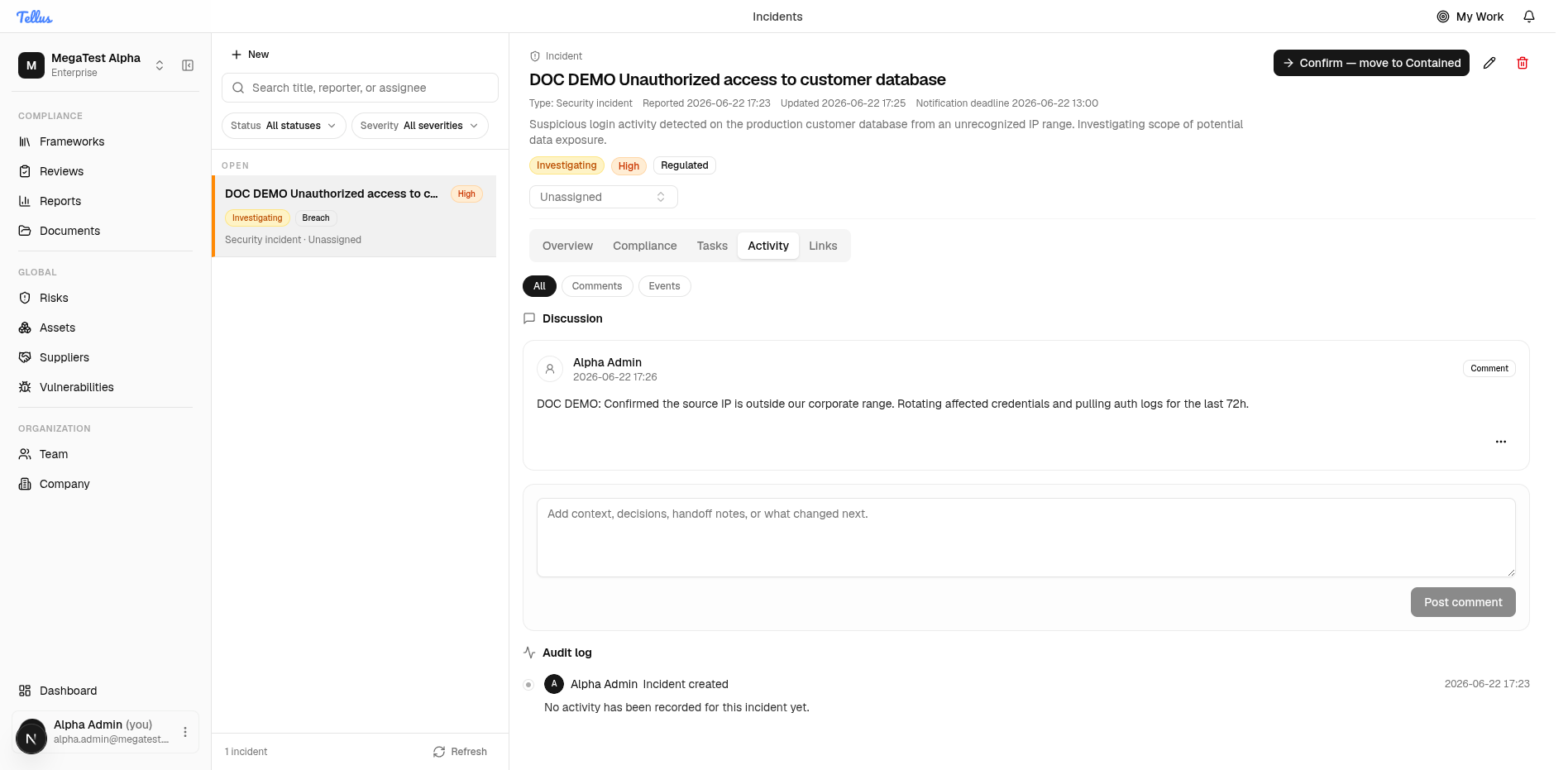
Posting a comment requires the incident:comment permission. Status transitions are surfaced on the Overview lifecycle rail rather than as separate audit-log rows.
Behind the scenes, every meaningful change appends a row to an append-only event log — created, updated, assigned, transitioned, commented, evidence added, task added, notification queued, deleted, restored. This is the system of record for the incident's history.
Remediation tasks
Tasks are follow-up work items attached to the incident. Open the Tasks tab; the empty state reads "No follow-up tasks have been created for this incident yet."
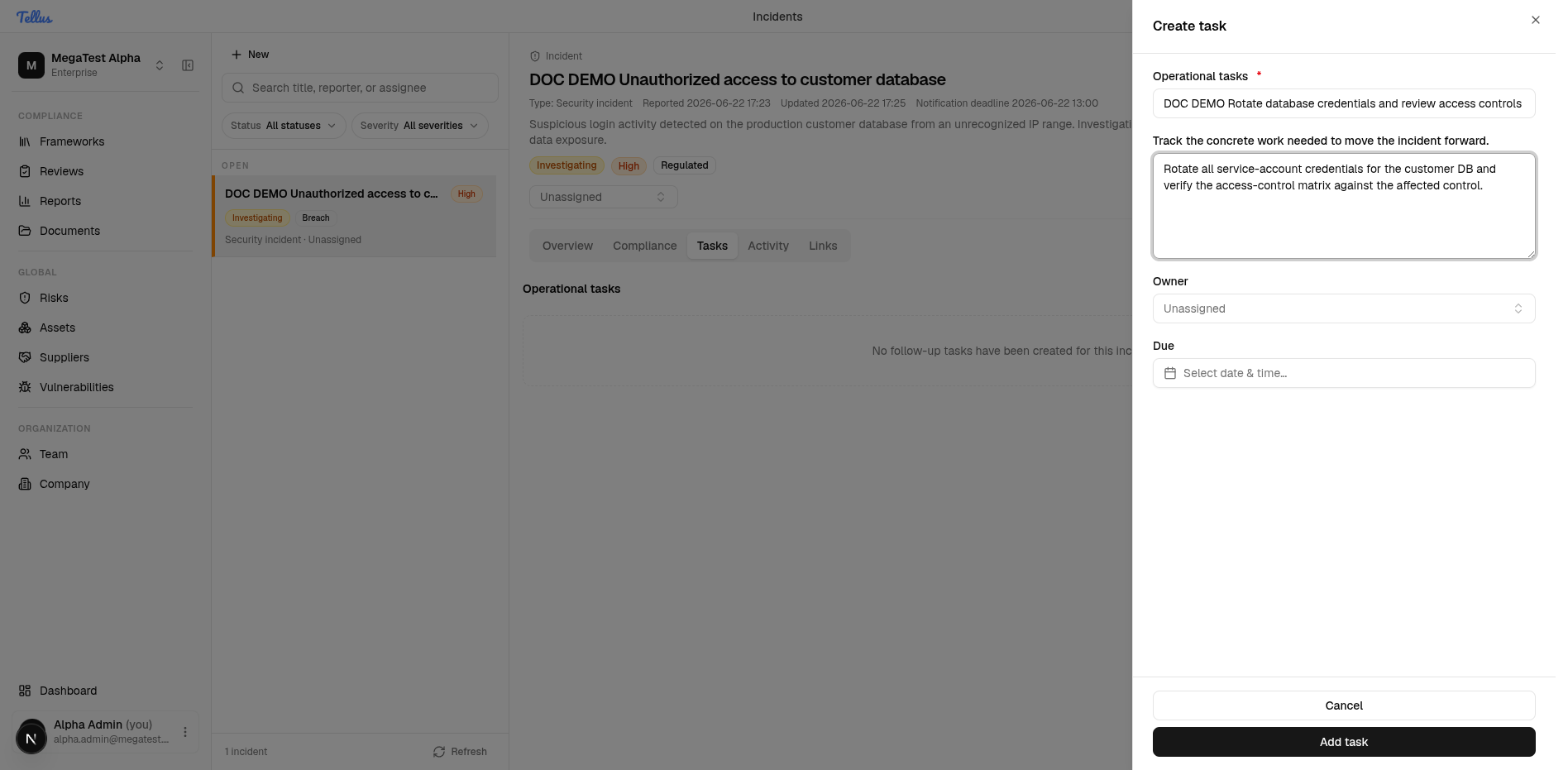
- Click New task.
- In the Create task dialog, enter a required title and an optional detail, pick an Owner, and set a Due date.
- Click Add task.
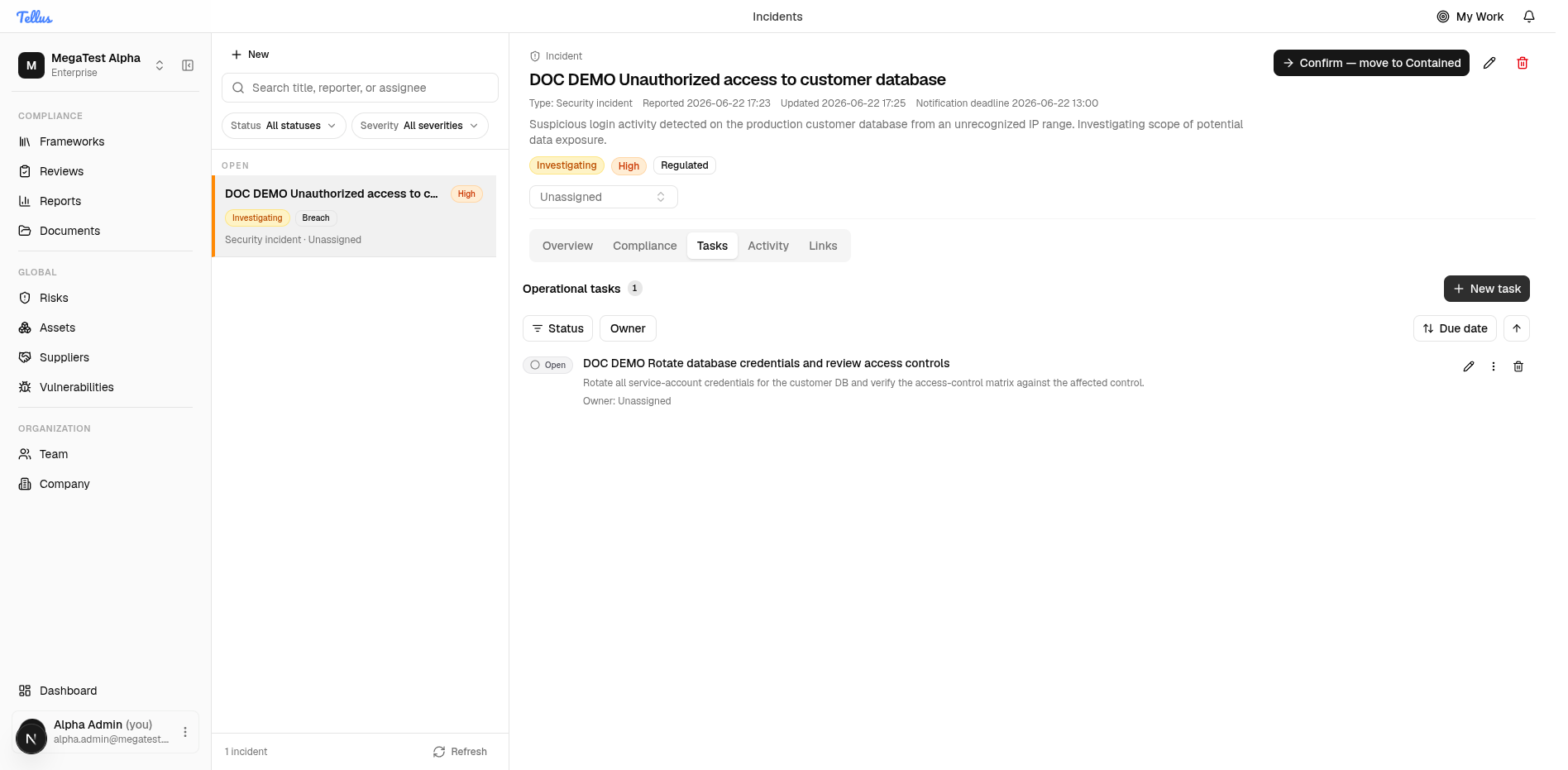
The task appears in the list with a status toggle (Open → In progress → Completed / Canceled), Owner and Due date columns, and per-row Edit, More actions (Cancel task), and Delete controls.
Linking a task to a control or risk
In this build the task create/edit dialog exposes title, status, owner, and due date only — there is no control/risk picker on the task itself. Control and risk associations are made at the incident level on the Links tab; use the task detail field to name the relevant control. See Linking incidents.
Managing tasks requires the incident:task permission.
Postmortem
Each incident can hold one postmortem capturing a summary, impact summary, root cause, and follow-up outcomes. It becomes editable once the incident reaches Resolved or Post-review, and remains visible read-only after Closed. Editing it requires the incident:update_postmortem permission.
Reporting an incident
Log an incident through the report form, then complete the triage profile that captures regulatory frameworks, awareness time, and per-regime required fields.
Regulatory notifications
How Tellus computes GDPR, NIS2, and DORA notification deadlines from awareness and detection times, and how to mark each regulator dispatch as sent.