Uploading & mapping evidence
Upload a document to the Tellus library, understand duplicate detection and versioning, and attach it to controls, requirements, and assets.
This page covers getting a file into the library and then attaching it where it counts: to a control, to a specific evidence requirement, or to an asset. For the library itself and who can read it, see The document library.
Upload a document
- Open Documents from the left sidebar.
- Click the Upload Documents button at the top right of the toolbar. The upload dialog opens with a drag-and-drop zone. Any document type is accepted — PDF, Word, Excel, images, or anything else.
- Drag a file onto the zone, or click it to browse. The dialog stages the file and shows its name and size; the footer button updates from Upload 0 files (disabled) to Upload 1 file (enabled). Stage more than one file to upload a batch.
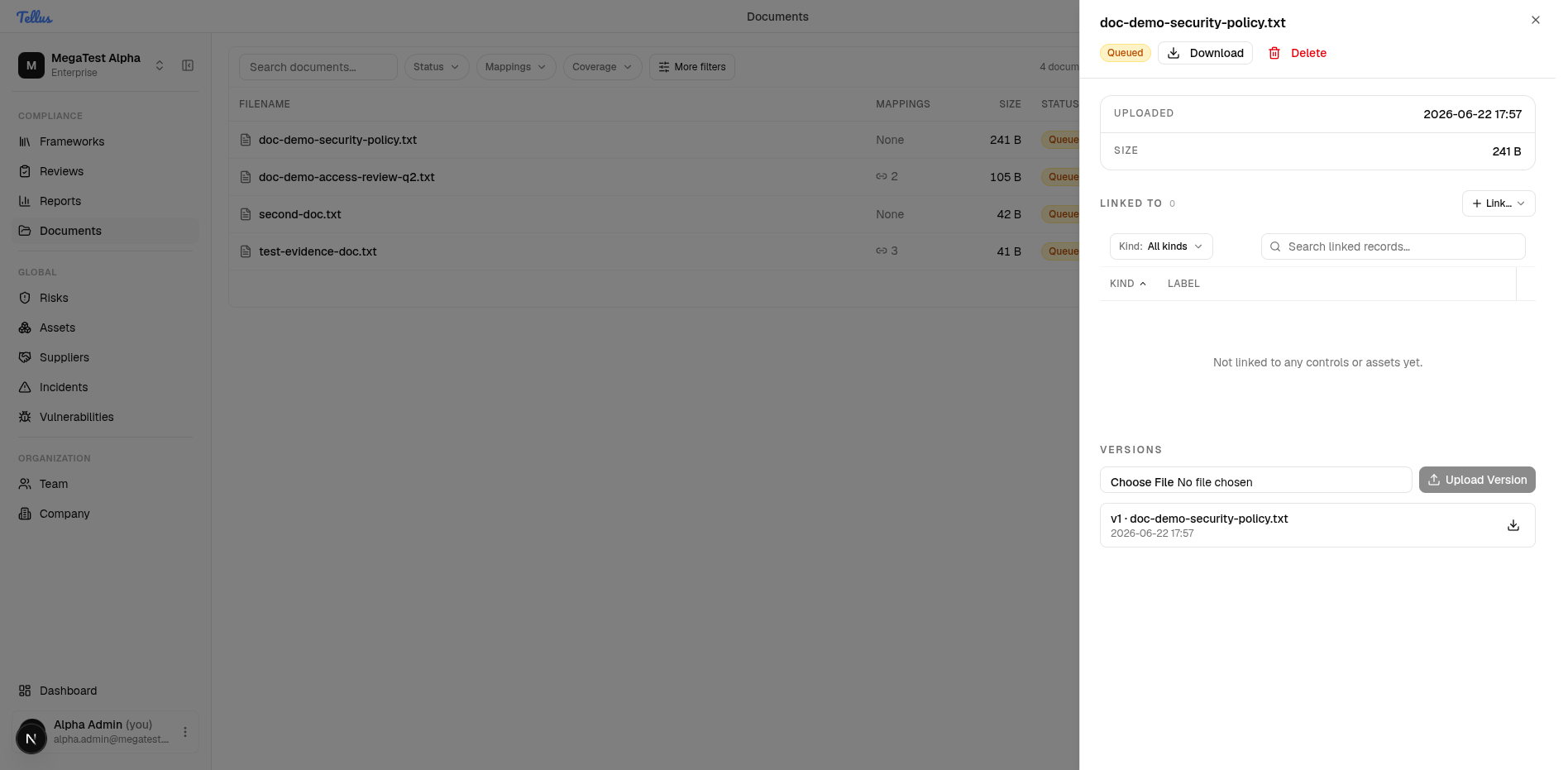
- Click Upload 1 file. The dialog closes and the document appears at the top of the table with Status
Queuedand MappingsNone. The Library overview totals update at once, and the new file is counted under Unmapped coverage.
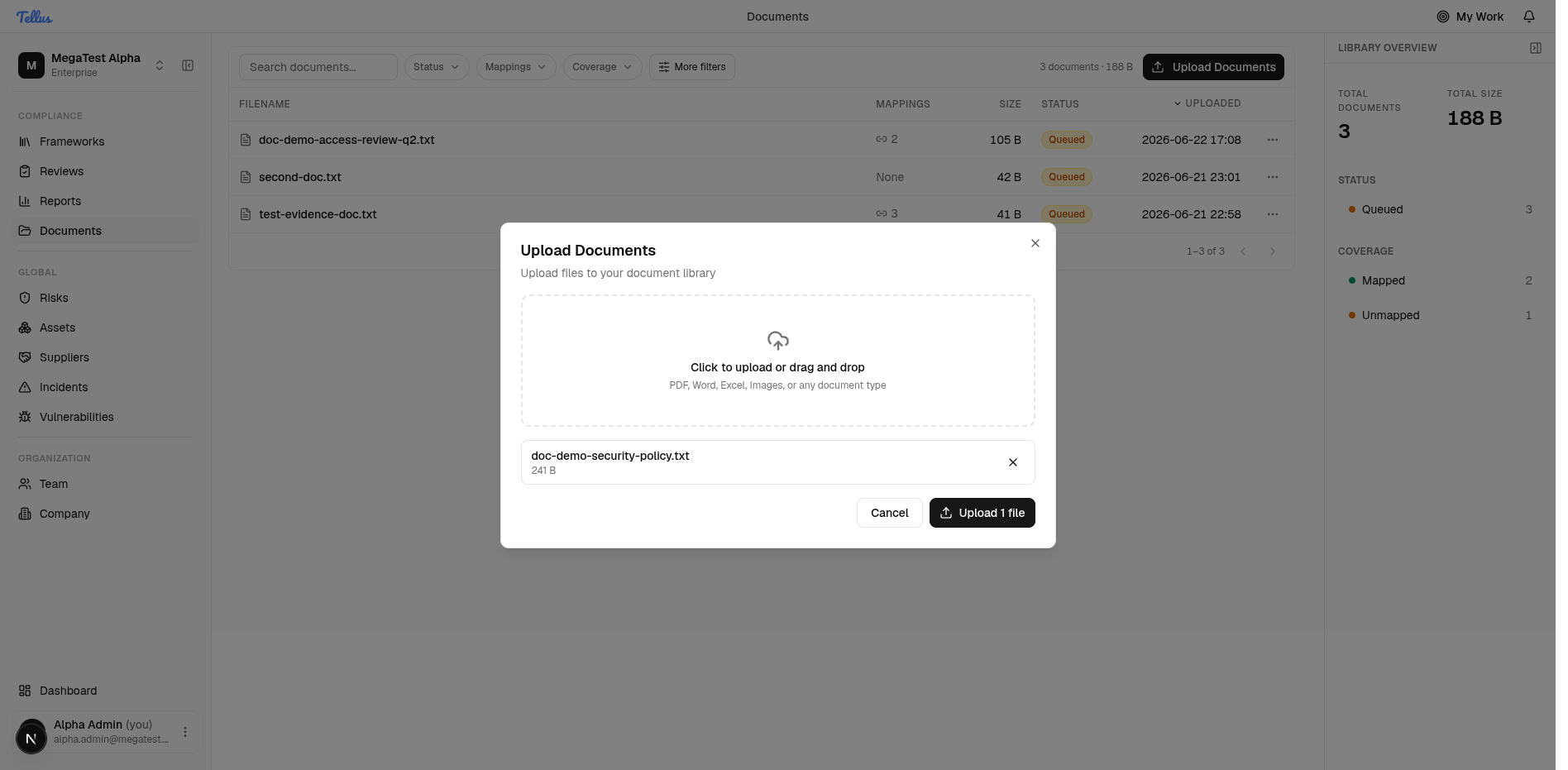
The footer button stays disabled and reads "Upload 0 files" until you stage a file — if it looks greyed out, add a file first.
What you'll see as a member
Member view: The screenshots here are from an admin. A read-only member still sees the same documents — reads are open to every member — but the Upload Documents button (along with Upload Version, restore, link/map, and delete actions) only appears for users with evidence-edit rights, such as admins and framework or control editors. If you can browse the library but the Upload button isn't there, you have read access without the matching write permission.
A newly uploaded file always lands in Queued and Unmapped. The summary and description fill in once background processing reaches Ready; see processing status for the lifecycle.
Duplicate detection
Before storing a file, Tellus checks for an existing document in your company with the same (sanitised) filename and the exact same byte size. If one is found, the upload reuses that existing document instead of storing a copy, and — if you uploaded from inside a control's workspace — makes sure the existing file is linked to that control.
Duplicate detection matches on filename plus size, not file contents. Two genuinely different files that happen to share a name and an identical byte count are treated as the same document; identical content saved under a different name is treated as new. If you re-upload an edited version under the same name and it happens to match the old size, use Upload Version on the existing document rather than relying on a fresh upload.
Versioning
Documents are versioned. Each file belongs to a version group, and the latest version is the one shown in the library. To replace a file while keeping its history, open the document and use Upload Version in the Versions section — this adds a new version rather than a new document. You can download any earlier version and restore a prior version if needed. You can only add a version on top of the latest one.
Locked documents
A document used in an accepted control assessment becomes locked as part of the audit trail. A locked document cannot be deleted (the attempt is refused), and uploading a new version of it marks the related assessment stale, signalling that the approved evidence has changed and the control needs re-review. This guarantees the exact file a reviewer approved cannot be silently removed or swapped.
Two ways a document attaches to a control
This is the most important distinction to understand, because the two relationships look similar but do different things and are stored independently:
| Direct control link | Requirement mapping | |
|---|---|---|
| What it does | Makes the document appear on the control as attached evidence. | Ties the document to a specific evidence requirement of the control — the relationship a reviewer evaluates. |
| Created from | The document's Link… menu, or automatically when you upload from inside a control's workspace. | The control's evidence-requirements area when you map a file to a named requirement. |
| Effect on completion | None on its own. | This is the relationship that participates in requirement completion at assessment review. |
A file can have one without the other. A document directly linked to a control is not automatically mapped to any of that control's requirements, and uploading from a control's workspace creates only the direct link (so the file shows up there) — it does not map a requirement or complete anything.
Link a document to a control or asset
-
In the library, click a document row to open its detail dialog. It shows the Uploaded date and Size, a Linked to count with a Link… button, the list of linked records, and a Versions section.
-
Click Link… and choose Controls or Assets.
-
For controls, the Link controls picker opens. It offers a Status filter, framework tabs (each with a count), a search box, and controls grouped by framework with their section reference (for example
A.8 · Access Control) and implementation status. Type to narrow the list — the tab counts update to match.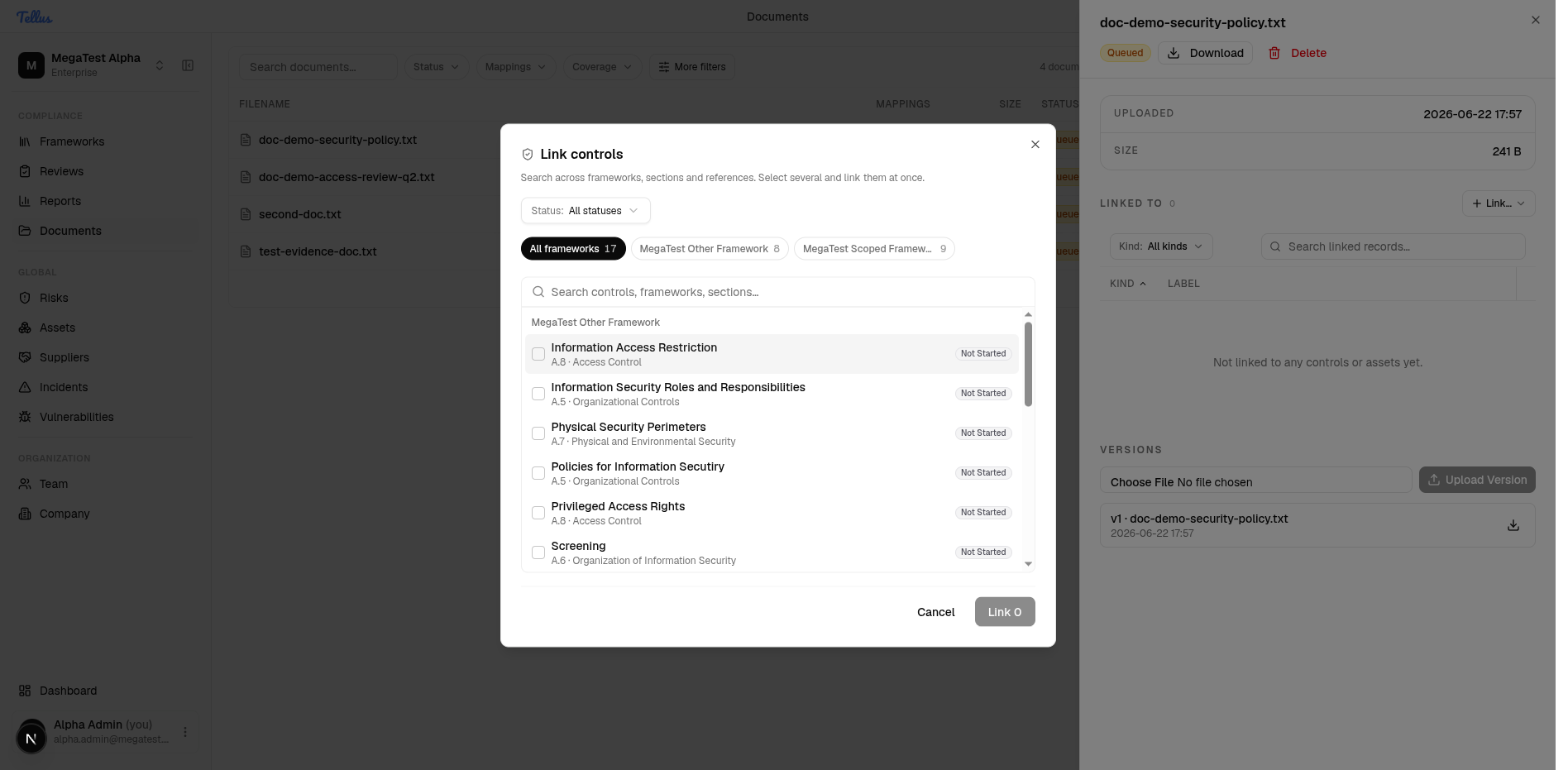
-
Select one or more controls. A selection summary appears (
1 selected, with a Clear action and a removable chip) and the footer button reads Link 1 (or the count you selected). The picker is multi-select and spans frameworks in a single pass. -
Click Link 1. The picker closes; the detail now shows Linked to: 1 with a row such as
Control — Information Access Restrictionand an Unlink action. In the library the document's Mappings cell changes fromNoneto1, and the overview's Coverage moves one document from Unmapped to Mapped.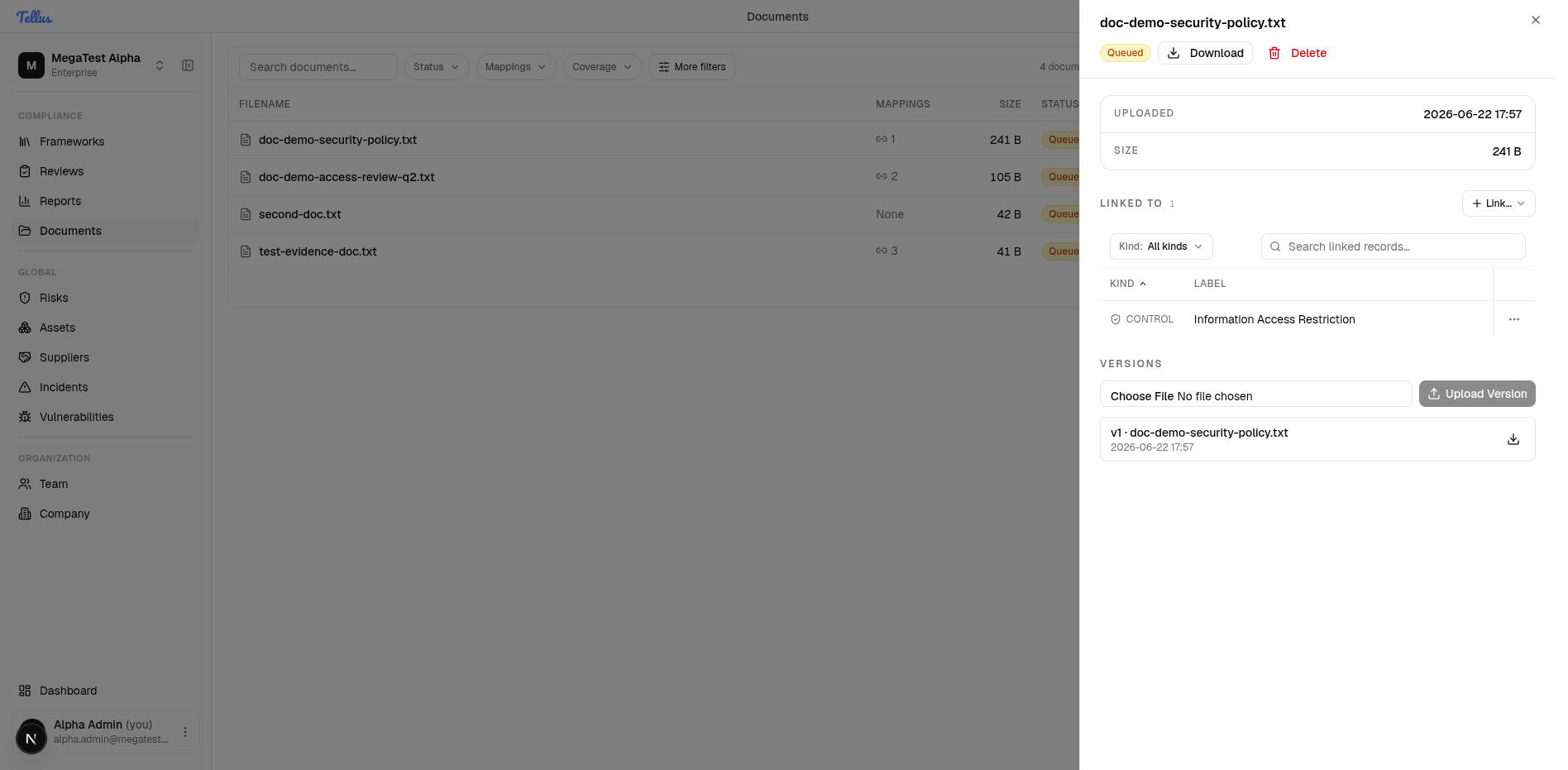
Linking and unlinking update the Mappings column and the Coverage totals immediately. To reverse a link, use the inline Unlink action on the record.
Where two frameworks carry similarly named controls, the picker shows the parent framework next to each option so you can tell them apart. Linking assets works the same way; reading a document's linked assets additionally needs asset read access.
Mapping to an evidence requirement
A direct control link makes a document visible on a control. To satisfy a specific evidence requirement, map the document to that requirement from the control's evidence-requirements area. Each control carries its own list of company evidence requirements — one entry per expected piece of evidence, copied from the framework template or added as a custom requirement, each with an evidence type and a required/optional flag.
Mapping a document to a requirement records the link between that file and that requirement. The operation is idempotent — mapping the same file to the same requirement again does nothing — and requires the evidence map permission.
Mapping a document does not mark the requirement complete. Attaching evidence never flips a requirement to a satisfied state. A requirement is marked complete only when a reviewer accepts the control's assessment and explicitly records each mapped requirement as met. Completion is a reviewer decision, not an automatic result of having a file attached. See Frameworks & controls for the assessment and review flow.
A requirement that still has documents mapped to it cannot be deleted — you must unmap its documents first. And once an assessment that used a document is accepted, that document is locked (see above), preserving exactly what the reviewer approved.
Related
- The document library — the register, processing status, and who can read documents.
- Frameworks & controls — evidence requirements, assessments, and where completion is decided.
- Assets — linking documents to assets.
The document library
Tellus's company-wide library of uploaded files — what the library holds, why documents and evidence are the same thing, and who can read them.
The asset register
Your company-scoped inventory of the things worth protecting — applications, services, systems, data sets — each with a type, criticality, and classification.