Linking assets
Connect risks, controls, and evidence on the Links tab, and attach a single supplier from the Overview tab.
An asset gathers two kinds of connections: a many-to-many set of linked records on the Links tab, and a single supplier association managed on the Overview tab. This page covers both. All linking and unlinking requires the asset:update permission; reading links only needs asset:read.
The Links tab
Select an asset and open its Links tab. It shows a Linked records count, a Kind filter, a Search box, and a table. When nothing is linked yet, the table reads No links yet.
The Links tab covers five kinds of record in one filterable table:
| Kind | Editable from the asset? | Managed from |
|---|---|---|
| Risks | Yes | This tab |
| Controls | Yes | This tab |
| Evidence | Yes | This tab |
| Incidents | No (read-only) | The incident page |
| Vulnerabilities (CVD) | No (read-only) | The CVD page |
You can create and remove Risk, Control, and Evidence links here. Incidents and Vulnerabilities appear for context — they are linked to the asset from the incident and CVD pages, not from here, so they have no link/unlink controls on this tab.
The document/file kind that attaches to an asset is labeled Evidence, not "Documents". The Link… menu still labels its third item Documents, but the resulting linked rows and the table filter call it Evidence.
Link a risk, control, or evidence
- Open the asset's Links tab.
- Click Link… (top right). A small menu opens with Risks, Controls, and Documents.
- Choose a kind. A picker dialog opens.
- Select one or more records, then click the confirm button — its label reflects the count (for example Link 1). The dialog closes and the new rows appear in the table.
For risks and controls, the picker is the full, register-style filterable list — not a plain search box. The Link risks dialog mirrors the main risk register, with Search plus Status, Level, Frameworks, Owner, and Filters controls and a Sort dropdown; each row shows the risk's name, framework, score, level, and status. This lets you narrow the register before multi-selecting. Controls open the equivalent control picker. Evidence uses the generic link picker.
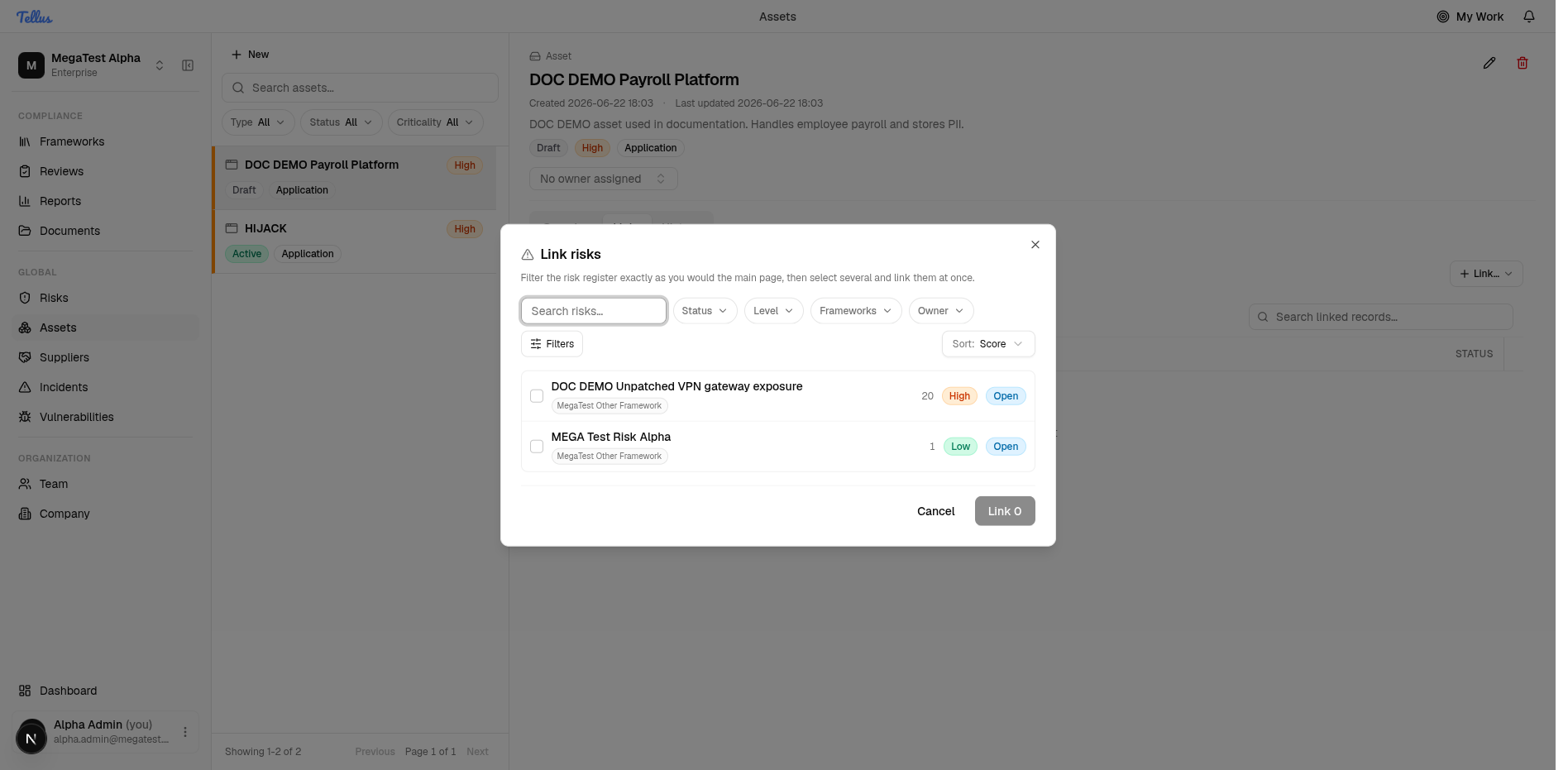
The confirm button stays disabled until at least one record is selected. A selection footer shows the chosen items as chips with a Clear action.
Once linked, each row shows the Kind, the record's label, its Status, and an inline Unlink action.
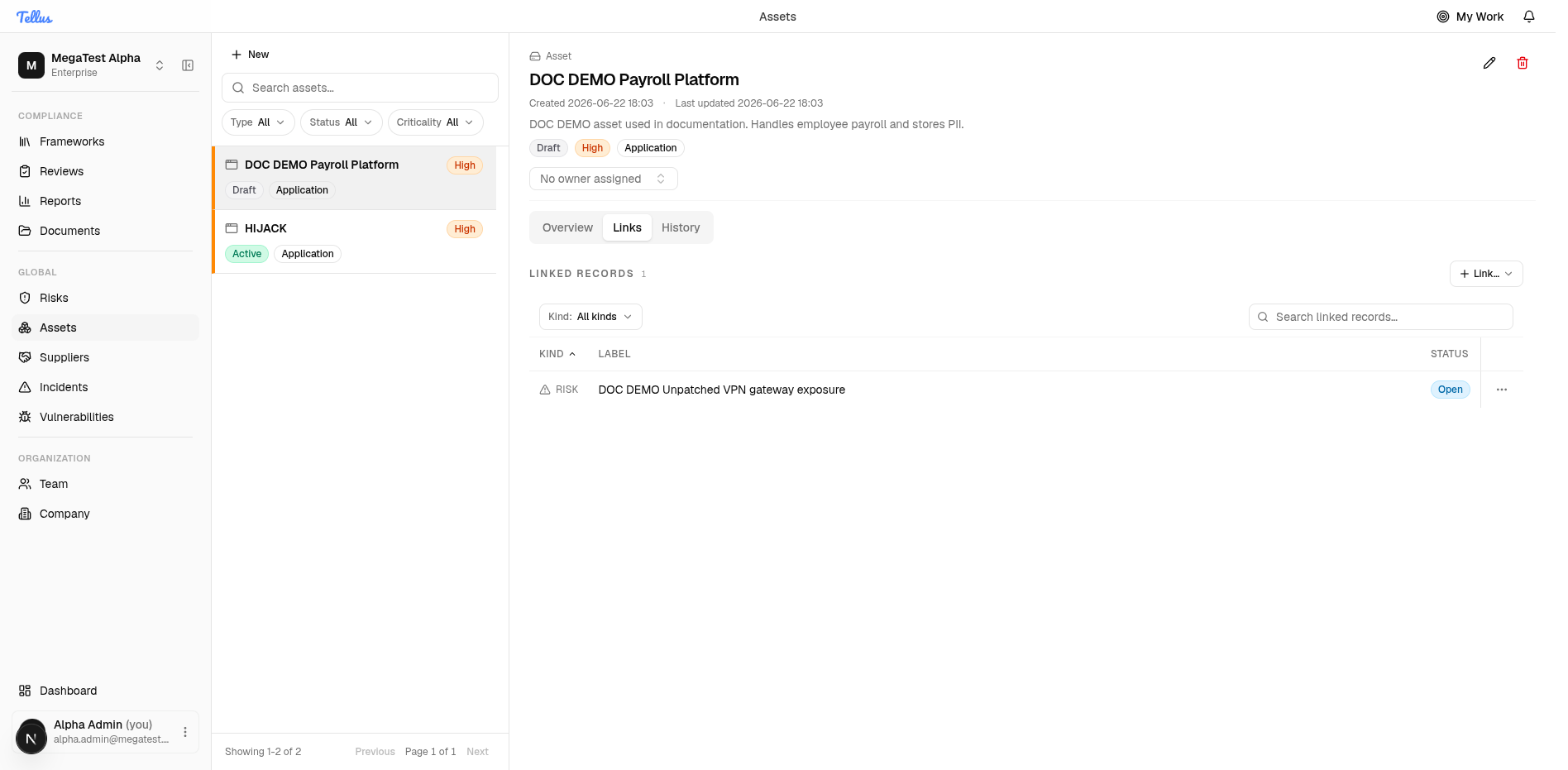
Unlinking a risk, control, or evidence record is optimistic and shows an Undo toast — the row disappears immediately and you can restore it from the toast if you unlinked by mistake.
Supplier
A single supplier can be attached to an asset. This is a one-to-one field stored on the asset itself, separate from the Links tab — you will not find suppliers in the Links table.
Manage it from the Overview tab's Supplier card:
- Open the asset's Overview tab.
- In the Supplier card, click Link to attach a supplier, or Change / Remove if one is already set. A supplier-search dialog opens.
- Pick a supplier and confirm.
You can also set the supplier inline from the asset edit form (see Adding & classifying assets). The supplier must belong to your company.
Suppliers are linked from the Overview tab, not the Links tab. The Links tab is only for risks, controls, and evidence (editable) plus incidents and vulnerabilities (read-only).
History
The asset detail surface includes a History tab intended to show recent activity on the asset. This tab is not yet available to end users — its data feed is currently not working — so treat it as a placeholder for now.
Related
- Risks — manage the risks you link here.
- Suppliers — vendors, including the assets attached to each supplier.
- Adding & classifying assets — create the asset before you link it.