Adding & classifying assets
Create an asset, choose its type and criticality, assign an owner, and set the three classification flags.
Creating an asset adds a record to your company's shared catalog. You set its name, type, status, and criticality, optionally an owner, supplier, and external reference, and the three classification flags. This page covers the create flow and what each field does. For connecting an asset to other records afterwards, see Linking assets.
Creating requires the asset:create permission.
Create an asset
- Open Assets from the left sidebar under Global.
- Click New at the top of the register. The Create asset drawer opens on the right.
- Enter a Name (required, up to 200 characters).
- Pick an Asset type (required) from the tile grid — Application, Service, System, Data set, Process, Integration, Device, Infrastructure, Vendor service, or any custom type your company has added.
- Set the Criticality using the Low / Medium / High / Critical segmented control. It defaults to Medium.
- Optionally add a Description and assign an Owner.
- Set the classification by toggling Contains personal data, Internet exposed, and Business critical. Each has a More info tooltip explaining what it means.
- Optionally add an External reference (up to 100 characters — for example a CMDB ID) and link a Supplier.
- Click Create asset. The drawer closes, the new asset appears in the register, and it is auto-selected.
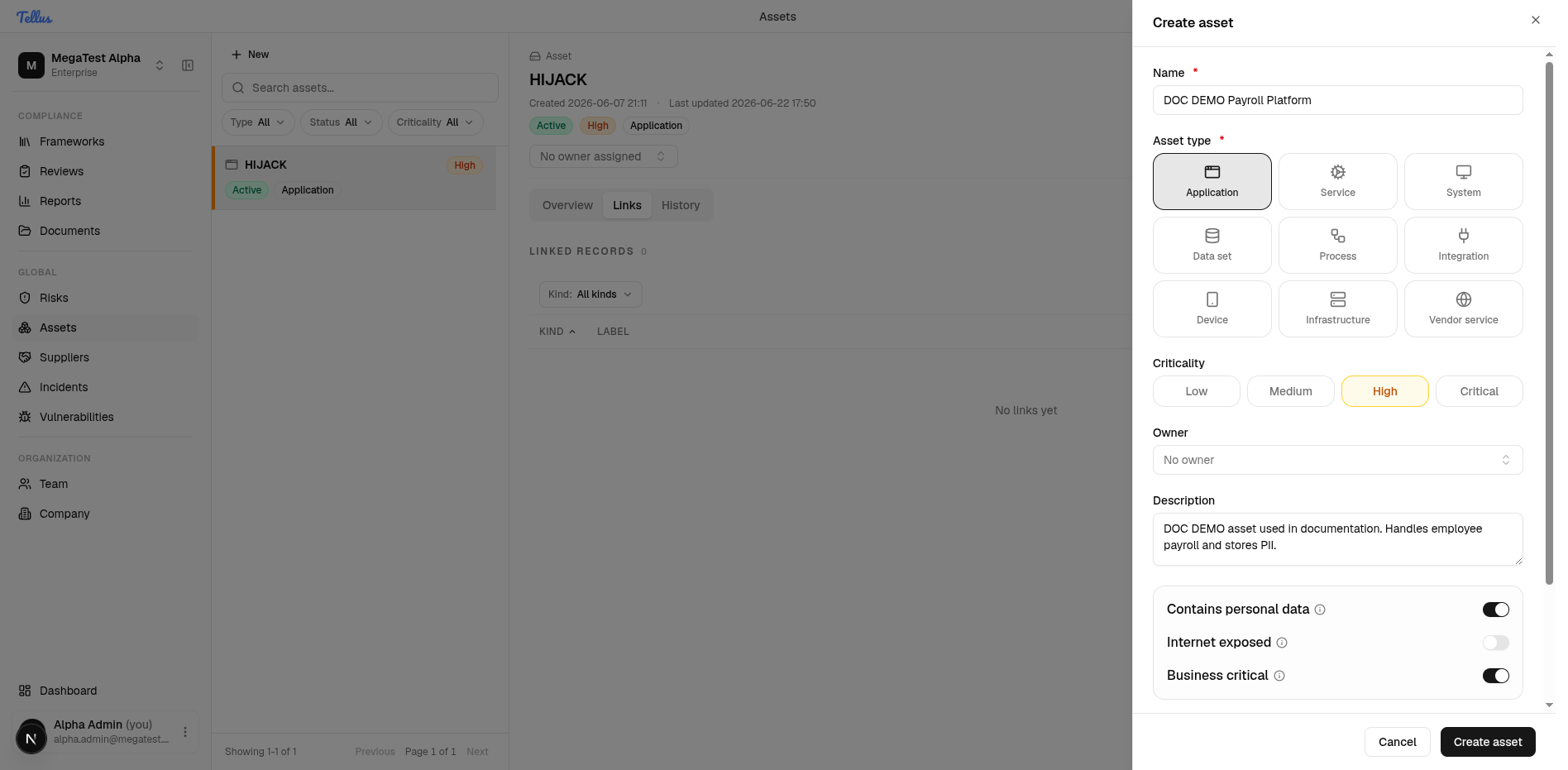
The Create asset button stays disabled until Name and type are set
Only Name and Asset type are required. The Create asset button is disabled until both are provided — if it looks greyed out, fill those two fields first. Criticality already has a default (Medium), so it is never blocking.
What happens on create
New assets are created in Draft status. After creation the app deep-links to the new asset's Links tab (the URL carries both the asset id and the active tab). Switch to the Overview tab to see the asset's facts and its classification.
How the fields work
- Name — required, max 200 characters.
- Asset type / Status / Criticality — stored as lowercase codes (
application,active,high); the capitalized labels you see are localized display text. All three are validated against your company's catalog on save. Type is extensible; status and criticality are fixed. See the asset register for the full value lists. - Owner — optional, and must be a member of the current company. An owner who isn't a member is rejected (
InvalidOwner). - Supplier — optional. The supplier must exist and belong to your company; one from another company is rejected (
InvalidSupplier). The supplier is a single association on the asset — see Linking assets. - External reference — optional free text, max 100 characters.
Set or change classification
Classification is three independent toggles. You set them in the Create drawer and can change them later from the asset's Overview tab, where they read as On / Off.
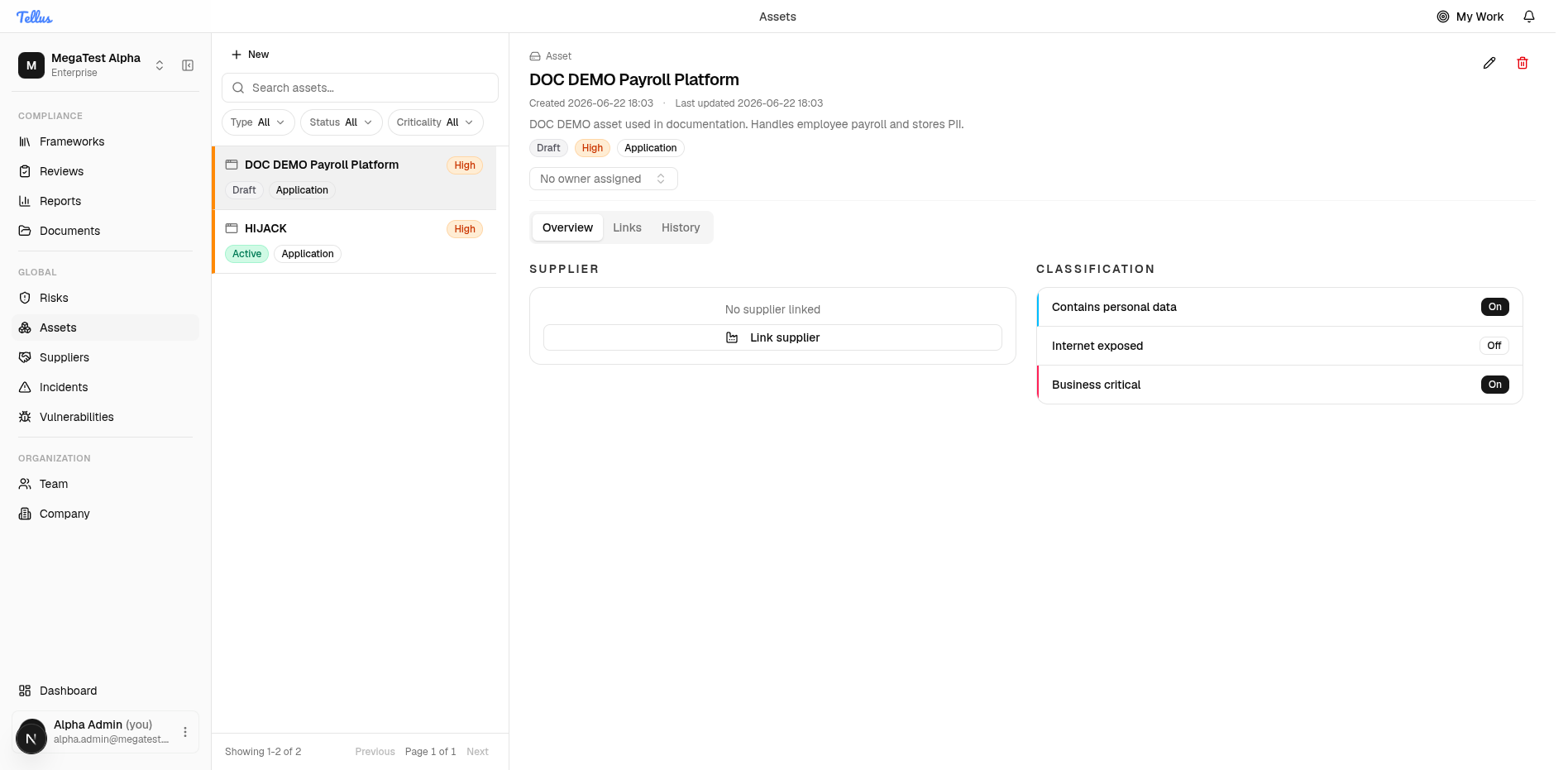
| Flag | Turn on when… |
|---|---|
| Contains personal data | The asset processes or stores personal data. |
| Internet exposed | The asset is reachable from the internet or via public endpoints. |
| Business critical | The asset materially impacts operations if unavailable. |
Edit, retire, and delete
From the selected asset's header, the pencil (Edit) button reopens the form to change any field, and the trash (Delete) button removes the asset.
Note that retiring is not deleting. Setting an asset's status to Retired or Archived, or recording a retired-at date, marks the asset's lifecycle but keeps the record (and its history and links) in the register. Delete removes the asset entirely and records a deletion audit event.
The Asset type catalog is extensible: if none of the nine defaults fits, your company can add a custom type, which then appears in the type tile grid for everyone in the company.