Triaging a report
Log a vulnerability, move it through the five workflow statuses, message the reporter, and publish a disclosure advisory.
This page covers the lifecycle of a single report: logging one, advancing it through its workflow, talking to the reporter, and disclosing it. For how reports arrive and what the register shows, see Coordinated vulnerability disclosure. For connecting a report to your GRC records, see Linking & remediation.
Log an internally discovered vulnerability
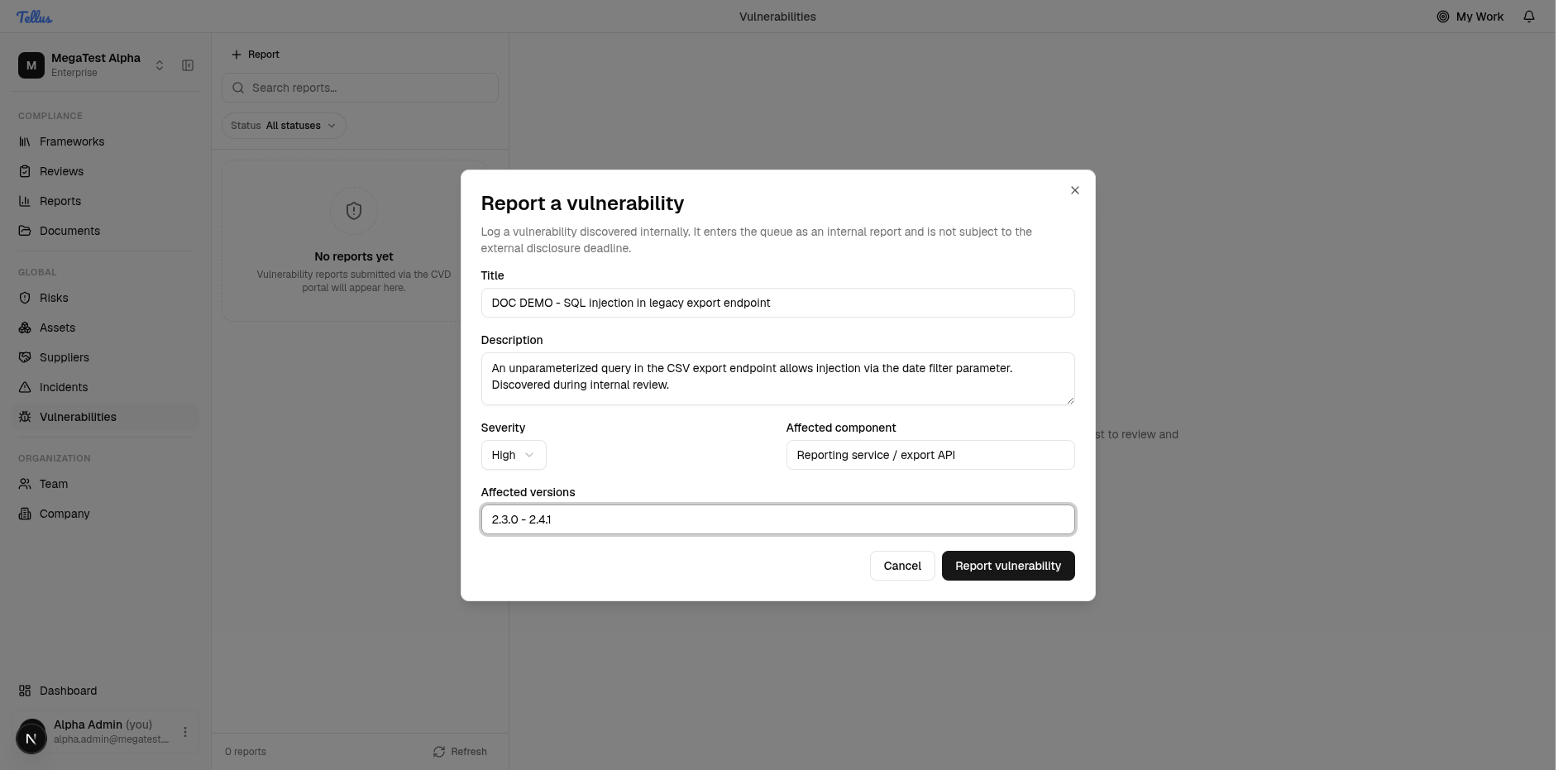
Use this when your own team finds a weakness rather than receiving it through the portal. An internal report enters the queue exactly like an external one but is not subject to the disclosure deadline.
- In the register, click + Report to open the Report a vulnerability dialog. It notes that the report is logged internally and is not subject to the external disclosure deadline.
- Enter a clear Title that names the issue.
- Write a Description of the weakness.
- Set the Severity. It defaults to Medium; the choices are Critical, High, Medium, and Low.
- Fill in the Affected component and Affected versions if you know them.
- Click Report vulnerability to save, or Cancel to close without saving.
The dialog closes, the new report appears at the top of the list badged with its severity, Received, and Internal, and its detail pane opens automatically.
Severity is a fixed categorical label — Critical / High / Medium / Low — not a CVSS score. There is no numeric scoring field anywhere in the report.
The status lifecycle
Every report moves strictly forward through five statuses:
| Status | Meaning | How it's reached |
|---|---|---|
| Received | The report has arrived and is awaiting triage. | Set automatically on creation (external or internal). |
| Triaged | You've assessed it and confirmed it's real and in scope. | "Mark as Triaged" on the Workflow tab. |
| Fix in progress | Remediation work has started. | "Mark as Fix in progress". |
| Fix shipped | The fix has been released. | "Mark as Fix shipped" — requires a fix version. |
| Disclosed | The vulnerability is public. | Publishing an advisory, or automatic disclosure at the deadline. |
The path is one step at a time, forward only: you cannot skip a stage (Received straight to Fix shipped) and you cannot go back (Fix shipped to Triaged). Each transition stamps a timestamp for that stage on the report.
You cannot move a report to Disclosed with the workflow button — the transition deliberately stops at Fix shipped. Disclosure happens only by publishing an advisory or by the automatic deadline worker. See Disclosure below.
Work a report through the Workflow tab
With a report open, click the Workflow tab. It shows a status timeline (Received → Triaged → Fix in progress → Fix shipped → Disclosed), a Next step panel, and an Internal note field for private, team-only notes.
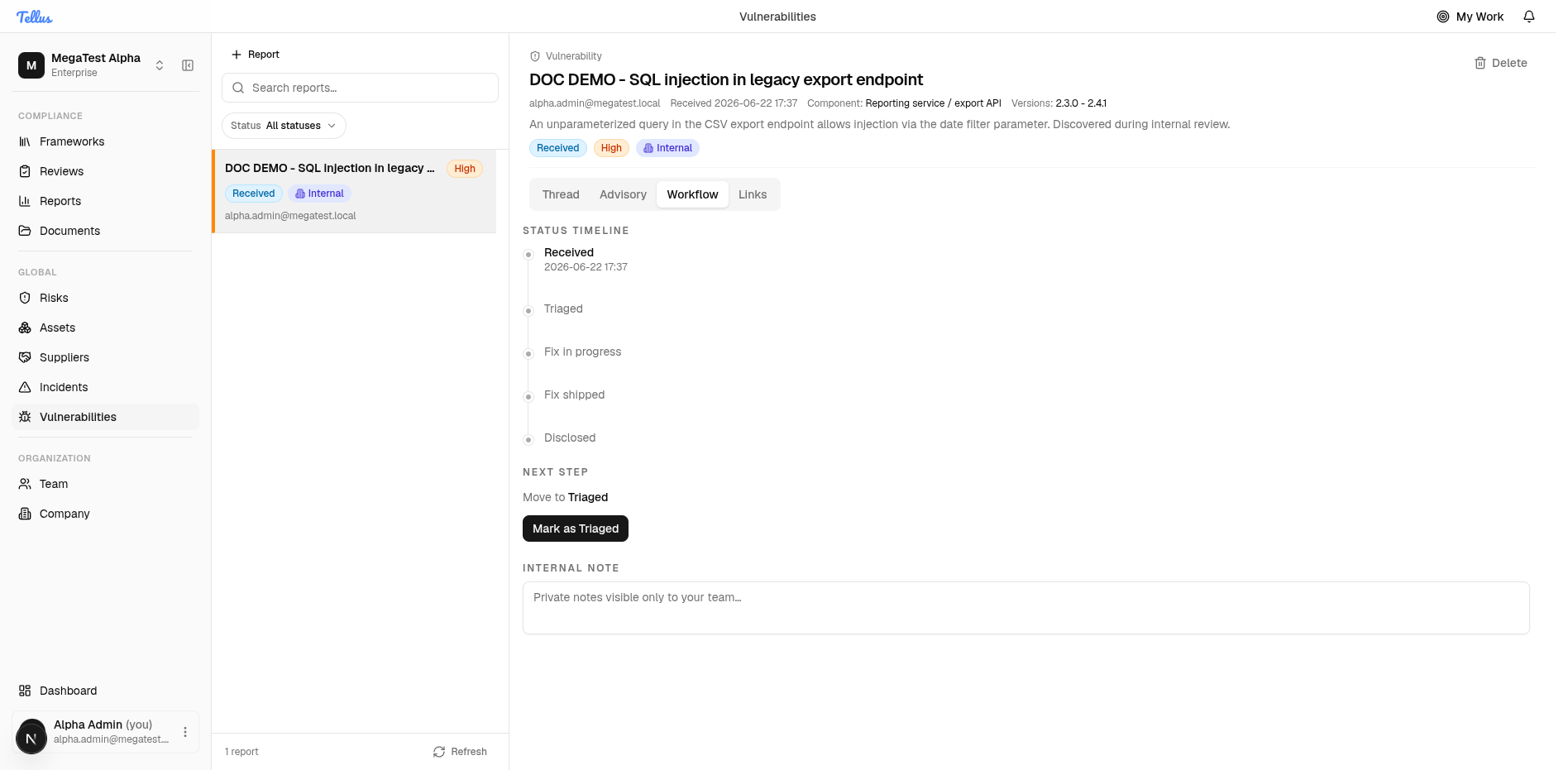
- Only the current and completed stages are timestamped; the rest are pending. The Next step panel names the single move available — e.g. "Move to Triaged" with a Mark as Triaged button.
- Optionally type into the Internal note field ("Private notes visible only to your team…") to record your reasoning, then click Save note to persist it.
- Click the Mark as <next> button to advance. The timeline immediately stamps the new stage, the status badges update live in both the list row and the detail header, and the Next step panel advances to the following stage.
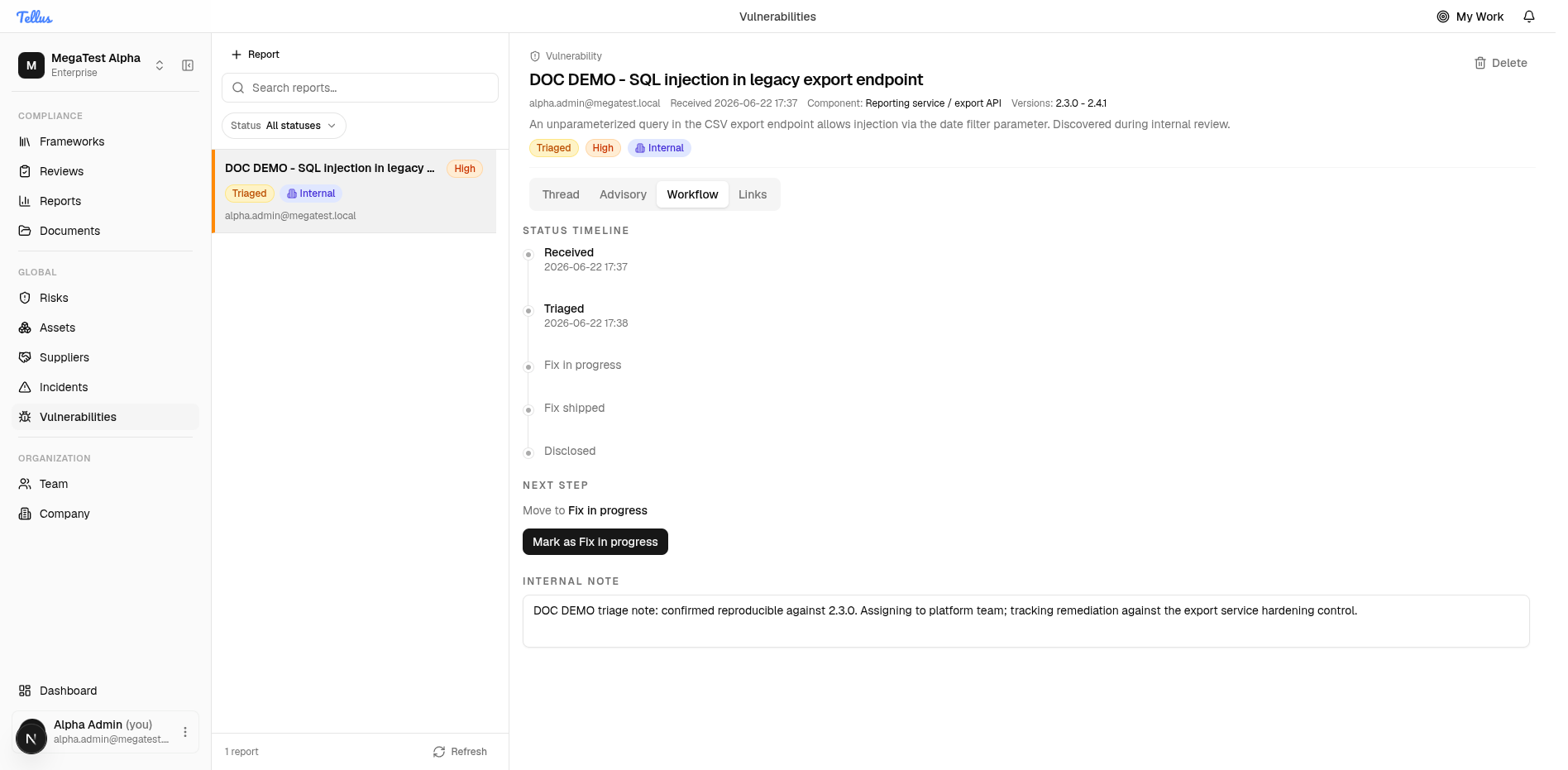
When you reach the Mark as Fix shipped step you must supply a fix version — the release that contains the fix — before the transition is accepted. That version is what an advisory references when you disclose.
Message the reporter
Each report carries a two-way thread on the Thread tab. The reporter's original submission is the first inbound message; your replies are outbound. Researchers read and post their side through the public portal; you post yours from this tab.
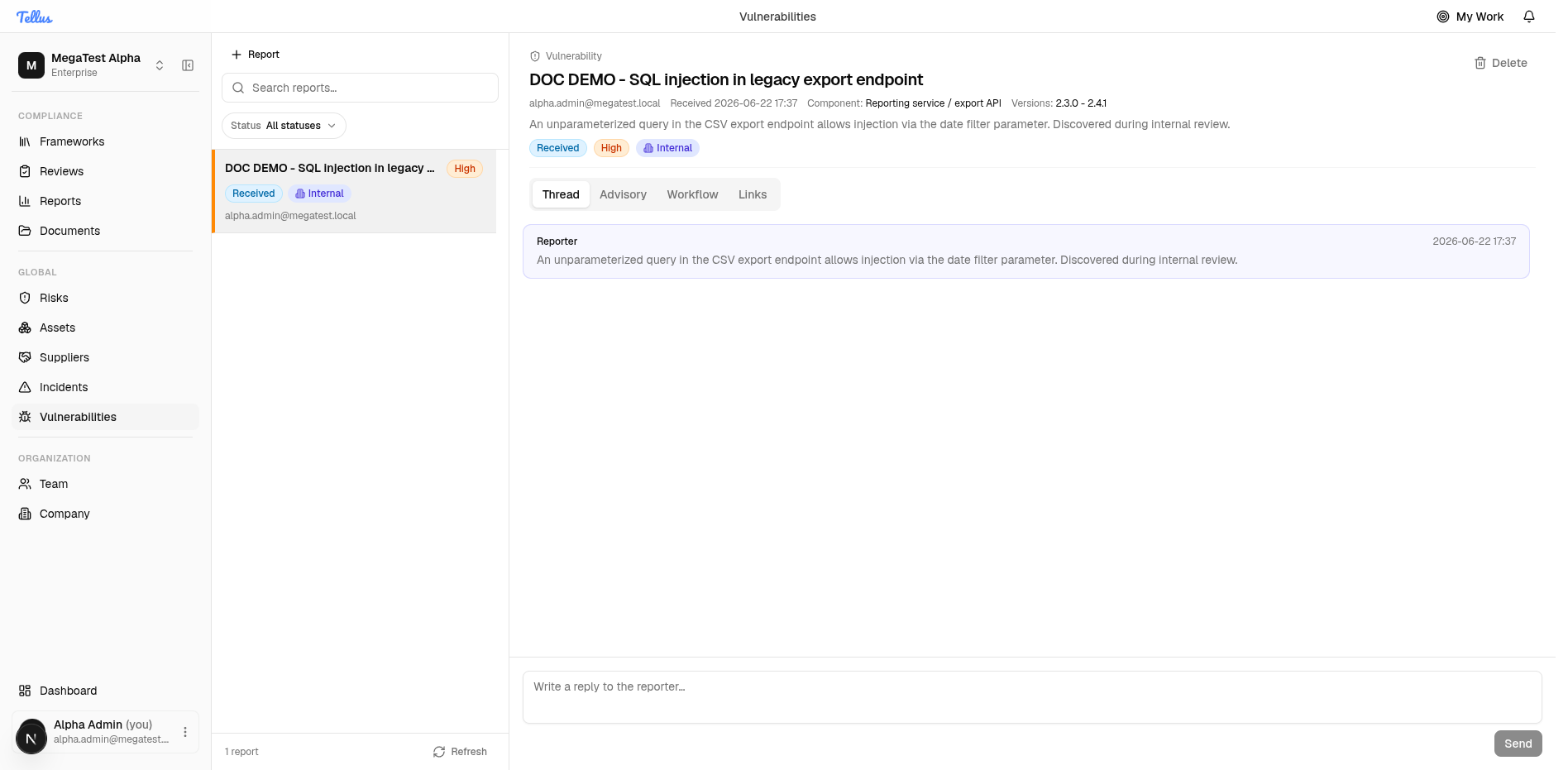
Use the thread to acknowledge receipt, ask for reproduction details, and coordinate timing. Posting a message requires the comment permission; everyone who can view the report can read the thread.
Disclosure: advisories and the 90-day clock
Disclosure is the final stage, and it is reached in one of two ways.
Publishing an advisory (the manual path)
A report can have at most one advisory — the public write-up. To prepare and publish one:
- Open the Advisory tab and fill in the advisory: Title, Summary, Details, and optionally Mitigation, Credits, and a CVE ID. Save it as a draft.
- Advance the report to Fix shipped (advisories can only be published from this status, and only when a draft exists).
- Publish the advisory. The report transitions to Disclosed.
A published advisory is immutable — it cannot be edited or re-published. Make sure the draft is final before you publish. You also cannot publish from any status earlier than Fix shipped.
The disclosure deadline (the automatic path)
When an external report is created, its disclosure deadline is set to the time received plus 90 days. A background process watches the clock:
- It emails a warning to your Company Admin and Incident Manager users when the deadline is within roughly 24 hours and no advisory exists yet, and a final warning within roughly 4 hours.
- When the deadline passes and the report is still not disclosed, it auto-discloses the report (status → Disclosed). If a draft advisory exists, that advisory is published automatically at the same moment; otherwise the report is disclosed without one.
The 90-day clock applies only to external reports. Internally logged vulnerabilities are excluded from the warning emails and from auto-disclosure entirely — they will sit at their current status until you act on them.
Deleting a report
The Delete action in the detail header permanently removes a report. You must supply a reason, which is written to the audit trail before the record is deleted.
Deleting a vulnerability is a hard delete — unlike incidents, there is no soft-delete and no restore. Once removed, the report and its thread, advisory, and links are gone.
Coordinated vulnerability disclosure
How vulnerability reports reach Tellus through the CVD portal, what the Vulnerabilities register shows, and where to work each report.
Linking & remediation
Connect a vulnerability to the risks, controls, and assets it touches so it shows up in your wider GRC picture.